Chapter 9: Sessions 111
Chapter 9: Sessions
This chapter covers the basics of starting a
project in Pro Tools, including how to create
and save a Pro Tools session.
Quick Start Session Dialog
The first step in beginning a Pro Tools project is
creating a new session. Pro Tools provides a
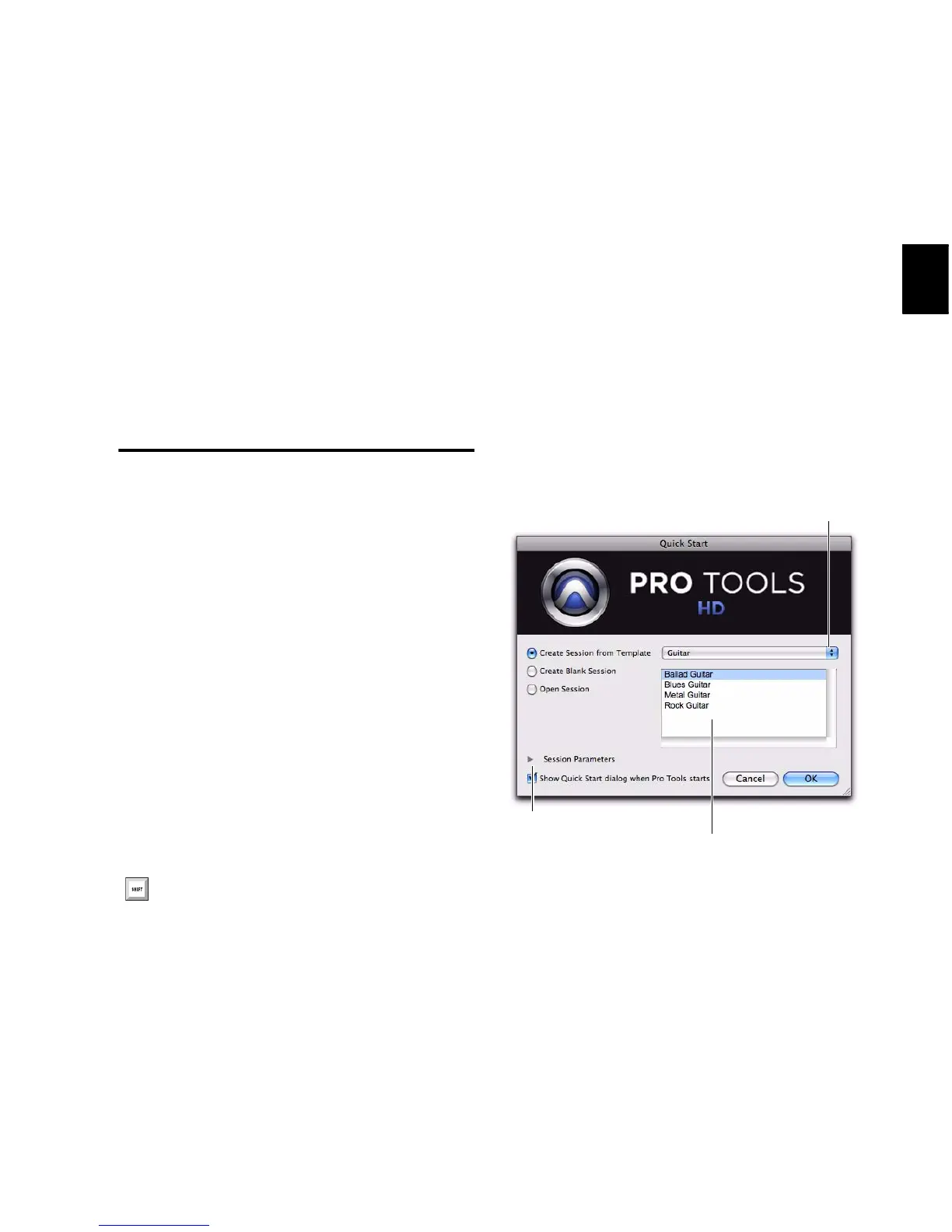
Quick Start dialog on launch that lets you
quickly and easily create a new session or open
an existing one. You can choose to show or hide
the Quick Start dialog on launch in the
Pro Tools Operation Preferences.
When you first launch Pro Tools, you are
prompted by the Quick Start dialog to do one of
the following:
• Create a new session from a template.
• Create a new blank session.
• Open any of the last ten most recent sessions.
• Open any other session on your system.
Creating a New Session from a
Template
To create a new session from a template:
1 Select Create Session from Template.
2 From the Session Template pop-up menu, se-
lect the category for the session templates you
want:
•Guitar
• Music Creation
• Record & Mix
Press Control+Up Arrow or Down Arrow
(Windows) or Command+Up Arrow or
Down Arrow (Mac) to select different Ses-
sion Quick Start options. Also, you can use
the Up and Down Arrows to select different
items in the Recent Sessions and Session
Templates lists.
Quick Start dialog


 To Next Page
 Loading...