Chapter 10: Pro Tools Main Windows 131
Edit Window Toolbar
At the top of the Edit window is the Edit Win-
dow Toolbar and menu. This Toolbar provides
access to the editing modes, tools, options, indi-
cators, and displays for Pro Tools. You can cus-
tomize the Toolbar in the Edit, MIDI Editor, or
Score Editor windows by re-arranging, showing,
and hiding the available controls and displays.
Edit Toolbar Controls and Displays
The following controls and displays in the Edit
Window Toolbar are always shown.
Edit Modes
The Edit mode affects the movement and place-
ment of audio and MIDI regions (and MIDI
notes), how commands like Copy and Paste
function, and also how the various Edit tools
(Trim, Selector, Grabber, and Pencil tools) work.
For more information, see “Edit Modes” on
page 445.
Edit Tools
Edit tools are used for editing audio, MIDI, and
automation data in Pro Tools. For more infor-
mation, see “Edit Tools” on page 448.
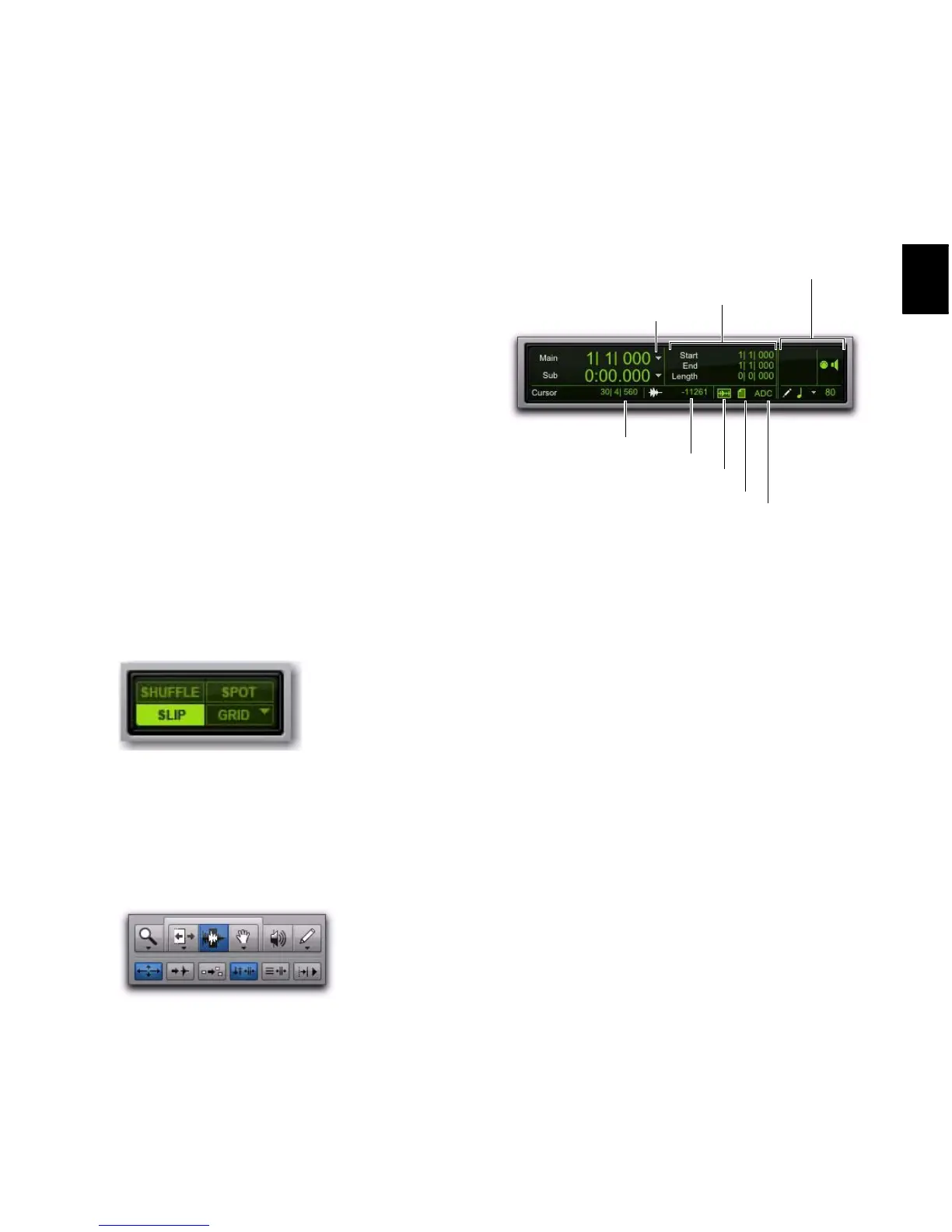
Counters and Edit Selection Indicators
The Counters and Edit selection indicators pro-
vide information where selections are in the
Timeline.
Main Counter Displays the current Edit insertion
location in the Main Timebase ruler.
Sub Counter Displays the current Edit insertion
location in the Sub Timebase ruler.
Cursor Location Displays the current cursor loca-
tion in the Main Timebase ruler.
Cursor Value Displays the value of the current
cursor value in peak amplitude (audio), pitch
(MIDI), or according to the current automation
or controller data type.
Edit Selection Indicators Display the Start, End,
and Length of the current Edit selection.
MIDI Selection Indicators and Controls Display
the current MIDI Edit selection (MIDI note
number, and Note On and Note Off velocities)
and provides controls MIDI editing.
Edit mode buttons
Zoom buttons and Edit tools
Edit window indicators


 To Next Page
 Loading...