Chapter 11: Tracks 177
To hide a track, do one of the following:
Click the Track Show/Hide icon in the Track
List.
– or –
In the Track List (or on the track channel
strip), Right-click the track name and select Hide
(or Hide and Make Inactive if the track is active
and you also want to make the track inactive).
To show a track that is currently hidden, do one of
the following:
Click the Track Show/Hide icon in the Track
List.
– or –
In the Track List (or on the track channel
strip), Right-click the track name and select
Show (or Show and Make Active if the track is ac-
tive and you also want to make it active).
To show all tracks:
Click the Track List menu and choose Show All
Tracks.
To hide all tracks:
Click the Track List menu and choose Hide All
Tracks.
To show a range of tracks:
1 Select a range of hidden tracks in the Track
List.
2 Click the Show/Hide icon of hidden track at
the top of the Track List.
3 Shift-click the Show/Hide icon of hidden track
at the bottom of the selection.
All tracks that occur between the first track se-
lected and the last track will also be selected.
To show or hide a range of tracks in the Track List
with the Marquee:
1 Move the cursor to the left of a track name un-
til the Marquee with a small “+” symbol appears.
2 Click on the track in the list and drag up or
down over the Show/Hide icons (to show or
hide the track and the tracks immediately above
or below it).
To show or hide non-contiguous tracks:
Click the Show/Hide icon for the tracks you
want to show or hide.
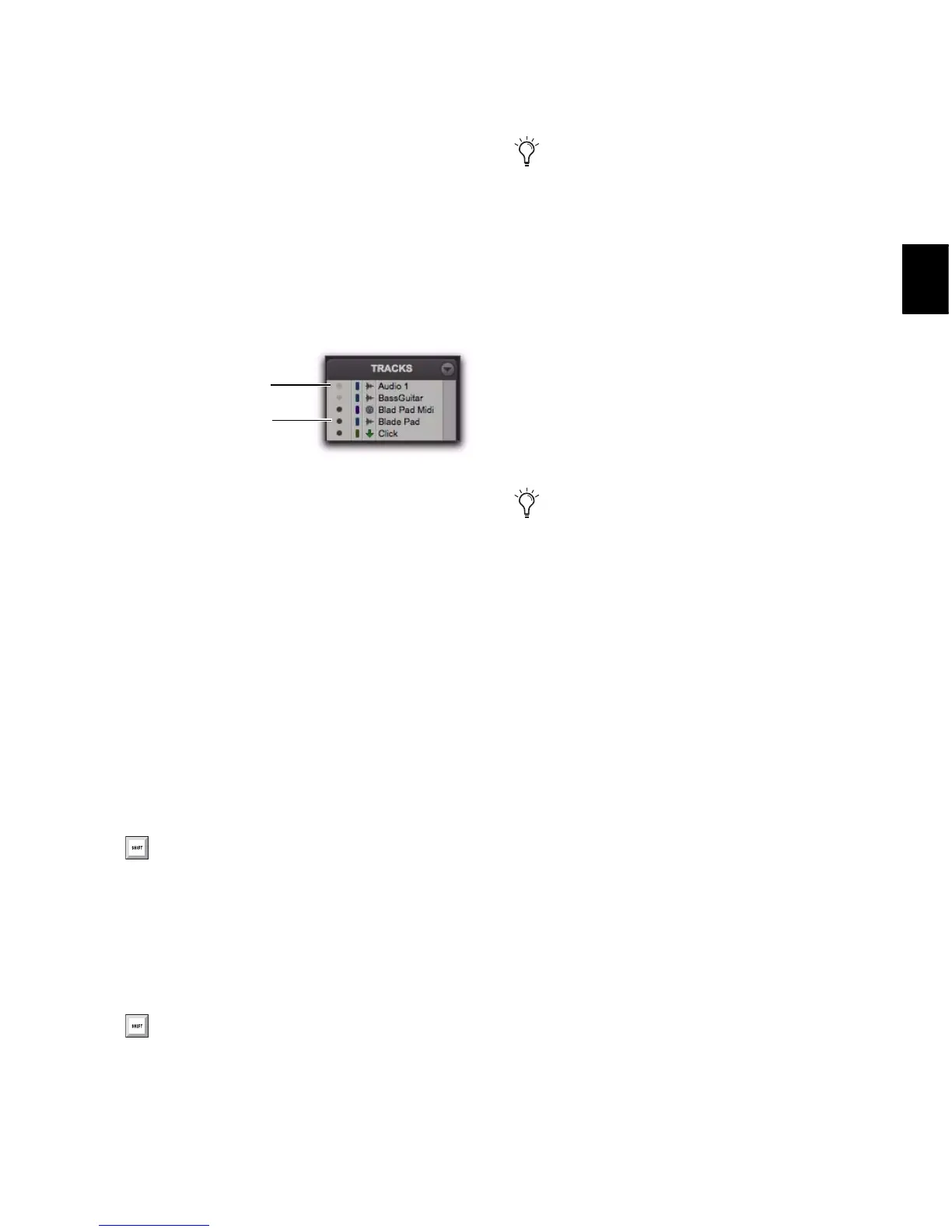
Show/Hide icons in the Track List
You can also show all tracks by Alt-clicking
(Windows) or Option-clicking (Mac) the
Show/Hide icon of any track that is hidden.
You can also hide all tracks by Alt-clicking
(Windows) or Option-clicking (Mac) the
Show/Hide icon of any track that is shown.
To reorder tracks on-screen, drag the track
names to new positions within the Track
List or in the Mix or Edit window.
You can also select a range of tracks by
moving the cursor to the left of the track
names, so the Marquee appears, and drag-
ging around the track names you want to se-
lect.


 To Next Page
 Loading...