Chapter 13: The Region List 213
Full Path Displays the full directory path of the
region’s parent file.
Channel Name Displays the channel name for
audio files imported from field recorders.
Scene and Take Displays the scene and take for
audio files imported from field recorders.
Pro Tools displays only the region name in the
Region List by default.
Sorting and Searching in the
Region List
Most sessions will contain many regions, which
can make it challenging to swiftly locate a par-
ticular region in the Region List. Pro Tools lets
you sort and search regions in the Region List to
quickly locate any region you want.
Sorting Regions
To sort regions in the Region List:
1 Click the Region List menu (at the top of the
Region List) and choose Sort By.
2 From the submenu, select a basis for sorting.
Different options are available for audio and
MIDI regions. See “Sort By Options” on
page 213.
3 To set whether regions are listed in ascending
or descending order, click the Region List menu,
choose Sort By, and select Ascending or Descend-
ing.
Sort By Options
The Sort By options let you sort regions to help
keep track of large numbers of regions.
Audio regions can be sorted by:
•Region Type
•Name
•Length
• Original Time Stamp
•User Time Stamp
•Timebase
• Start in Parent
•End in Parent
•File Name
•File Length
• File Creation Date
• File Modification Date
• Disk Name (audio and region groups only
•Track Format/Width
• By Channel Name
• By Scene and Take
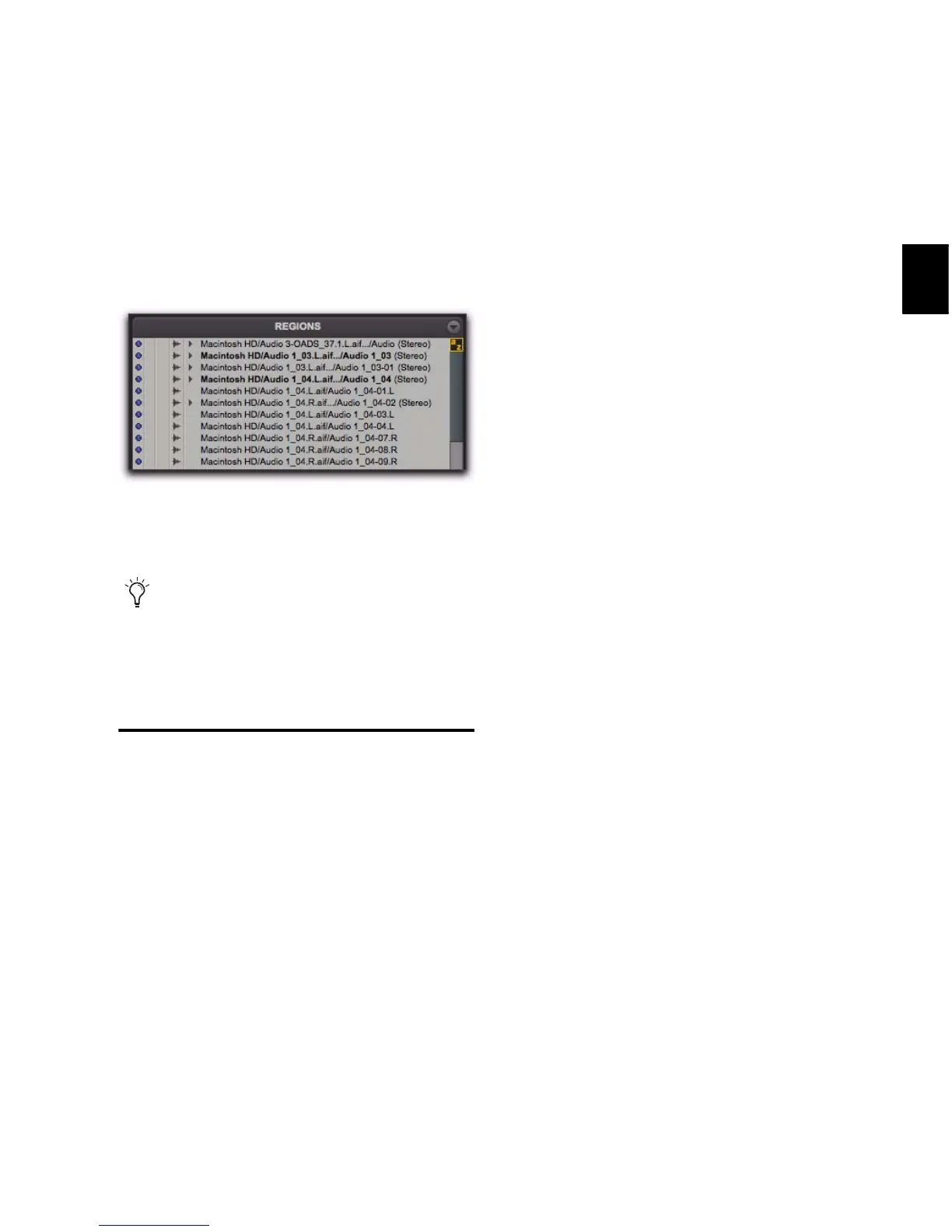
Regions with file information shown in the Region List
When editing, the Region List can become
cluttered with auto-created regions. You can
hide auto-created regions by choosing Show
in the Region List menu, and deselecting
Auto-Created.


 To Next Page
 Loading...