Chapter 13: The Region List 217
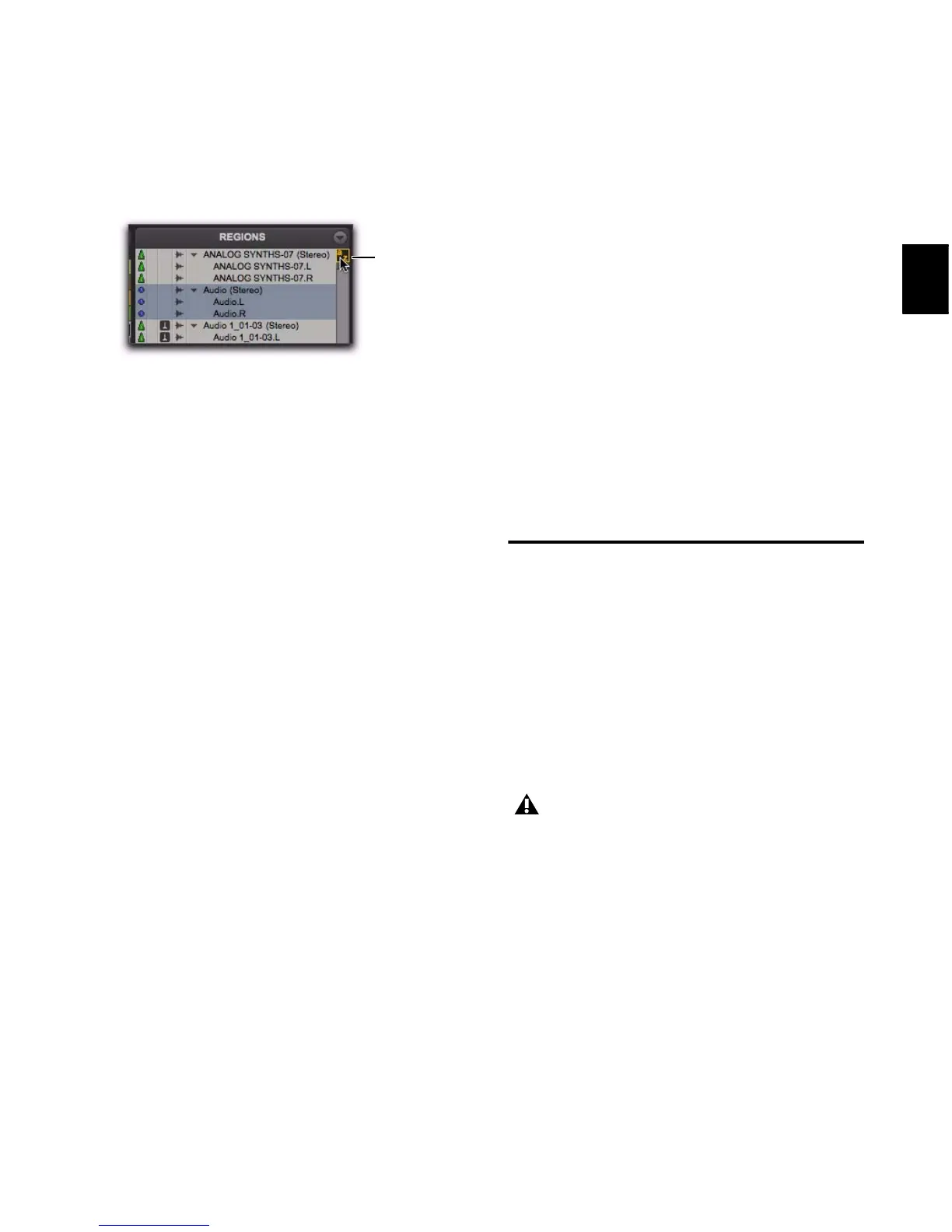
To enable and use the Region List Keyboard Focus:
1 Click the Keyboard Focus button in the upper
right of the Region List.
2 Type the first or first few letters of the region
to automatically locate and select it. Once a re-
gion is located and selected, it can be dragged to
a track.
Keyboard selection of audio regions locates re-
gions based on their region name, not on the
names for their parent audio files or the volumes
on which they reside.
Select Options
In the Region List, you can select specific regions
so they can be dragged to tracks, processed with
AudioSuite plug-ins, or exported.
To select specific regions in the Region List:
From the Region List menu, choose Select,
and then choose one of the Select options:
All Selects all regions in the Region List.
Unused Selects regions that have not been
placed in a track in the current session. Offline
regions appear in the Region List italicized and
dimmed.
Unused Except Whole Files Selects regions that
have not been placed in a track in the current
session, but do not include Whole-file regions.
Whole-file regions are regions that were created
when recording or importing audio, consolidat-
ing existing regions, and when nondestructively
processing with an AudioSuite plug-in. Whole-
file audio regions reference an entire audio file
that resides on your hard drive. Whole-file audio
regions are displayed in bold in the Region List
Offline Selects regions whose parent files cannot
be located, or are not available, when opening a
session or importing a track. Offline regions ap-
pear in the Region List as italicized and dimmed;
they appear in playlists as light blue regions
with italicized names.
Previewing Regions in the
Region List
You can preview audio and MIDI regions and re-
gion groups in the Region List. Previewing fol-
lows the master Audition path as selected in the
Output page of the I/O Setup. The base level for
previewing is determined by the Master Fader
(or Auxiliary Input) level assigned to the Audi-
tion path.
To preview a region in the Region List:
Alt-click (Windows) or Option-click (Mac) the
region name.
Audio regions and region groups play back
through the specified Audition Path (see “Audi-
tion Paths” on page 75).
Region List Keyboard Focus enabled


 To Next Page
 Loading...