Chapter 15: Importing and Exporting Session Data 281
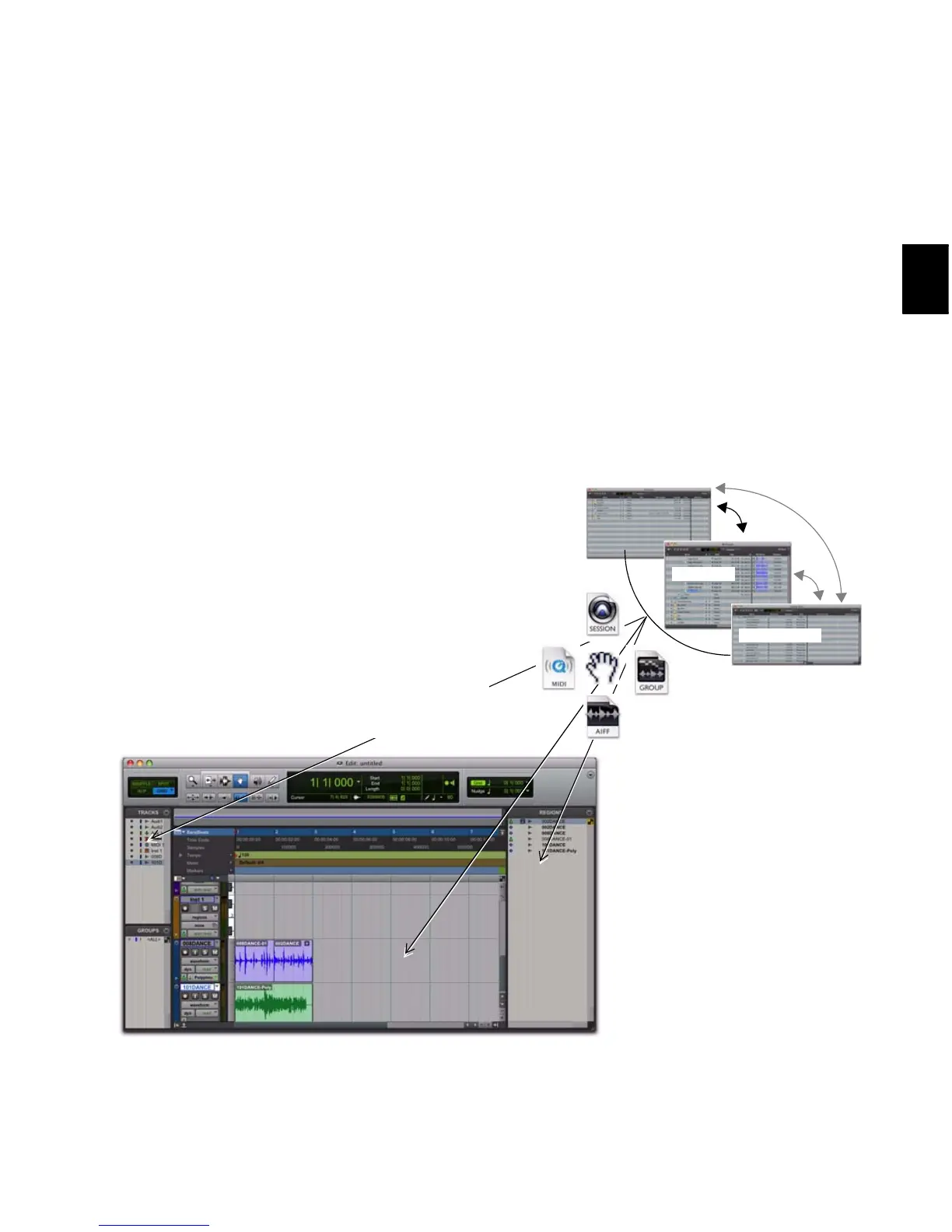
To import files into the Region List:
1 Select audio, video, MIDI, region group, REX,
or ACID files in a DigiBase browser, or Windows
Explorer, or Mac Finder.
2 Drag the selected files onto the Region List.
To import files into an existing track:
1 Select the files you want to import in a Digi-
Base browser, or Windows Explorer, or Mac
Finder.
2 Drag the selected file to a location on an exist-
ing, compatible track. The file is imported and
placed where it was dropped.
To import files as new tracks:
1 Select the files you want to import in a Digi-
Base browser, or Windows Explorer, or Mac
Finder.
2 Do any of the following:
• Shift-drag files and drop anywhere in the
Edit window.
• Drop files to the Track List.
• Drop files to empty space in the Edit win-
dow, below or between tracks.
Figure 17. Importing from browsers by drag and drop



 To Next Page