Pro Tools Reference Guide288
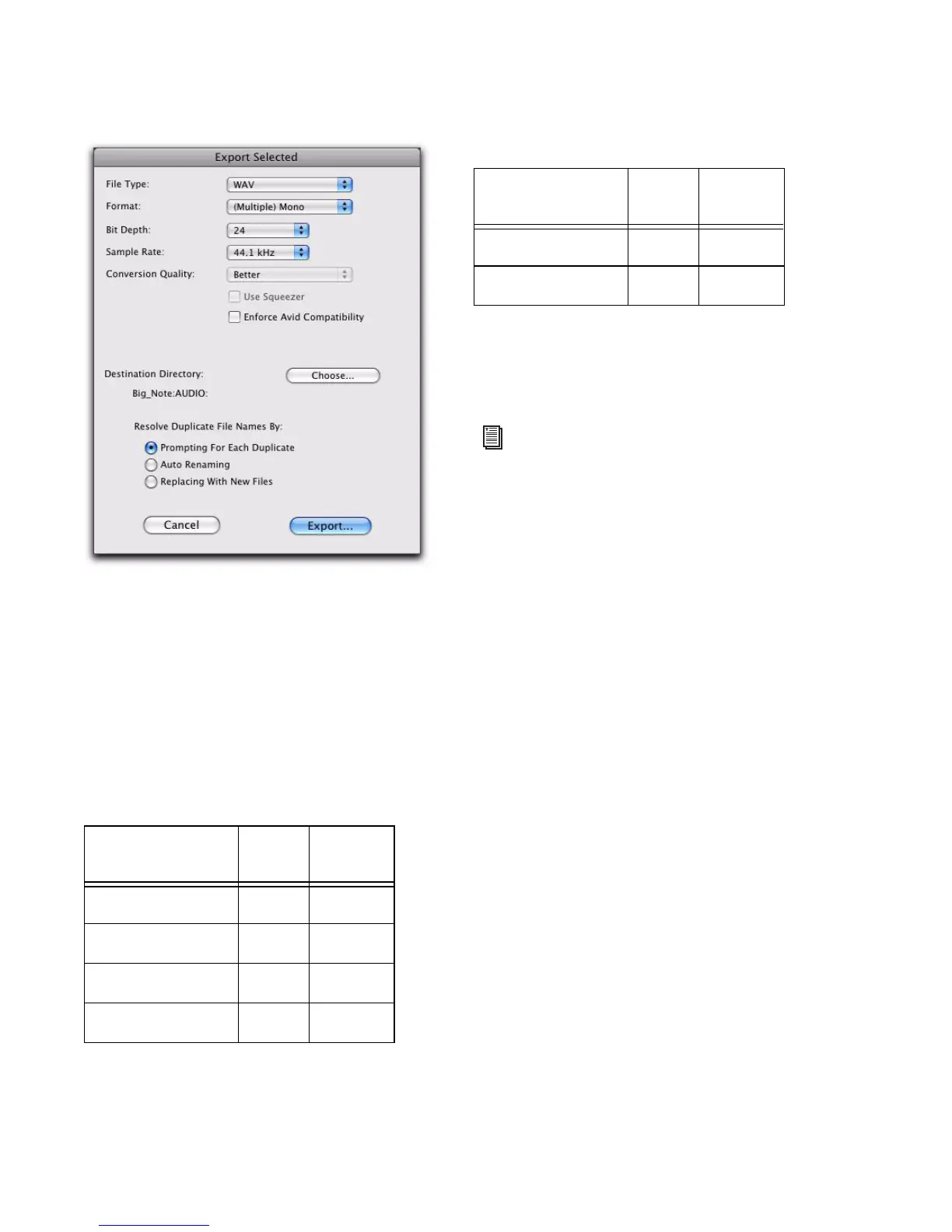
3 In the Export Selected dialog, set the File Type,
Format, Bit Depth, and Sample Rate. In addition,
specify the Conversion Quality, and choose the
Destination Directory.
When you export regions to a lower bit depth,
Dither (with or without Noise Shaping) is ap-
plied as shown in Table 16.
The Dither used for any conversion is the
Digidesign Dither plug-in (with or without
Noise Shaping enabled, as noted in Table 16).
4 If you are exporting to an 8-bit file, enable the
Use Squeezer option. This optimizes the dynam-
ics of the exported audio by preprocessing it us-
ing compression, limiting, and gating before
conversion to 8-bit resolution (for more infor-
mation, see “Use Squeezer” on page 968).
5 Select an option for how Pro Tools should re-
solve duplicate file names.
Prompting for Each Duplicate Prompts you for a
file name for any file that has the same name as
a file in your destination directory.
Auto Renaming Automatically changes the
name of any duplicate file by adding a number
at the end of the file name (such as file_01).
Replacing with New Files Replaces files with the
same name with the new files.
6 Click Export to export the new audio files.
Export Selected dialog
Table 16. Dither and Noise Shaping with Export
Selected dialog
Bit Depth Dither
Noise
Shaping
24-bit to 24-bit No No
16-bit to 24-bit No No
24-bit to 16-bit Yes Yes
16-bit to 16-bit No No
24-bit to 8-bit Yes No
16-bit to 8-bit Yes No
For more information about using Dither,
see “Dither” on page 866.
Table 16. Dither and Noise Shaping with Export
Selected dialog
Bit Depth Dither
Noise
Shaping


 To Next Page
 Loading...