Chapter 18: Record Setup 351
3 To hear the click count off when recording or
playing, click the Count Off button in the Trans-
port so it is highlighted.
Hearing the countoff before recording helps mu-
sicians to start playing at the right time and in
tempo. The Count Off button in the Transport
window displays the number of bars counted be-
fore the transport starts.
Setting the Session Meter
and Tempo
(Optional)
Setting the Session Meter
When opening a new session in Pro Tools, the
meter defaults to 4/4. If you intend to record
with a click in a meter other than 4/4, make sure
to set the meter accordingly.
If a session’s meter does not match the music
you’re recording, the accented clicks will not
line up with what you’re playing, and, as a re-
sult, the recorded material may not align with
the bars and beats in the Edit window.
Meter events, which can occur anywhere within
a Pro Tools session, appear in the Meter ruler.
For more information on inserting and editing
meter events, see “Meter Events” on page 692.
To set the meter for a session:
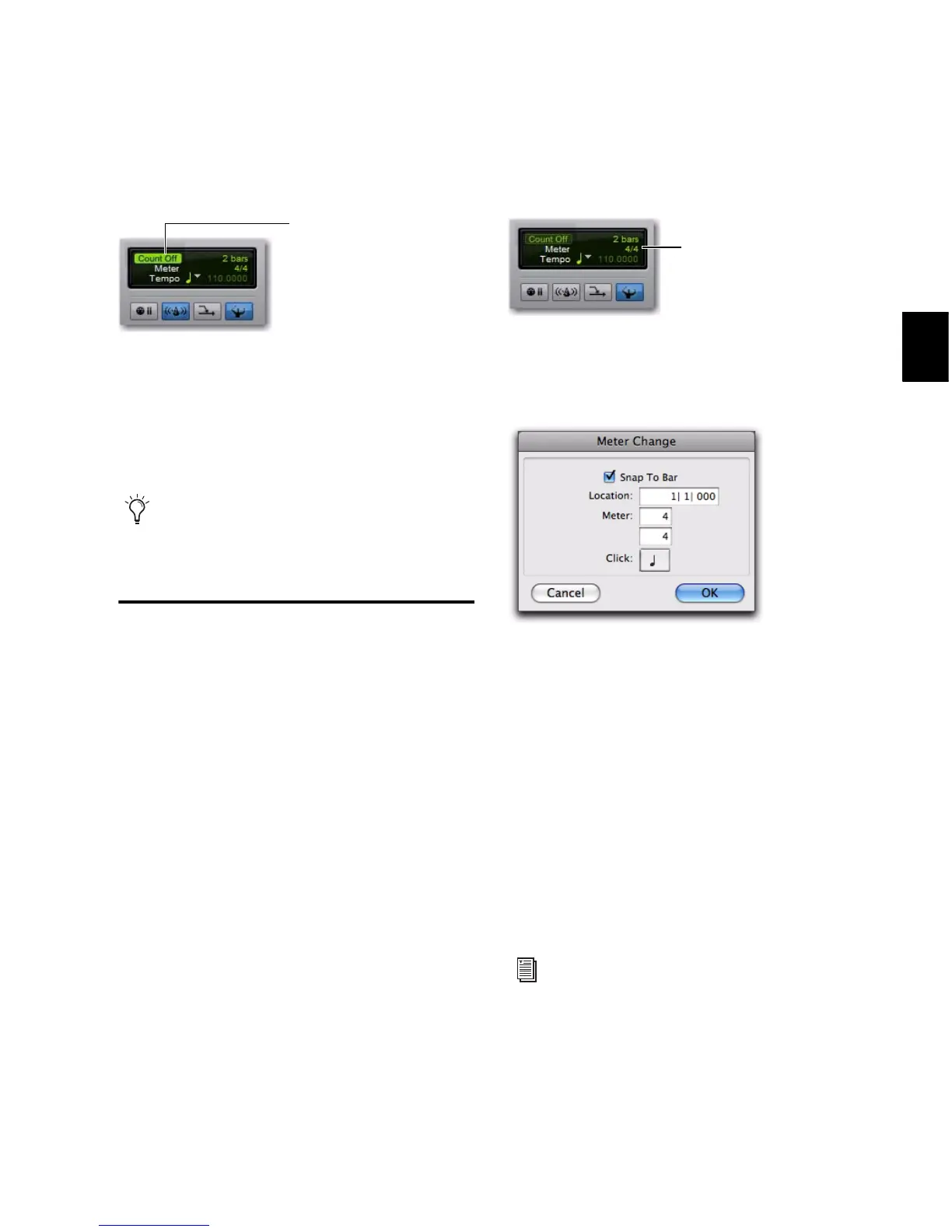
1 Double-click the Current Meter button in the
Transport window.
2 Enter the Meter for the session and set the Lo-
cation to 1|1|000 (to ensure that the inserted
meter event replaces the default).
3 From the Click pop-up menu, select a note
value for the beat. (For example, if you are in
6/8, select a dotted-quarter note).
4 Click OK to insert the new meter event.
Setting the Session Tempo
When opening a new session in Pro Tools, the
tempo defaults to 120 BPM. If you intend to
record with a click at a tempo other than
120 BPM, make sure to set the tempo accord-
ingly.
Count Off enabled
The countoff is ignored when Pro Tools is
online and synchronized to SMPTE time
code.


 To Next Page
 Loading...