Chapter 18: Record Setup 359
To record enable multiple audio tracks:
From either the Mix or Edit window, click
each audio track’s Record Enable button to tog-
gle record enable on or off for each track.
To record enable multiple MIDI and Instrument
tracks:
From either the Mix or Edit window, Shift-
click each MIDI or Instrument track’s Record En-
able button to toggle record enable on or off for
each track.
To record enable MIDI and Instrument tracks using
the Up/Down Arrows:
While pressing Control (Windows) or Com-
mand (Mac), press the Up/Down Arrows to
record enable the previous or next MIDI or In-
strument track. The previous (or next) record
track is no longer record-enabled.
To record enable all audio tracks, or all MIDI and
Instrument tracks:
Alt-click (Windows) or Option-click (Mac) the
Record Enable button to toggle record enable on
or off for all audio tracks, or all Instrument and
MIDI tracks.
For record-enable, Pro Tools treats MIDI and In-
strument tracks as the same type. Consequently,
Alt-clicking (Windows) or Option-clicking
(Mac) the Record Enable button on any MIDI or
Instrument track will record enable all MIDI and
Instrument tracks in the session.
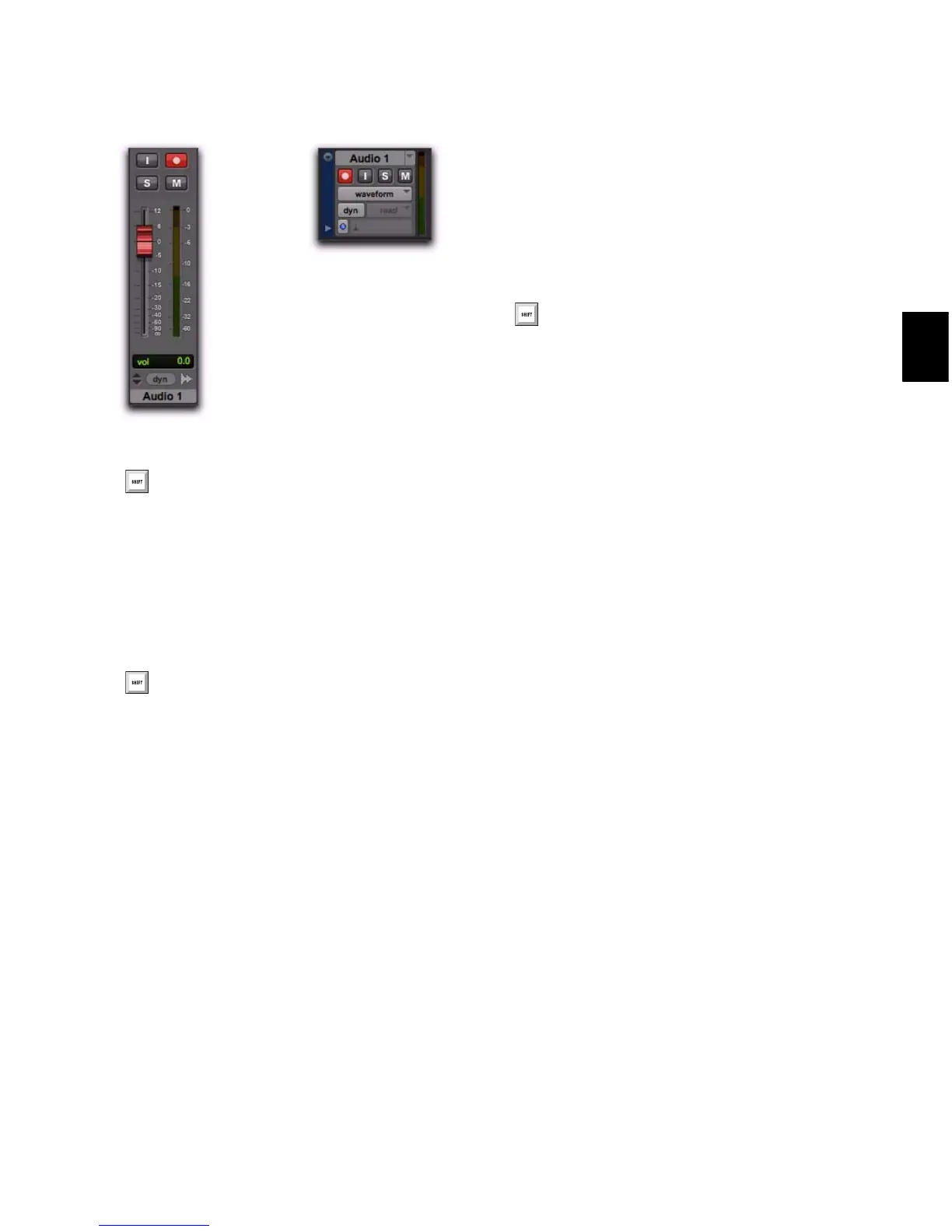
Record-enabled audio track in Mix and Edit windows
Press Shift+R to record enable any track
containing the Edit cursor on an Edit
selection.
If Latch Record mode is not enabled, Shift-
click each track’s Record Enable button to
toggle record enable on or off for each track.
See “Latch Record Enable Buttons Prefer-
ence” on page 360.


 To Next Page
 Loading...