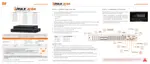
3.3 Playback Recorded Images
To playback the recorded image, click the playback icon ( ) in the menu bar. When the DVR
transitions to playback mode, it will automatically playback the latest recording image.
Date/Time (1)
This shows the date & time of the image that is being displayed.
Toolbar (2)
Contains playback control, recorded data check, screen mode, etc. See Section “1.4.4. To o l bar
on Playback Mode” for more information.
Pop-up Menu (3)
• Display Mode: Change display mode (1, 4, 6, 9, 10, 13, 16 screen mode)
• Change Next CH: Change to next playback channel
• Digital Zoom: Select to enable digital zoom (available in single-channel view).
• Export: Open the backup window.
• Add Bookmark: Add a bookmark to the current image.
• Search: Search recorded data by various conditions. See Section 3.4 Search Recorded
Image.
• Preview Search: Search recorded data with thumbnail search. See Section “3.4.9
Preview Search”.
• Live Mode: Go to Live mode.
Exit Playback Mode (4)
Clicking the Exit icon in the menu bar will return you to the Live view.



 To Next Page
 Loading...