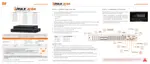
LIVE
Users can connect or disconnect all channels and select a specific channel to view in Live or
playback mode.
TIME TABLE
Users can open the timetable and select footage for video playback.
MODE
Users can change screen mode.
PTZ
Users can control Pan/Tilt, Zoom In/Out, Focus In/Out and Preset buttons to control PTZ
cameras connected to the DVR.
POP-UP MENU
Right-click to open additional options:
• Close all Channels: Close all channels
• Close the selected channels: Close the selected channels.
• Go To Live / Playback: Change to Live or Playback mode.
• Panoramic View: Change to screen mode to horizontal,
vertical, or quad-screen mode.
• Stream Type: Set the stream type. (Auto / 1
st
/ 2
nd
)
• S h ow Te x t : Set the information to display. (Channel title / Mode [Live/Playback] / Date
/ Time / Resolution)
5.3 Web Playback
To remotely playback video from the DVR, click Timetable or [Go to Playback] from the pop-up
menu.
PLAYBACK TIME
Select the date and time from the timetable.
Intelli-search bar
Move the red-vertical line to the time that the user wants to search. The colors of the time bar
indicate the different recording modes. Refer to “4.3.2” for more information.
Playback controls
Use the Fast Forward, Rewind and Play/ Pause buttons to control the playback video.



 To Next Page
 Loading...