
 Need help?
Do you have a question about the DigiTech QM4000 and is the answer not in the manual?
This document describes the 7" Wireless Smart Monitor for Vehicles, model QM4000, an instruction manual for a driver assistance device designed to enhance the in-car experience.
The 7" Wireless Smart Monitor is primarily designed to integrate smart functionalities into vehicles, offering a range of features aimed at improving navigation, entertainment, and communication while driving. Its core function revolves around providing a display for various applications and connectivity options.
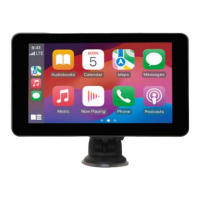
The monitor supports both Android Auto and Apple CarPlay, allowing users to seamlessly integrate their mobile devices. When connected, the monitor displays a familiar interface for accessing apps like Audiobooks, Calendar, Maps, Messages, Music, Now Playing, Phone, and Podcasts. This integration is crucial for hands-free operation and access to essential mobile features without directly interacting with the phone.
For video input, the device includes an AV IN (Cam in) interface, which is used to connect a reversing camera via a 2.5mm plug to an RCA cable. When a signal is detected at this port, the LCD automatically switches to display the camera image, providing a visual aid for reversing.
The monitor also features a USB Port, enabling users to connect USB devices for playing music, video, and pictures. This port also supports Mirrorlink, CarPlay, or Android Auto connections, depending on the model. Additionally, a TF Card slot is available on some models for playing music, video, and pictures from a TF card.
For audio output, the device offers several methods. It has a built-in speaker located on the back, which provides sound when playing music from a USB flash drive. An AUX Out port allows the sound to be transmitted to other audio equipment in the vehicle via a 3.5mm AUX cable (supported by some models). Furthermore, the monitor supports FM signal transmission, allowing users to broadcast audio to the car's original radio by setting a consistent FM frequency. The device also includes a V-OUT port, which can output video signals to other monitor devices using a 3.5mm AUX cable (supported by some models).
Power is supplied to the device via a DC IN Type-C power plug, designed to operate within a voltage range of 12V to 30V.
The monitor is designed for ease of use and integration into a vehicle's dashboard. Installation is straightforward, utilizing a glass suction cup type suspension for mounting. Users are cautioned to ensure the monitor does not impede their view of the road, cover instruments, or interfere with vehicle operation.
Powering the device involves inserting the cigarette lighter power plug into the vehicle's cigarette lighter socket. It's important to note that the USB-C power input is specifically for 12-24V and is not suitable for other devices.
Bluetooth pairing is a key feature for wireless connectivity. Users can connect their mobile phones to the monitor via Bluetooth for music playback and calls. For wireless CarPlay, Bluetooth pairing is a prerequisite. The device's Bluetooth name is "car-XTD-BT_26FO," and common PIN numbers like "0000" or "1234" are provided for connection. The connection process involves powering on the monitor, enabling Bluetooth on the mobile phone, searching for the device, and clicking to connect. Users are advised to ensure the vehicle is not in operation during pairing and setup.
For Android Auto and Apple CarPlay, wireless connection requires both Bluetooth and Wi-Fi functions to be enabled on the mobile phone. Once Bluetooth is connected, the monitor automatically enters the respective interface. The signal transmission for these features primarily relies on Wi-Fi, meaning that even if Bluetooth is turned off after the initial connection, the functionality will continue as long as Wi-Fi remains active. Disconnecting Wi-Fi will terminate the CarPlay or Android Auto connection. Users are reminded that these services require a data connection from their mobile device, and they should contact their provider for data rates and usage information.
The monitor's touch input allows for interactive control of the displayed applications. In cases where the sound output is low, users can adjust the playback volume by sliding down the status bar from the top of the screen.
The manual emphasizes several safety and maintenance guidelines to ensure the longevity and proper functioning of the device.
Users are advised to consult local legislation and road laws regarding the use of such devices on public roads and to familiarize themselves with local road rules. The primary focus should always be on the road and surroundings, not the monitor, while driving. The device is intended for non-commercial use and within legal limits. Notifications and directions provided by the monitor are guides only, and users should drive according to road conditions.
To prevent damage, the device should be protected from direct sunlight for extended periods. It must be installed stably before use on the road. Users should avoid using the device near other devices that emit radio frequency interference.
Cleaning the monitor should be done without excess liquid, and it should not be exposed to water or high moisture content. Users are explicitly warned not to dismantle the unit. Responsible disposal of the unit is also mentioned.
In case of troubleshooting, the manual provides solutions for common issues. If the sound is not coming through the car speakers, users can turn off the built-in speaker in system settings, transmit sound via FM to the car radio, or use the AUX OUT interface. For Bluetooth issues, users are advised to delete the paired "SWL-BT" on their mobile phone and re-search for it. If CarPlay or Android Auto doesn't connect automatically, users should check the "Phonelink" setting interface to ensure the default connection mode is set correctly and verify that Wi-Fi is enabled on their mobile phone for wireless connections.
Regarding time and date settings, the manual clarifies that the device does not have a battery, so it cannot remember the time and date independently. However, once connected to a mobile phone, the time and date will automatically update. For issues with playing TF card or USB music and video, users are recommended to use 8G or 16G storage devices, format them to FAT32 file system, and use common media file formats, as some large-capacity devices or encoding formats may not be supported.
The device is covered by a 12-month warranty against manufacturing defects, which does not cover modified products, misuse, abuse, or normal wear and tear. This warranty is in addition to consumer rights under Australian Consumer Law.
 General
| Display Size | 7” (1024 x 600 resolution) |
|---|---|
| Backlight | 400cd/m2 |
| Viewing Angles | Up/Down 85, Left/Right 85 |
| Input Method | Touch |
| Functions | Carplay/Android Auto Reversing Camera (Not included) |
| Connections | Bluetooth USB-A Micro SD Card AV - In Aux - Out |
| Radio | FM Transmission |
| Speaker Output | 3W |

 To Next Page