4. If you use a all new HDD
1) Please use " Fdisk " to set the capacity of your HDD, but this will destroy all the data
in the HDD.
2) Format your HDD by standard procedures, if you can't find your new HDD, please
following the steps in FAQ-1
Note: "Fdisk" or "Format" will destroy all the data and program in the HDD you select.
Please make sure there is not any data in it, or all the data have a backup copy.
5. FAQ
Q: I could see the icon at the right down comer on the screen, but I still couldn't find my
external HDD.
A: a. Please make sure your HDD has been installed correctly.
b. Please make sure your HDD has been set in "Master" position,
c. Please make sure you have installed correct driver for this USB HDD.
d. Please make sure your HDD has been formatted. If no, please format your hard
drive first.
e. If you are sure you have installed correctly all the hardware and software, please
follow the steps as below to catch your HDD.
i. Enter "Control Panel" and enter "System" icon
ii. Double click it to find a "System Manager".
iii. Find a "Disk drivers" category. There should be 3 drivers, double click the HDD
iV. Find the "Setting" button and choose the option “Removable Drive”
V. Your computer will automatically assign a new letter to this USB HDD after
restarting your computer
6. Caution!!
a. If you are not sure what OS you are using, please contact your PC dealer.
b. Please don't put this USB HDD in a humid or high-temperature environment.
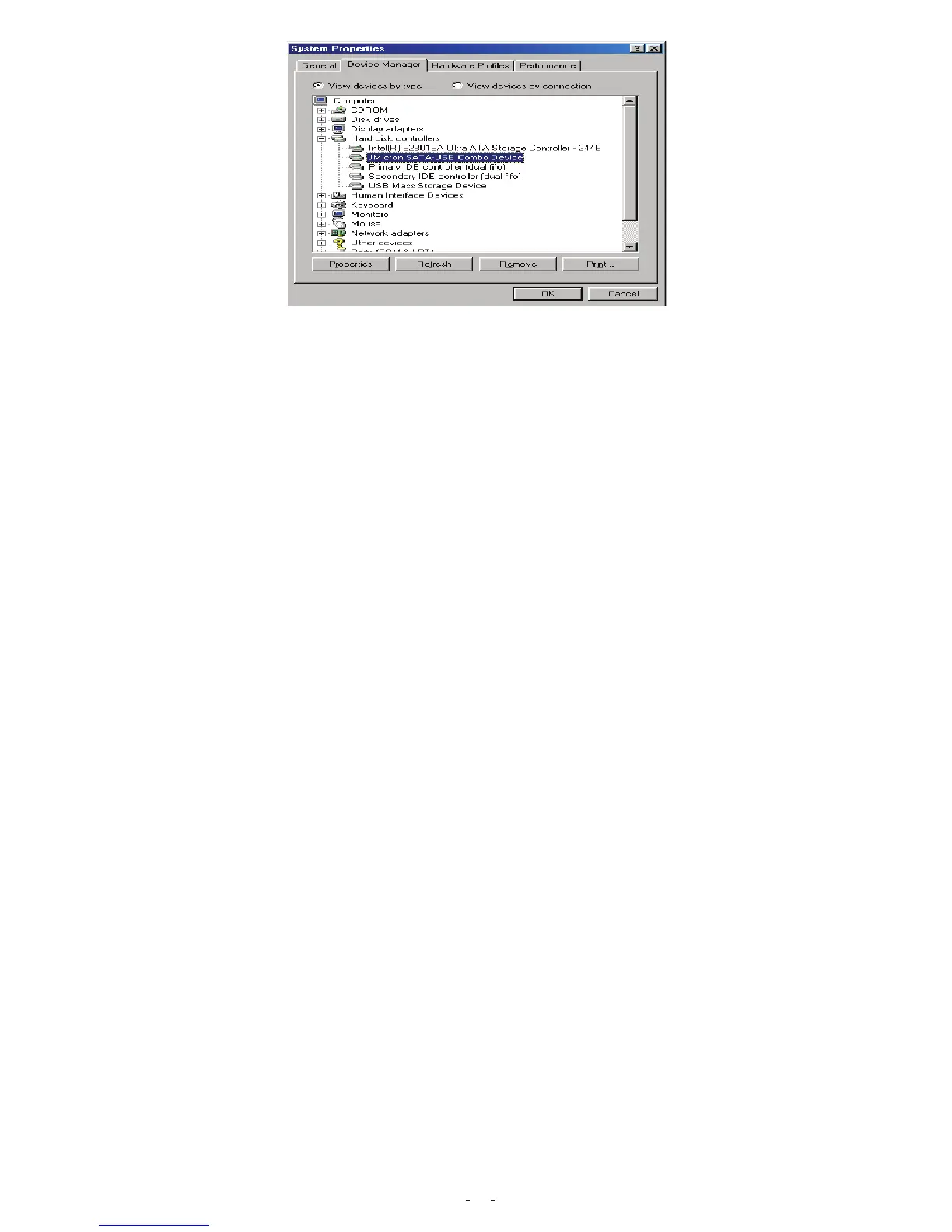
c. If your first installation is failed, please firstly remove the wrong device through the
path as below: path=Control Panel > System > System Properties > Device Manager >
Please remove the items with "?" or "!" mark.
4


 To Next Page
 Loading...