EasyManua.ls Logo

DMP Electronics XR350 - User Manual

DMP Electronics XR350
2 pages
Print Icon
To Next Page IconTo Next Page
Loading...
quick reference
XR100/XR500 or XR150/XR350/XR550 Arming and Disarming
Disarming the Alarm System
1. Press CMD until ARM DISARM displays.
2. Select DISARM, enter your user code and press CMD.
3. At ALL? NO YES, if you select NO, the keypad
displays the name of each area followed by NO
YES. Select YES or NO to disarm area(s) of your
choice.
Arming the Alarm System
1. Press CMD until ARM DISARM displays.
2. Select ARM, enter your user code if a closing code is
required and press CMD.
3. At ALL? NO YES, if you select NO, the keypad
displays the name of each area followed by NO
YES. Select YES or NO to arm the area(s) of your
choice.
4. SYSTEM ON or ALL SYSTEM ON displays.
Note: SYSTEM ON means at least one area in the
system is armed.
ALL SYSTEM ON means all areas in the system
are armed. The keypad begins counting down
the exit time.
32-Character Display
Armed LED
Power LED
Data Entry Digit keys
COMMAND Key
Back Arrow Key
Select Keys
1 2 3 4
9 0 CMD
5 6 7 8
FRI 8:51 AM
XR500
Keypad Layout and Function Keys
Keypad Shortcut Keys
1 2 3 4
9 0 CMD
5 6 7 8
A
C
B
D
F
E
G
I
H
J
L
K
V
X
W
S
U
T
P
R
Q
M
O
N
Y
Z
Away
All
Sensor Reset
(Fire Reset)
Home
Monitor
(Chime)
Perimeter
Sleep
Question and Answer IconNeed help?

Do you have a question about the DMP Electronics XR350 and is the answer not in the manual?

Overview

This document outlines the procedures for arming and disarming the XR100/XR500 or XR150/XR350/XR550 alarm systems, along with a visual guide to the keypad layout and its functions.

Disarming the Alarm System

To disarm the alarm system, follow these steps:

  1. Initiate Disarm Sequence: Press the CMD button on the keypad until the display shows "ARM DISARM".
  2. Select Disarm and Enter Code: Choose the DISARM option. You will then be prompted to enter your personal user code, followed by pressing CMD to confirm.
  3. Area Selection (Optional): The system will then ask "At ALL? NO YES".
    • If you select NO, the keypad will sequentially display the name of each armed area, followed by "NO YES". You can then choose YES or NO for each individual area to disarm only specific areas of your choice.
    • If you select YES, all armed areas will be disarmed.

Arming the Alarm System

To arm the alarm system, follow these steps:

  1. Initiate Arm Sequence: Press the CMD button on the keypad until the display shows "ARM DISARM".
  2. Select Arm and Enter Code: Choose the ARM option. If a closing code is required, you will be prompted to enter your user code, followed by pressing CMD to confirm.
  3. Area Selection (Optional): The system will then ask "At ALL? NO YES".
    • If you select NO, the keypad will sequentially display the name of each area, followed by "NO YES". You can then choose YES or NO for each individual area to arm only specific areas of your choice.
    • If you select YES, all areas will be armed.
  4. System Status Confirmation: After arming, the display will show either "SYSTEM ON" or "ALL SYSTEM ON".
    • "SYSTEM ON" indicates that at least one area within the system is armed.
    • "ALL SYSTEM ON" indicates that all areas within the system are armed.
    • Once armed, the keypad will begin a countdown for the exit time, allowing you to leave the premises before the system fully activates.

Keypad Layout and Function Keys

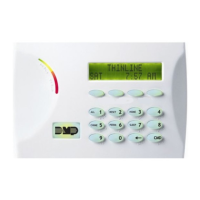
The keypad features a 32-character display that shows system status, time, and messages. It includes several indicator lights and a numeric keypad for data entry.

  • Power LED: This light indicates the power status of the system.
  • Armed LED: This light illuminates when the system or an area is armed.
  • Select Keys: These keys are located directly below the display and are used to select options presented on the screen (e.g., ARM, DISARM, YES, NO).
  • Data Entry Digit Keys (0-9): These keys are used to enter user codes, numerical data, and navigate menus. They also have letters associated with them (ABC, DEF, GHI, JKL, MNO, PQR, STU, VWX, YZ) which may be used for specific programming or text entry functions.
  • COMMAND Key (CMD): This key is used to confirm entries, advance through menus, and execute commands.
  • Back Arrow Key (BACK): This key allows you to go back to the previous menu or step in a sequence.
  • ENTER Key: This key is used to finalize entries or selections.

Keypad Shortcut Keys

The keypad also features dedicated shortcut keys for common functions, often labeled with icons or specific text:

  • Away All (1): This shortcut is likely used to arm all areas in "away" mode, meaning all sensors are active.
  • Sensor Reset (Fire Reset) (2): This key is used to reset sensors, particularly after an alarm event like a fire.
  • Monitor (Chime) (9): This shortcut may activate a monitoring mode or a chime function, which typically provides an audible alert when a protected door or window is opened.
  • Perimeter (0): This shortcut is likely used to arm only the perimeter sensors, allowing occupants to move freely within the interior of the protected area.
  • Sleep (8): This shortcut might be used to arm the system in a "sleep" or "stay" mode, where interior motion sensors are bypassed while perimeter sensors remain active, suitable for when occupants are inside.
  • Home (4): This shortcut could be used to arm the system in a "home" or "stay" mode, similar to sleep, but potentially with different sensor configurations.

System Operation Flowcharts

The document includes flowcharts illustrating the disarming and arming processes:

Disarming Steps Flowchart:

  1. Start: Display shows "THU 6:29 AM".
  2. Press CMD: Advances to the next step.
  3. Select DISARM: Press the key under "DISARM".
  4. Enter Code: Display shows "ENTER CODE: -". Enter your user code and press CMD.
  5. Area Selection: Display shows "ALL? NO YES".
    • If NO is selected: "Select NO to Disarm only certain areas."
    • If YES is selected: "Select YES to Disarm All."
  6. Individual Area Disarm (if NO was selected): Display shows "OFFICE NO YES".
    • "Select YES to Disarm the displayed area."
    • "Continue selecting YES or NO to disarm all areas of your choice."

Arming Steps Flowchart:

  1. Start: Display shows "THU 6:29 AM".
  2. Press CMD: Advances to the next step.
  3. Select ARM: Press the key under "ARM".
  4. Enter Code: Display shows "ENTER CODE: -". Enter your user code and press CMD.
  5. Area Selection: Display shows "ALL? NO YES".
    • If NO is selected: "Select NO to Arm only certain areas."
    • If YES is selected: "Select YES to Arm All."
  6. Individual Area Arm (if NO was selected): Display shows "OFFICE NO YES".
    • "Select YES to Arm the displayed area."
    • "Continue selecting YES or NO to arm all areas of your choice."
  7. System Status:
    • "SYSTEM ON": "At least one area Is Armed."
    • "OR"
    • "ALL SYSTEM ON": "All areas are Armed."

Maintenance Features (Implicit)

While not explicitly detailed as "maintenance features," the design of the system implies certain aspects that contribute to its upkeep and reliability:

  • Clear Status Indicators: The Power LED and Armed LED provide immediate visual feedback on the system's operational status, aiding in quick troubleshooting if an issue arises.
  • User-Friendly Interface: The intuitive keypad layout with dedicated function keys and clear display messages simplifies operation, reducing the likelihood of user errors that could lead to false alarms or system malfunctions.
  • Code-Based Access: The requirement for user codes ensures that only authorized individuals can arm or disarm the system, maintaining security integrity.
  • Area-Specific Control: The ability to arm or disarm specific areas allows for flexible security management, which can be useful for bypassing problematic sensors in one area while keeping others protected, or for segmenting security based on operational needs.
  • Sensor Reset Function: The "Sensor Reset (Fire Reset)" shortcut is a crucial feature for quickly clearing alarm conditions and restoring the system to normal operation after an event, which is a key aspect of system maintenance.
  • System Status Messages: The "SYSTEM ON" and "ALL SYSTEM ON" messages provide clear confirmation of the system's armed state, helping users verify proper operation.
  • Exit Time Countdown: The countdown provides a buffer for users to exit, preventing accidental alarms and contributing to a smoother user experience, which indirectly reduces calls for support related to user error.

The system is designed, engineered, and assembled in the USA, suggesting a focus on quality control and potentially easier access to support and parts if maintenance or repairs are needed.

DMP Electronics XR350 Specifications

General IconGeneral
Remote ControlYes
Power Consumption25VA
Operating Temperature-10°C to +55°C
HumidityUp to 95% non-condensing
CompatibilityDMP Wireless Devices

Related product manuals