When connecting an external source to the
AUX/HDMI input, ensure to follow the standard
color coding for the audio/video jacks:
1. HDMI Input.
2. Right audio in (red).
3. Left audio in (white).
4. Video in (yellow).
NOTE:
Certain high-end video games consoles may
exceed the power limit of the vehicle’s Power
Inverter.
Play A DVD/Blu-ray Disc Using The
Touchscreen Radio
1. Insert the DVD/Blu-ray Disc with the label
facing as indicated on the DVD/Blu-ray Disc
player. The radio automatically selects the
appropriate mode after the disc is recognized
and displays the menu screen or starts play-
ing the first track.
2. To watch a DVD/Blu-ray Disc on Rear 1
(driver’s side rear passenger), ensure the
Remote Control and Headphone channel
selector switch is on Rear 1.
3. To watch a DVD/Blu-ray Disc on Rear 2
(passenger’s side rear passenger), ensure
the Remote Control and Headphone channel
selector switch is on Rear 2.
Using The Remote Control
1. Push the SOURCE button on the Remote
Control.
2. While looking at Rear 1 or 2, highlight DISC
by either pushing Up/Down/Left/Right but-
tons, then push ENTER/OK.
Using The Touchscreen Radio Controls
1. Press the Media button on the Uconnect
radio touchscreen.
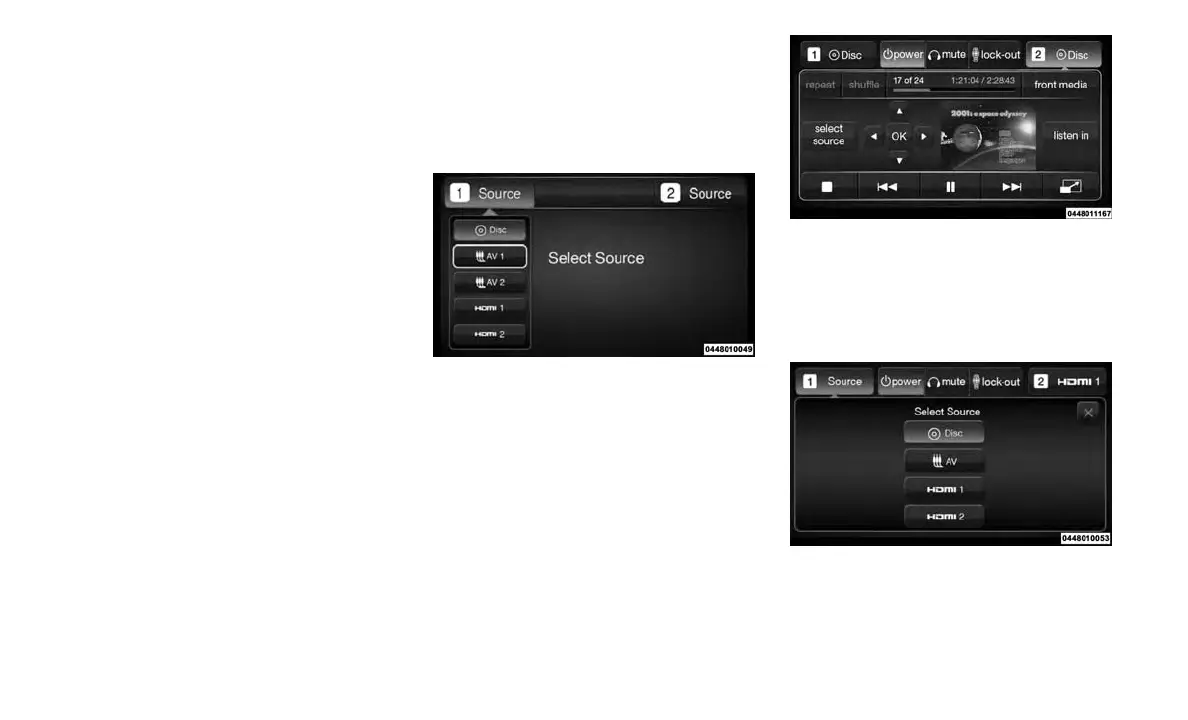
2. Press the Rear Media button to display the
Rear Media Control screen.
3. Press the 1 or 2 buttons on the touchscreen,
and the select source button on the touch-
screen. Press the DISC button on the touch-
screen in the MEDIA column. To exit, press
the X at the top right of the screen.
Select DISC Mode On The Rear Seat
Entertainment Screen
Rear Media Control Screen
Rear Seat Entertainment Source Screen
294






 To Next Page