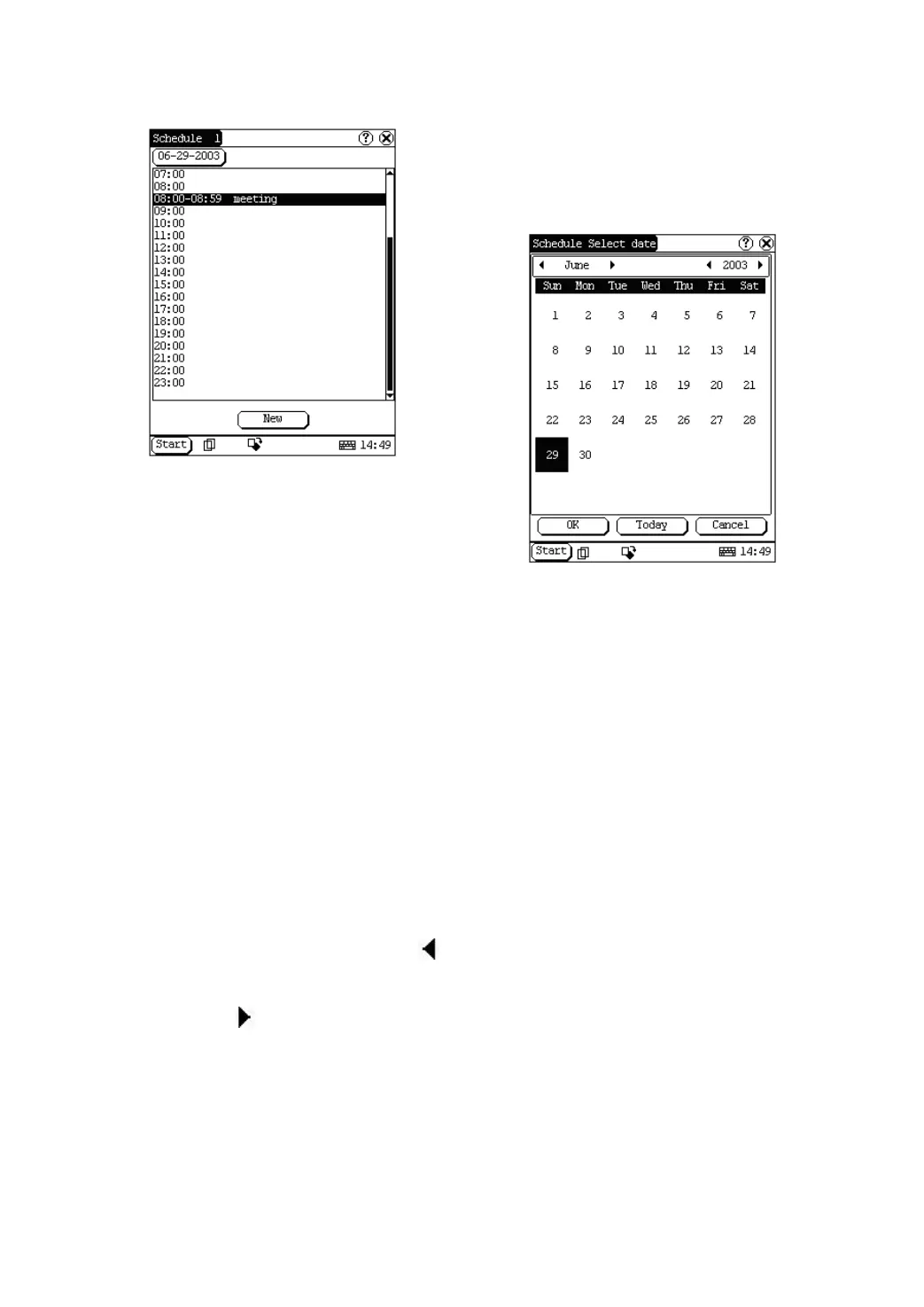
Figure 4-31
1) In the pop-up list of ‘PIM’, select
‘Schedule’ to open the Schedule interface.
2) Click the Date button on the upper left of
the interface to open the Select Date
interface.
3) In the list box in the middle of the
interface, all schedules on that day
corresponding to the Date button will be
displayed. (See Figure 4-31)
4) Click [New] button, and then the cycle list
pops up. You may select ‘Common’,
‘Daily’, ‘Weekly’, ‘Monthly’ and ‘Annual’.
5) In the cycle list, select one item to open
the Schedule New interface.
Add New Schedule
Set the date of the schedule:
1) In the Schedule interface, click the Date
button on the upper left to open the Select
Date interface.
2) In the Select Date interface, click [
]
icon to the left of the month or year to
select the previous month or year.
3) Click the [
] icon to the right of the
month or year to select the next month or
year. (See Figure 4-32)
4) Click to select the date in the current
month. When it is highlighted, it is
selected.
5) Or click [Today] button to display the
current year, month and date directly.
6) Click [OK] button to save the date setting
and close the Select Date interface.
7) You may see the date you set on the
button on the top right of the Schedule
interface.
Figure 4-32
Set the cycle of the schedule:
1) In the Schedule interface, click [New]
button so that the Cycle list pops up. See
Figure 4-33.
2) In the Cycle list, select ‘Common’ if it is
done on the selected date.
3) Select ‘Daily’ if it is done every day.
4) Select ‘Weekly’ if it is done on a fixed day
every week.
5) Select ‘Monthly’ if it is done on a fixed day
every month.
6) Select ‘Annual’ if it is done on a fixed day
every year.
7) After selecting, open the New Schedule
interface.


 To Next Page
 Loading...