Figure 4-35
System
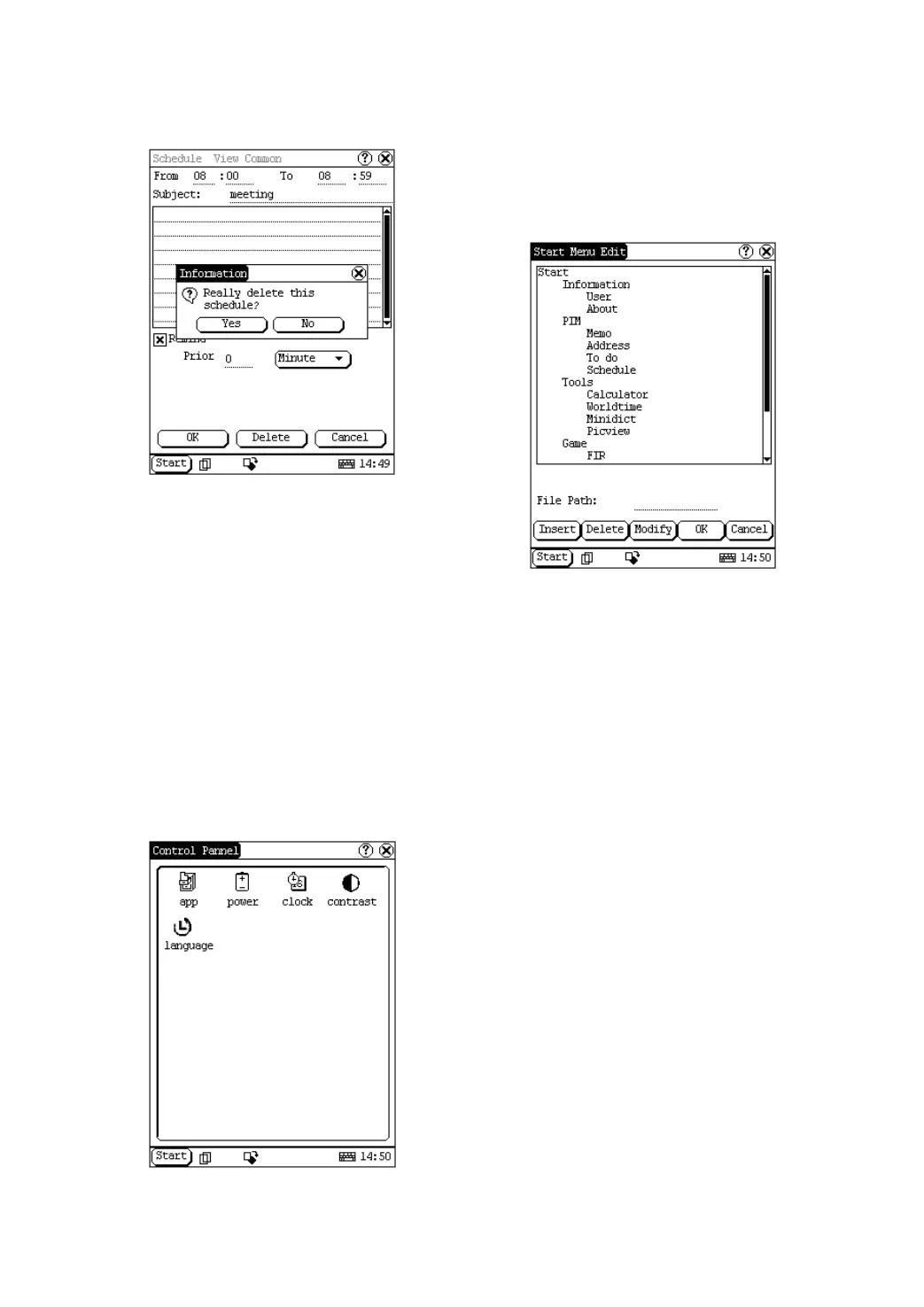
Control Panel
The control panel includes all interrelated
software and hardware configurations. It makes
the software more custom-built for you by
configuring.
1) Click [Start] button.
2) Select ‘Control Panel’ in the pop-up menu.
3) Open the Control Panel interface. (See
Figure 4-36)
Figure 4-36
Application
It displays the application information contained
in the ‘Start’ menu, including the group name,
the submenu, etc.
Figure 4-37
1) In the Control Panel interface, click ‘App’
icon to open the Application Manager
interface.
2) Then you can see the corresponding
information in the list box of the interface.
(See Figure 4-37)
3) Insert a new group:
Click [Insert] button and input the item
name. Then choose “Start” as its parent
and click [OK] button.


 To Next Page
 Loading...