2. UNBOX YOUR NEW PHONE
The rst step is to unbox the phone and
assess the items and equipment included in
the delivery. Make sure to read through the
manual so you can familiarise yourself with
the equipment and the basic funcons. For
the full manual please visit
www.doro.com/support/ or contact our
Helpline.
• The items supplied with the device and any
available accessories may vary depending
on the region or service provider.
• The supplied items are designed for this
device and may not be compable with
other devices.
• Appearances and specicaons are subject
to change without prior noce.
Doro 8035
Quick Start Guide
English
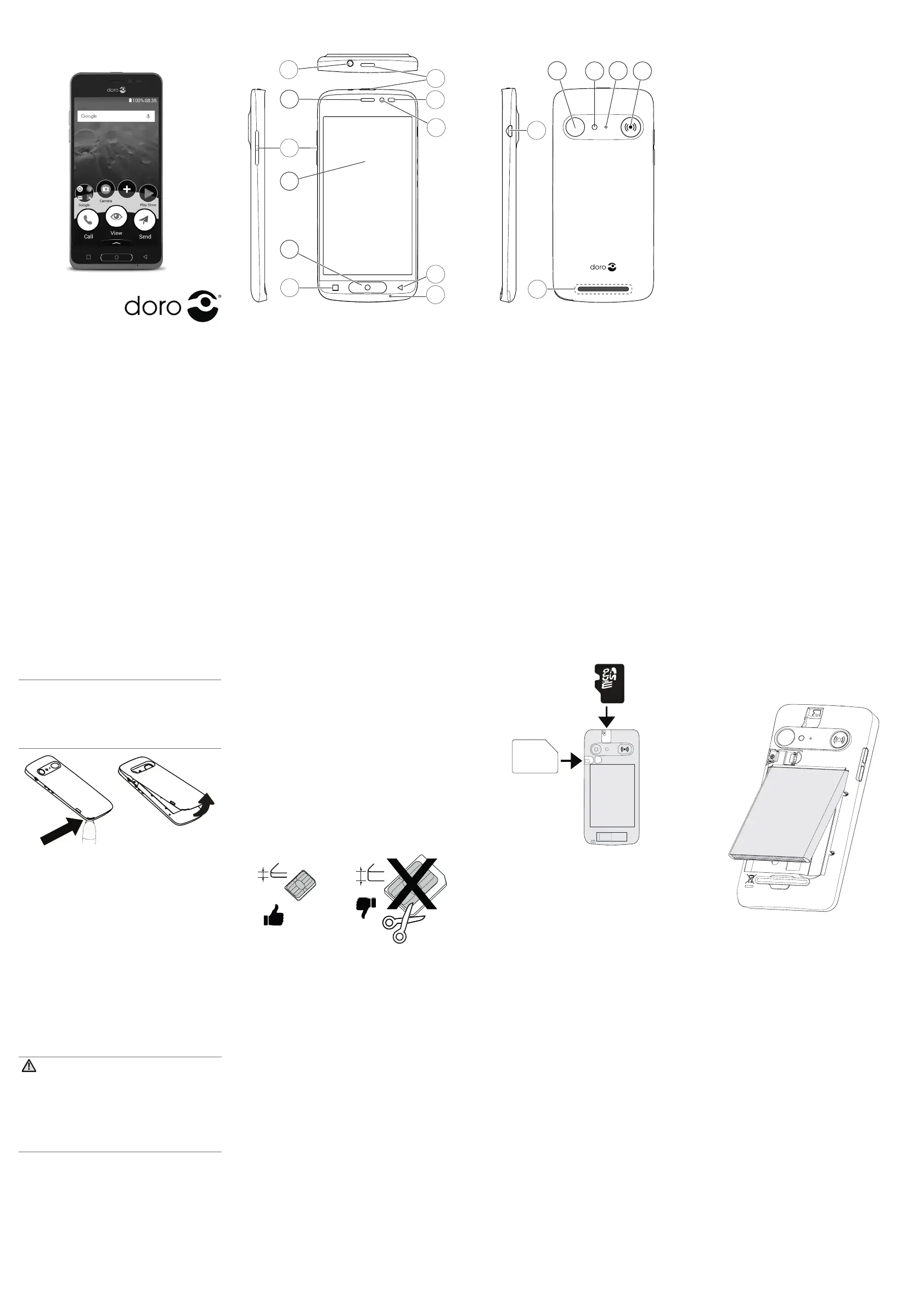
1. PHONE OVERVIEW
1. Headset port
2. Earpiece
3. Volume
4. Touch display
5. Home key
6. Recents key
7. Power buon
8. Proximity sensor
9. Front camera
10. Back key
11. Microphone
12. Micro USB
charging port
13. Loudspeaker
14. Rear camera
15. Flash
16. Second
microphone
17. Assistance buon
3
2
6
8
9
10
1
4
5
7
• You can purchase addional accessories
from your local Doro retailer. Make sure
they are compable with the device before
purchase.
• Only use baeries, chargers and
accessories that have been approved for
use with this parcular model. Connecng
other accessories may be dangerous and
may invalidate the phone’s type approval
and warranty.
Package contents
Check that the following is included in the
product box:
• Device
• Quick start guide
• USB cable
• USB power
adapter
• Stereo headset
3. GETTING STARTED
Before you start using your new phone you
may need:
• Nano SIM card. To take full advantage
of your new smartphone’s capabilies,
you should install a SIM card. The SIM
card will enable you to place calls or use
mobile data to connect to various Internet
services. Your mobile service provider will
give you a card and the codes needed for
it (PIN and PUK) when you buy a mobile
contract or a prepaid SIM card. Make sure
you get a suitable contract that t your
needs regarding calls and mobile data.
• Google™ account: To be able to fully use
your new smartphone you need a Google
Account. If you don’t have one yet, no
worries, as you will be guided through an
account setup when starng the phone for
the rst me. It can however be a good
idea to think of a Username and Password
as these will be used for many services,
4. REMOVE THE BACK COVER
Important!
Be careful not to damage your ngernails
when you remove the back cover. Do not
bend or twist the back cover excessively as
it may get damaged.
5. INSERT SIM CARD (NOT INCLUDED)
AND MEMORY CARD (OPTIONAL
AND NOT INCLUDED)
1. Insert the SIM card by gently sliding it
into the SIM card slot. Make sure that the
SIM card’s contacts are facing downwards
and that the cut o corner is up, as
shown. Take care not to scratch or bend
the contacts on the SIM card. This device
accepts only nano SIM card (4FF). Using a
modied incompable card that is thicker
than a nano SIM card may damage the
card itself, the card slot and corrupt any
data stored on the card.
micro SIM
nano SIM
0.67 mm
0.76 mm
SIM
GB
SIM
2. You may also oponally insert a memory
card. Make sure that the memory card’s
contacts are facing downwards, as shown.
To remove the memory card: nd the
small ridge on the exposed end of the
memory card. Put your ngernail into
the ridge and gently pull the memory
card out. Compable card type: MicroSD,
MicroSDHC, MicroSDXC
14
12
15
16
17
13
such as Gmail, YouTube, Google Maps,
Google Drive, Google Photos and and other
Google products.
• Memory card (oponal). You can use a
memory card (MicroSD) to increase the
storage space of your phone to be able to
store more les, pictures, videos etc. Insert
a memory card, reboot your device and
follow the instrucon to select how to use
your memory card. We suggest you to use
a high speed memory card.
• Wi-Fi access. If you have a Wi-Fi access
point available, it’s always good to connect
to that to reduce costs for data trac and
possibly increase data speed.
3. Insert the baery by sliding it into the
baery compartment with the contacts
facing up to the right.
4. Replace the back cover.
6. CHARGE YOUR PHONE
Charge your phone. Your phone may already
come with enough charge to be powered on
right out of the box, but we recommended to
give it a full charge before rst using it.
CAUTION
Only use baeries, charger and accessories
that have been approved for use with
this parcular model. Connecng other
accessories may be dangerous and may
invalidate the phone’s type approval and
guarantee.
Insert the small end of the included USB
cable into the charging port on the phone
and other end into the wall charger that you
plug into to a wall socket.
7. TURN ON THE PHONE
Note! When turning on your phone, the
installed applicaons may need to be
updated. Applicaon updates requires
Internet connecon and can take a few
minutes. A Wi-Fi connecon is preferable.
The phone may appear a bit slow during
the update.
• Press and hold the power buon unl the
display lights up.
• Wait for the phone to start.
• Enter your SIM card PIN if requested.
• Follow the setup guide to get on the
Internet and start personalising your new
phone.
• Sign in with an exisng Google account or
setup a new account.
8. STARTUP GUIDE
The rst me you turn on your phone, a
Startup guide is launched. Follow the instruc-
ons to start personalising your new phone.
The rst queson you will get is “
Is it your
rst me using a Smartphone?
”.
• If you select “
Yes, I am a beginner
”, you
will get Doro’s unique menu system “
Easy
mode
”. This is acon-based and allows
you to navigate your phone, by just asking
yourself, “What do I want to do?”.
• If you select “
No, I have already used one
”,
you will be asked if you want Doro’s acon-
based menu system “
Easy mode
” or more
tradional Android™ menus
“
Standard mode
”.
You can anyme later change the phone’s
navigaon mode via
Set
My home screen
My navigaon mode
9. ANTI-THEFT GUIDE
Set up your device to prevent other people
from using it if it’s been reset to factory
sengs without your permission.
All you need to make sure your device is
protected is:
• Set a screen lock: If your device is lost or
stolen but you have a screen lock set, the
device can’t be reset using the
Sengs
menu
unless your screen is unlocked.
• Add your Google account on your device:
If your device is erased but you have your
Google account on it, the device can’t
nish the setup process unl your Google
account informaon is entered again.
• Be sure to remember your Google account
and password to be able to easly restore
your device aer a factory reset.


 To Next Page
 Loading...