The provided manual describes the operation of the DJ1 Android smart-phone, which appears to be an application used in conjunction with a DJ1 printer and a USB stick. The manual outlines two primary functions: creating a print message file with the APP and editing an existing print message.
Function Description:
The DJ1 Android smart-phone application serves as an interface for creating and modifying print messages for a DJ1 printer. It allows users to design print messages on their Android smartphone and then transfer these messages to the DJ1 printer via a USB stick. The application facilitates both the creation of new print messages from scratch and the editing of existing messages that are stored on the DJ1 printer or a USB stick.
Usage Features (Creating a print message file with APP):
- Connecting the USB Stick: The process begins by plugging a USB stick, which accessorizes the DJ1 printer and contains a default print message file, into the DJ1 printer. The smartphone then detects the USB stick.
- Accessing the APP: Users tap on an icon within the DJ1 APP to access the USB drive.
- Initial Setup (Reading existent message): When prompted with "Read existent message Y/N?", users must select "No". This is crucial for the initial use of the DJ1 APP as it prevents copying a non-existent message file from the smartphone's memory. Instead, it allows the smart-phone to save the last edited message file in memory.
- Selecting the Default Message: Users navigate to the USB drive and select the file named "DJ1.MSG".
- Selecting Message for Editing: From a list of messages (e.g., Message1 to Message14), users select the specific message they wish to edit.
- Editing Message Content:
- To add content, users tap on the "+" icon.
- A text input box appears, allowing users to "Enter text" (e.g., "DOTJET"). The manual notes a character limit (e.g., "(Remain: 137 Character)").
- After entering the text, users tap "OK" to confirm. The entered text then appears on the screen.
- Users can further edit the message content by tapping on the message itself (e.g., "Message1: /"). This opens a text input box where they can modify the name (e.g., "DOTJET"). Tapping "OK" saves the change.
- Saving the Print Message File: After editing, users tap "SAVE" to save the print message file in the smartphone's memory.
- Exporting to USB Stick: To transfer the newly created or edited message to the printer, users tap on an icon to export the print message file into the USB stick. A "SELECT" button is pressed to initiate this transfer. The process completes once the file is saved.
- Exiting the APP: Users exit the DJ1 APP by tapping the back button and confirming "OK" when prompted "Close Y/N?".
- Transferring to Printer: The USB stick is then moved from the smartphone to the DJ1 printer for printing.
- Loading on DJ1 Printer:
- Plug the USB stick onto the DJ1 printer. The printer displays "Select Message 1/5" with numbered message slots.
- Press "Cancel" to return to the main page.
- Navigate the cursor to "System Setup" and press "Enter".
- Move the cursor to "Data Download" and press "Enter" to download the print message file from the USB stick. A "Transfer completed." message appears, indicating 100% completion. Users are prompted to "Remove USB disk! Press any key to exit!".
Usage Features (Editing the DJ1 existent print message):
- Connecting the USB Stick to DJ1 Printer: Plug the USB stick into the DJ1 printer. The printer displays "Select Message 1/5" with existing messages (e.g., "01. DOTJET").
- Returning to Main Page: Press "Cancel" to go back to the main page, where the current message (e.g., "DOTJET") is displayed.
- Accessing Data Upload:
- Navigate the cursor to "System Setup" and press "Enter".
- Move the cursor to "Data Upload" and press "Enter" to copy the print message file from the printer to the USB stick. A "Transfer completed." message appears, indicating 100% completion. Users are prompted to "Remove USB disk! Press any key to exit!".
- Returning to Main Page (Printer): Press "Enter" to go back to the main page of the DJ1 printer.
- Moving USB Stick to Smartphone: Remove the USB stick from the DJ1 printer and move it to the smartphone for editing the print messages.
- Accessing the APP: Tap on the DJ1 APP icon on the smartphone.
- Accessing USB Drive: Tap on the icon within the APP that represents the USB drive.
- Selecting "No" for Existent Message: When prompted "Read existent message Y/N?", select "No" for copying the print message file from the USB stick. This ensures the existing message from the USB stick is loaded for editing.
- Ready for Editing: The smartphone displays the contents of the USB drive (e.g., "DJ1.msg"), indicating that the print message is now ready for editing within the APP.
Maintenance Features:
The manual does not explicitly detail maintenance features for the DJ1 printer itself. However, the process of uploading and downloading data to and from the USB stick can be considered a form of data management and backup, which indirectly contributes to the "maintenance" of print messages. By allowing users to copy existing messages from the printer to the USB stick, it enables them to back up their print configurations and potentially restore them if needed.
Technical Specifications (Inferred):
- Device Compatibility: The APP is designed for Android smartphones.
- Connectivity: Utilizes a USB stick for data transfer between the smartphone and the DJ1 printer.
- File Format: Print messages are stored in a ".msg" file format (e.g., "DJ1.MSG").
- Message Capacity: The DJ1 printer appears to support multiple messages (e.g., "Select Message 1/5" implies at least 5 message slots). The APP also shows up to 14 message slots (Message1 to Message14).
- Character Limit: There is a character limit for text input (e.g., "Remain: 137 Character").
- User Interface: The DJ1 printer has a physical interface with "Cancel" and "Enter" buttons, as well as directional controls. The smartphone APP has a touch-based interface.

 Need help?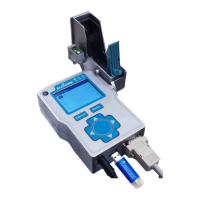

 To Next Page
 General