EasyManua.ls Logo

Drobo B1200i - Download and Install Drobo Dashboard; Check Drobo B1200 i Firmware Version; Update Drobo B1200 i Firmware; Configure Dual-Disk Redundancy

Drobo B1200i
5 pages
Print Icon
To Next Page IconTo Next Page
To Previous Page IconTo Previous Page
Loading...
Drobo How-To Guide
Add SSDs to a Drobo B1200i to Enable Automated Data-Aware Tiering
drobo.com | Add SSDs to a Drobo B1200i to Enable Automated Data-Aware Tiering
2
STEP 2
The latest Drobo Dashboard software for the B1200i is posted @ http://www.drobo.com/support/updates.php.
Download the version of Drobo Dashboard posted and install.
STEP 3
If the B1200i is running firmware version 1.1.0 or higher, skip to Step 5.
STEP 4
The latest firmware for the B1200i is posted @ http://www.drobo.com/support/updates.php.
Start Drobo Dashboard
and select the Drobo
B1200i to update.
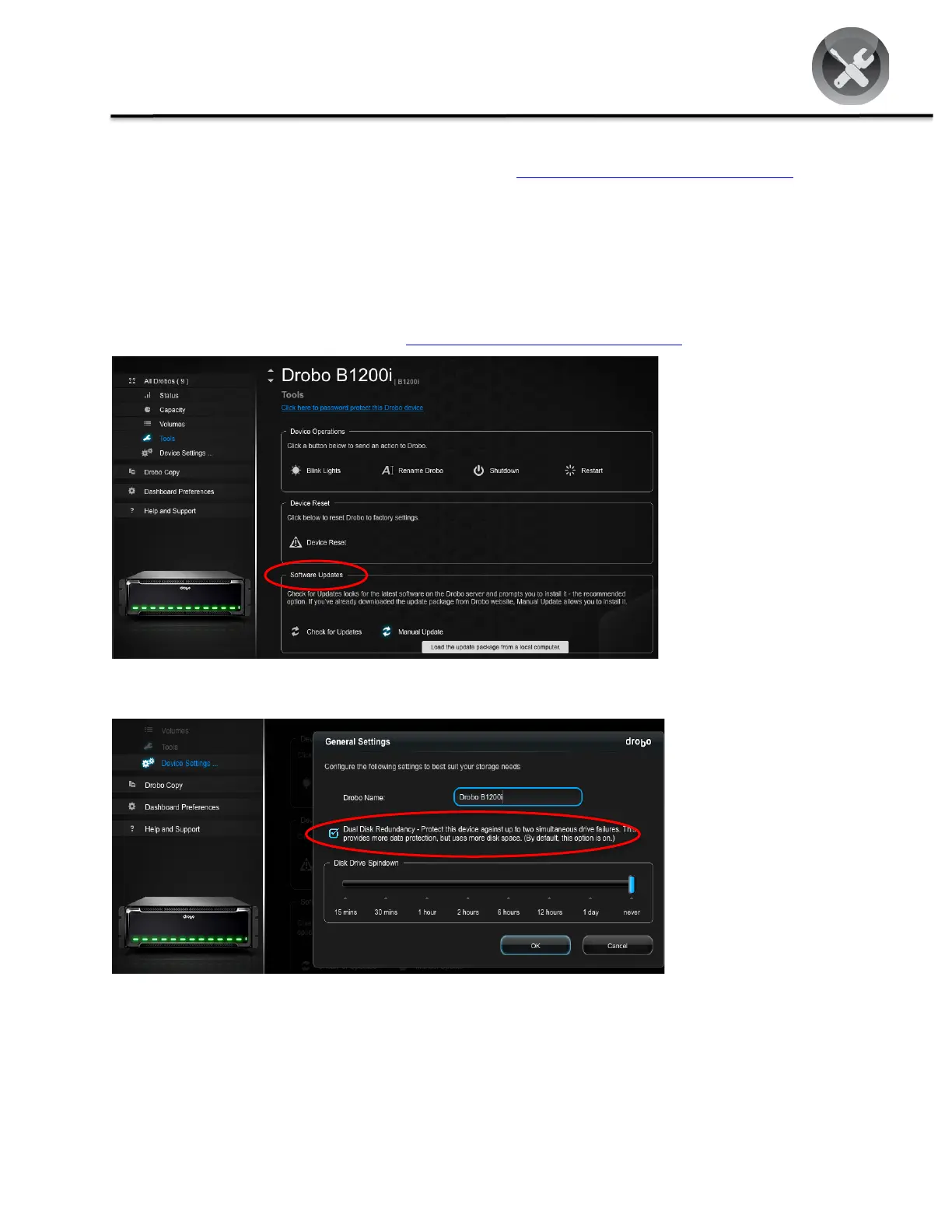
Choose Tools >
Software Updates to
upgrade the firmware,
either automatically or
manually using a
previously downloaded
file.
STEP 5
Verify that Dual-Disk
Redundancy (DDR) is
enabled before removing
any drives.
Enable Dual-Disk
Redundancy in the
General Settings.

Other manuals for Drobo B1200i

Related product manuals