25
choosing the largest volume size available for the selected file system.
The size of the volume you select is independent of the amount of
actual storage in your DroboPro because of DroboPro’s advanced
storage virtualization.
If the amount of available protected storage in DroboPro ever exceeds
the size of the volume that you picked (this may occur when you add an
additional hard disk to DroboPro), then DroboPro will automatically
create a new volume (or volumes) of the same size as the original
volume. Drobo Dashboard will notify you when this occurs and ask you
to format and name the new volume(s).
Note: If you are using Volume Management, you will need to manually create a
new volume. See page 32.
* FAT32 is an older file system format that is generally less protective of
your data than modern (journaled) file systems. It also has slower
performance and file size limitations.
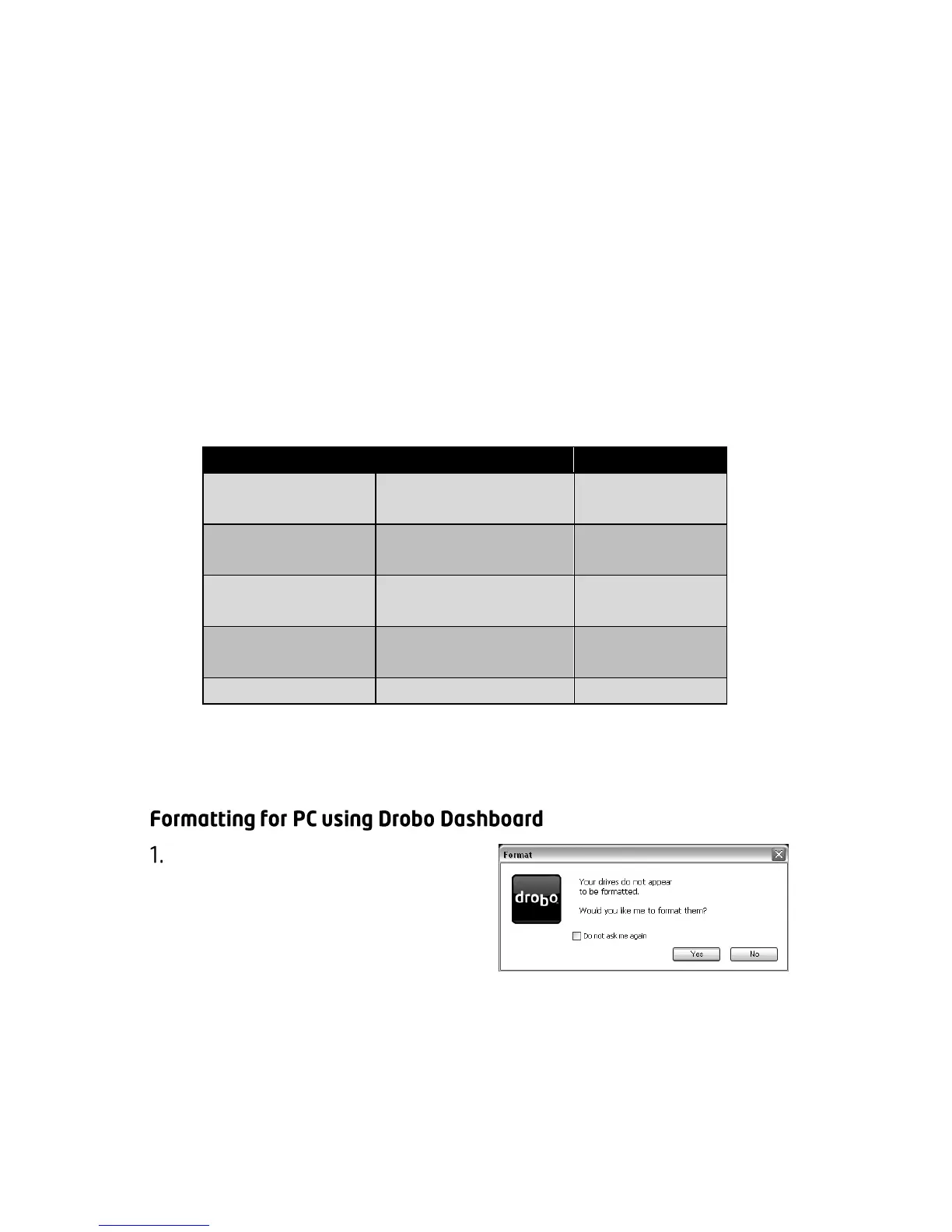
Once the DroboPro has finished
starting up, Drobo Dashboard
will automatically discover it
and show the message to the
right. Click “Yes”.
Note: Newer versions of Windows (including Vista) will also offer to format
your DroboPro. We recommend that you click “Cancel” and use Drobo
Dashboard to format.



 To Next Page