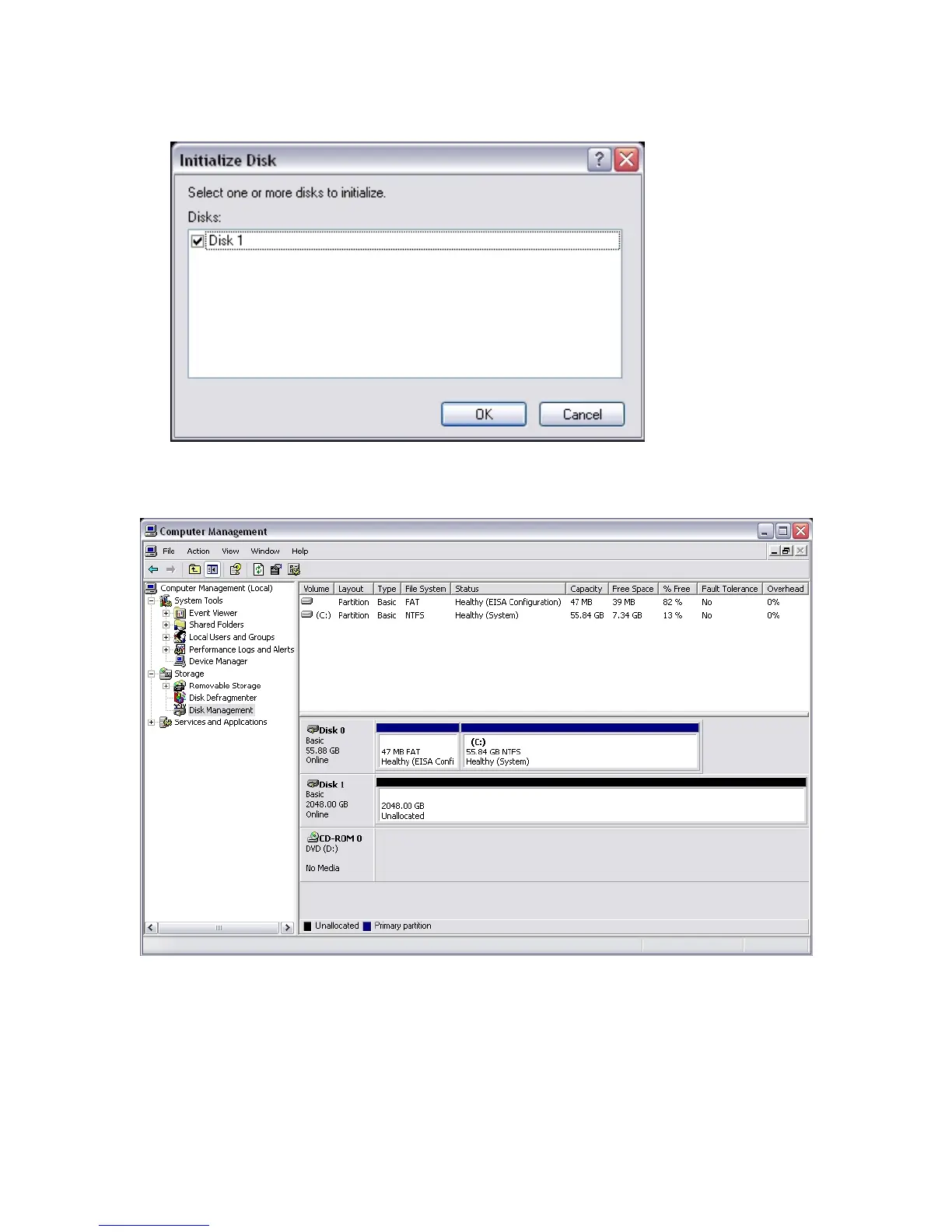
4. Windows automatically launches the Initialize Disk Wizard. Click OK.
5. Drobo is now initialized and appears in the Computer Management Console. The disk status has changed from
Unknown to Basic and from Not Initialized to Online, but the disk space will still appear as Unallocated.
6. Identify the disk described as 2048 GB Unallocated. This is a critical step so you don’t accidentally format
the wrong disk!
7. Next, you'll format the disk. Right-click in the area where it says Unallocated to open a popup menu and select
New Partition.
14



 To Next Page