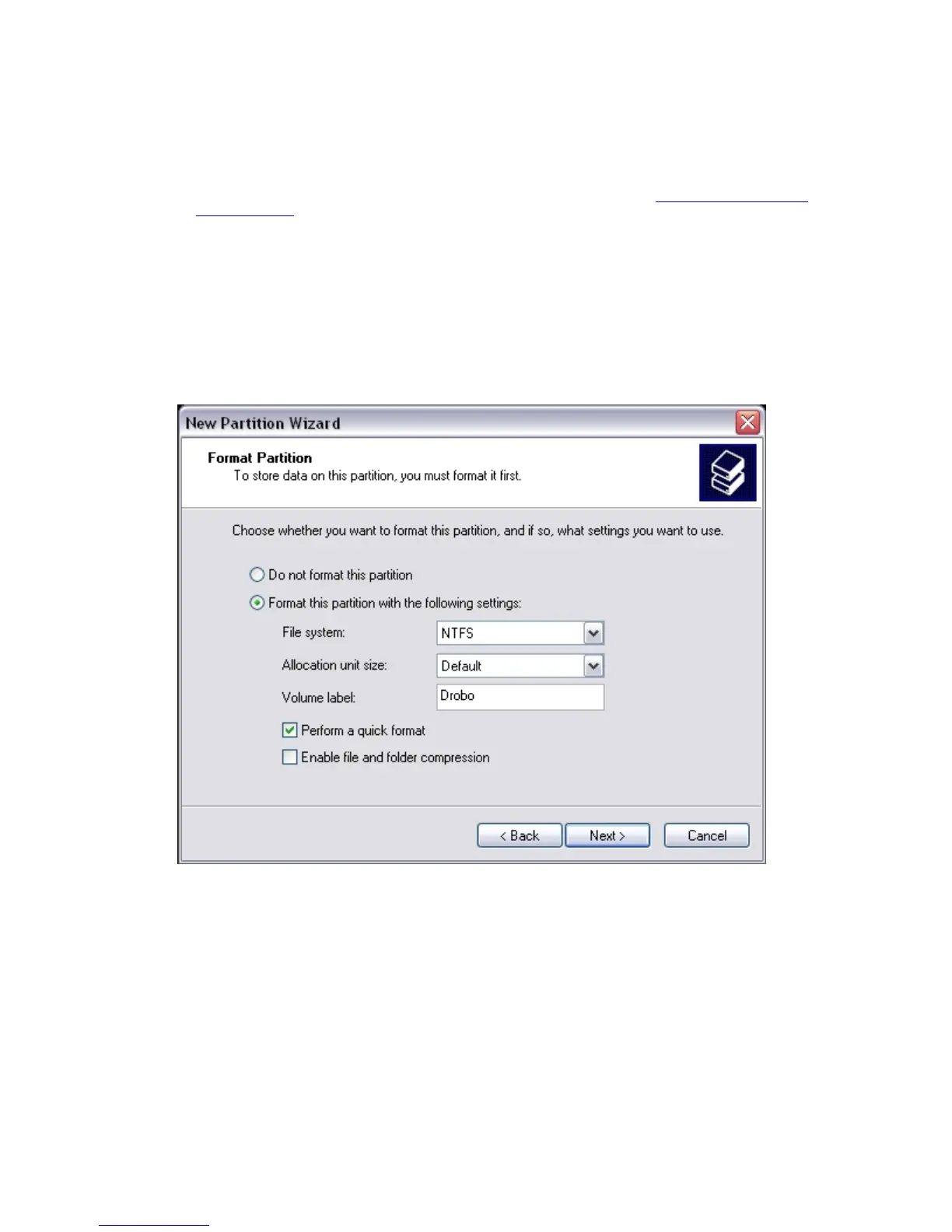
12. The Format Partition Window will appear. Use the following settings to format each partition:
NTFS as the File System type (the default setting).
Note: If you choose to format your drives as a FAT32 file system, then for optimal performance, Data Robotics
recommends you use Drobo Dashboard to format your drives. For instructions, see
Formatting Drives using the
Drobo Dashboard located earlier in this help topic. Extended and multiple partitions are not supported at this
time.
Default as the Allocation unit size.
Enter the volume label of your choice. For example, you could name it Drobo.
Be sure to select the check box by Perform a quick format to complete the format.
Tip: If you don't select a quick format, the format operation could take as long as a few hours to complete.
Click Next.
13. The final window of the wizard appears. Click Finish to start formatting the drive.
18



 To Next Page