Starting Drobo Dashboard
Drobo Dashboard is an optional tool for monitoring and managing any Data Robotics device, such as Drobo or
DroboShare. Drobo Dashboard offers useful information and convenient tools and is required in order to update Data
Robotics devices to the most recent released versions of firmware and software.
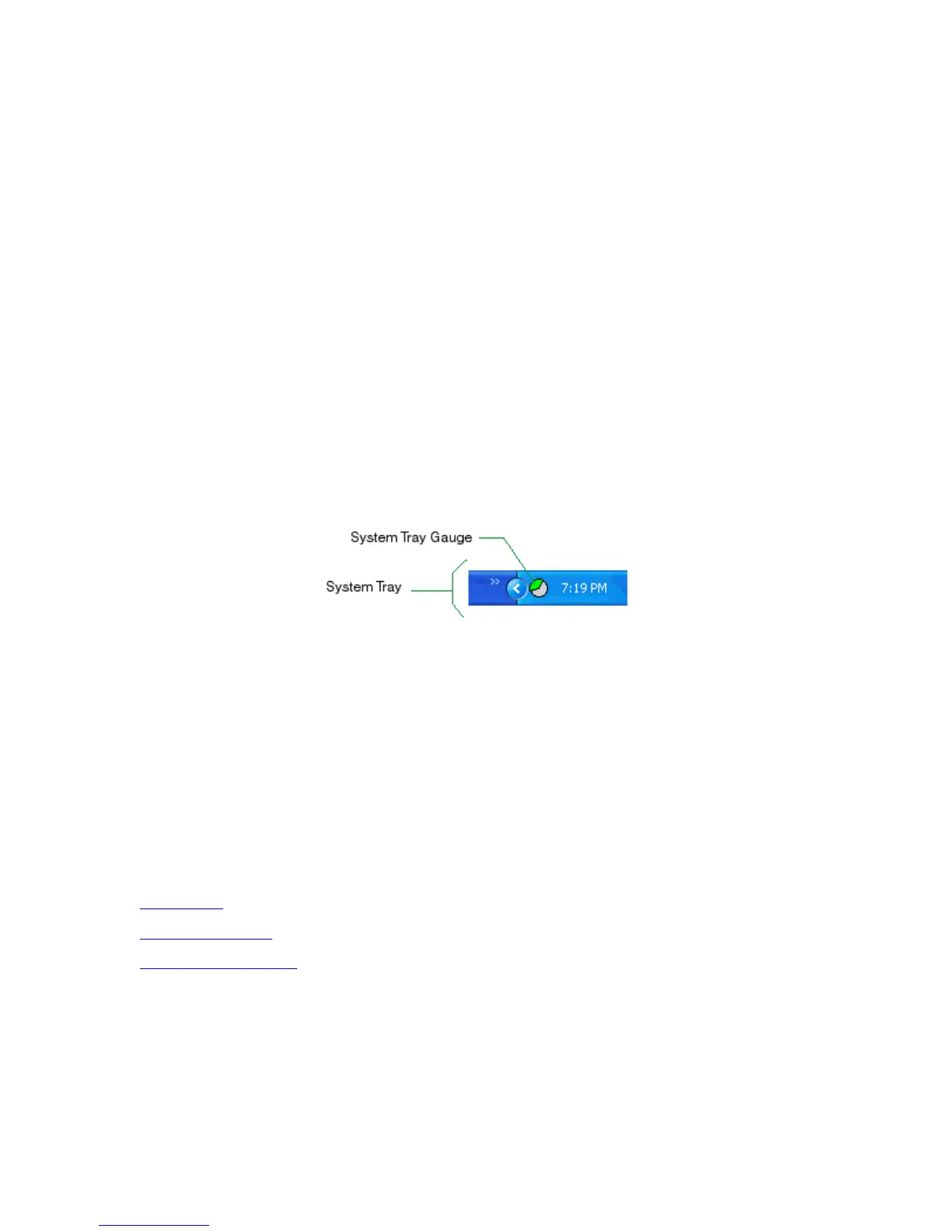
Drobo Dashboard provides an easy to read System Tray icon that shows you the status of your Drobo. So if you keep
your Drobo in a location where the data bay indicators are not visible to you, you can use Drobo Dashboard to remotely
monitor the status and capacity of Drobo and DroboShare.
There are two ways to start Drobo Dashboard:
From the System Tray icon
From the Windows Start button
To Start Drobo Dashboard from the Windows System Tray:
1. Go to your Windows Desktop.
2. On the right-hand side of the Windows Task Bar you will find the Windows System Tray. Inside it is the Drobo
Dashboard System Tray Gauge. Click on the gauge to open the Dashboard. You can also directly access
specific Drobo Dashboard windows by right-clicking the icon.
To Start Drobo Dashboard from the Windows Start Button:
1. Go to your Windows Desktop.
2. Click the Start button.
3. Point to All Programs, and then to the Drobo folder
4. Select Drobo Dashboard to launch Drobo Dashboard.
To Exit Drobo Dashboard:
1. Right-click on the Drobo Dashboard Gauge to open a menu.
2. Click on Exit.
Related Topics
Basic Drobo Dashboard
Advanced Drobo Dashboard
30



 To Next Page