17
Import: Copy the Menu setup stored in USB memory stick into DVR. Please plug in the memory stick and then click ( )
Import.
Export: Store the Menu setup of DVR in USB memory stick. Please plug in the memory stick and then click ( ) Export.
When user is on Default, Import or Export process, a message box will ask the progress and click the confirmation icon, then
a message box will show whether its success or failure.
System Log
Export: Store the System Log contents in USB memory stick. Please plug in the memory stick and then click ( ) Export.
When user is on Default, Import or Export process, a message box will ask the progress and click the confirmation icon, then
a message box will show its success or failure.
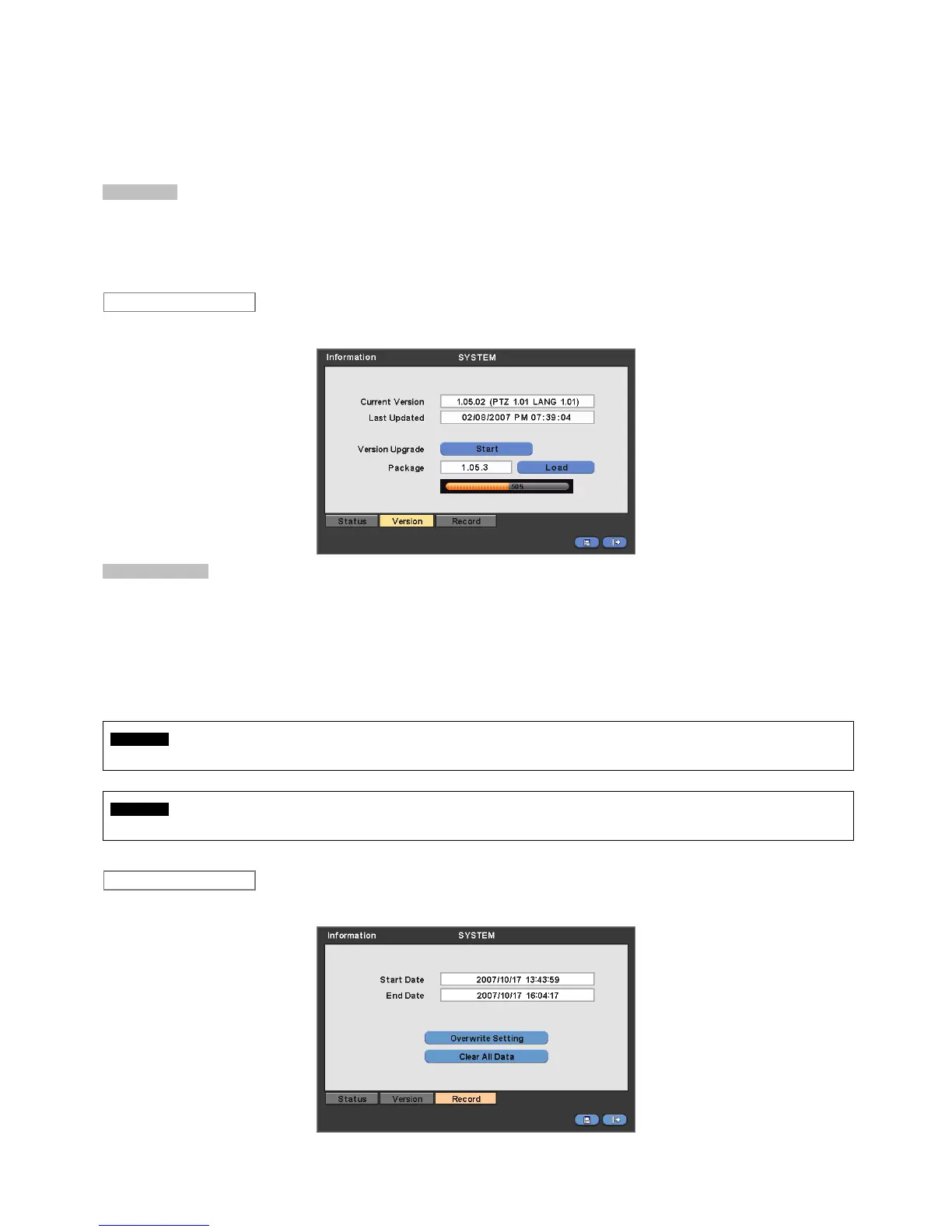
When user complete Status data input, please click ( ) Version and the following screen will appear.
Version Upgrade
User may upgrade DVR software.
Please follow the Upgrade procedure below.
① Plug USB memory stick having upgrade file into DVR.
② Click ( ) Load frame. Then, software version stored in the USB will appear on the left-hand side.
③ Click ( ) Start frame to start the upgrade.
④ When the upgrade is completed, a dialogue box pops up. Please choose ‘OK’ and DVR will auto-reboot.
CAUTION
DO NOT UPGRADE UNTIL INSTALL A HARD DISK DRIVE. MAKE SURE TO UPGRADE WHEN HDD IS IN PROPER OPERATION.
CAUTION
PLUGGING OUT USB DEVICE OR FORCED POWER-OFF MAY CAUSE PERMANENT DAMAGE.
When user completes Version input, please click ( ) Record. Then, the following screen will appear.
The screen shows start time and end time of recorded data.
Record
Version


 To Next Page
 Loading...