19
4.2.2 Admin
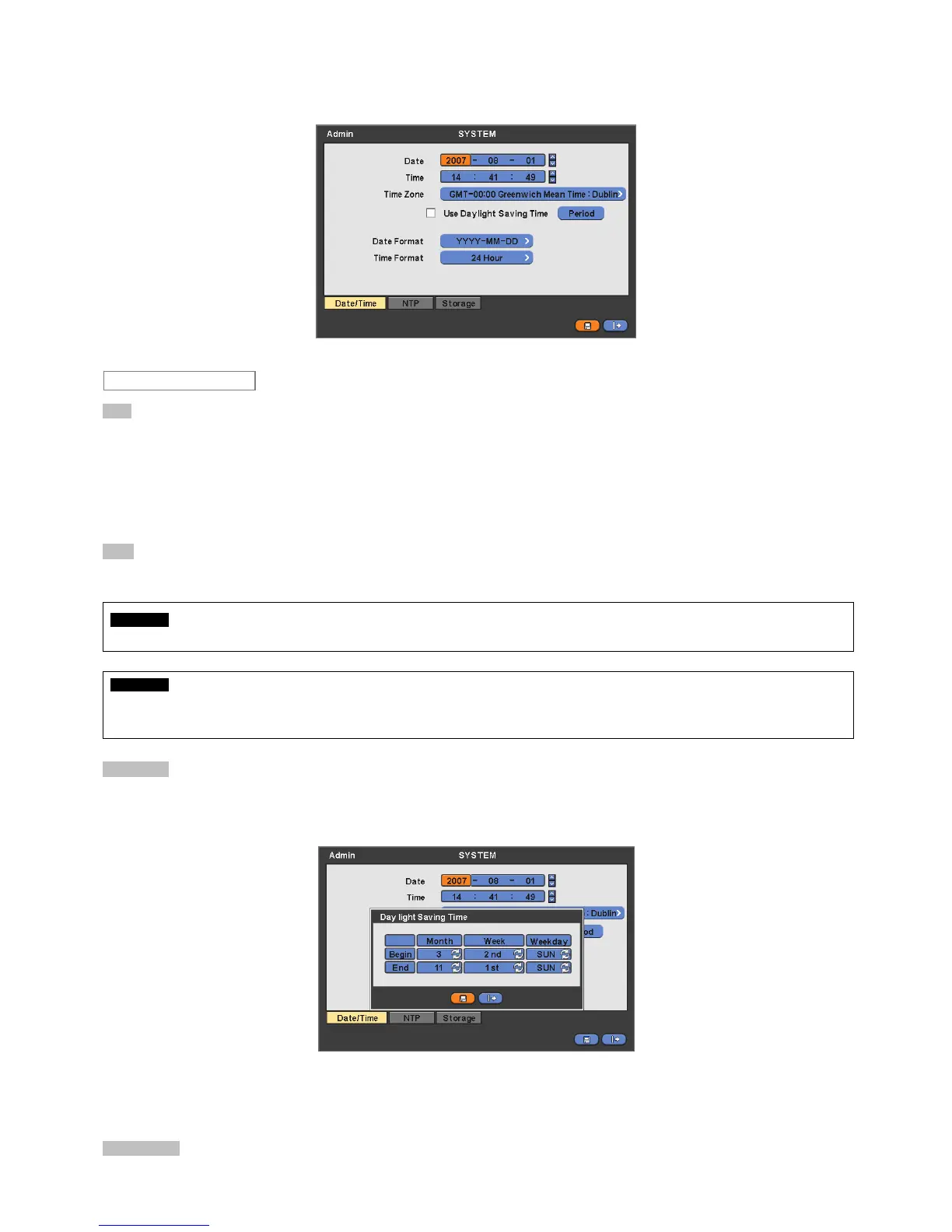
Please click ( ) SYSTEM>Admin and the following screen will appear.
Date
This menu will allow user to adjust the settings.
Please follow the procedure below for time adjustment.
① Click ( ) items (Y, M, D) to change. A designated item will be highlighted in a box (Y: Year, M: Month and D: Date).
② Adjust the number by clicking ( ) ▲, ▼ buttons on the right-hand side.
③ Repeat the same procedure to change Y, M and D.
Time
This menu will allow user to adjust the current time. The adjustment procedure is same as of Date.
CAUTION
IF ADJUSTED DATE/TIME IS PRIOR TO RECORDED DATA, DATA AFTER NEW DATE/TIME MAY BE ERASED.
CAUTION
ANY CHANGE IN DATE/TIME IS IMMEDIATELY APPLIED ON VIEWING SCREEN (LIVE), BUT THE DATE/TIME WHEN THE RECORDING
WAS DONE IS NOT CHANGED. MAKE SURE TO REBOOT DVR AFTER CHANGING THE DATE/TIME. DO NOT FORGET TO EXECUTE
SHUTDOWN (SYSTEM>Shutdown) BEFORE REBOOT.
Time Zone
Please click ( ) Time Zone frame to see the list of nations and choose one.
Click ( ) a check box next to Use Daylight Saving Time. When user dwells in a region of DST area, please check it (i.e. ).
If DST is observed, please click ( ) Period and the following screen will appear.
Adjust the dates of beginning (Begin) and end (End) of DST by ‘Month/Week/Weekday’.
Click ( ) the numbers in ‘Month/Week/Weekday’ for adjustment.
Choose ‘OK’ to confirm the setting.
Date Format
Set date indication format. Please click ( ) Date Format frame to select a format from the list.
Date / Time


 To Next Page
 Loading...