45
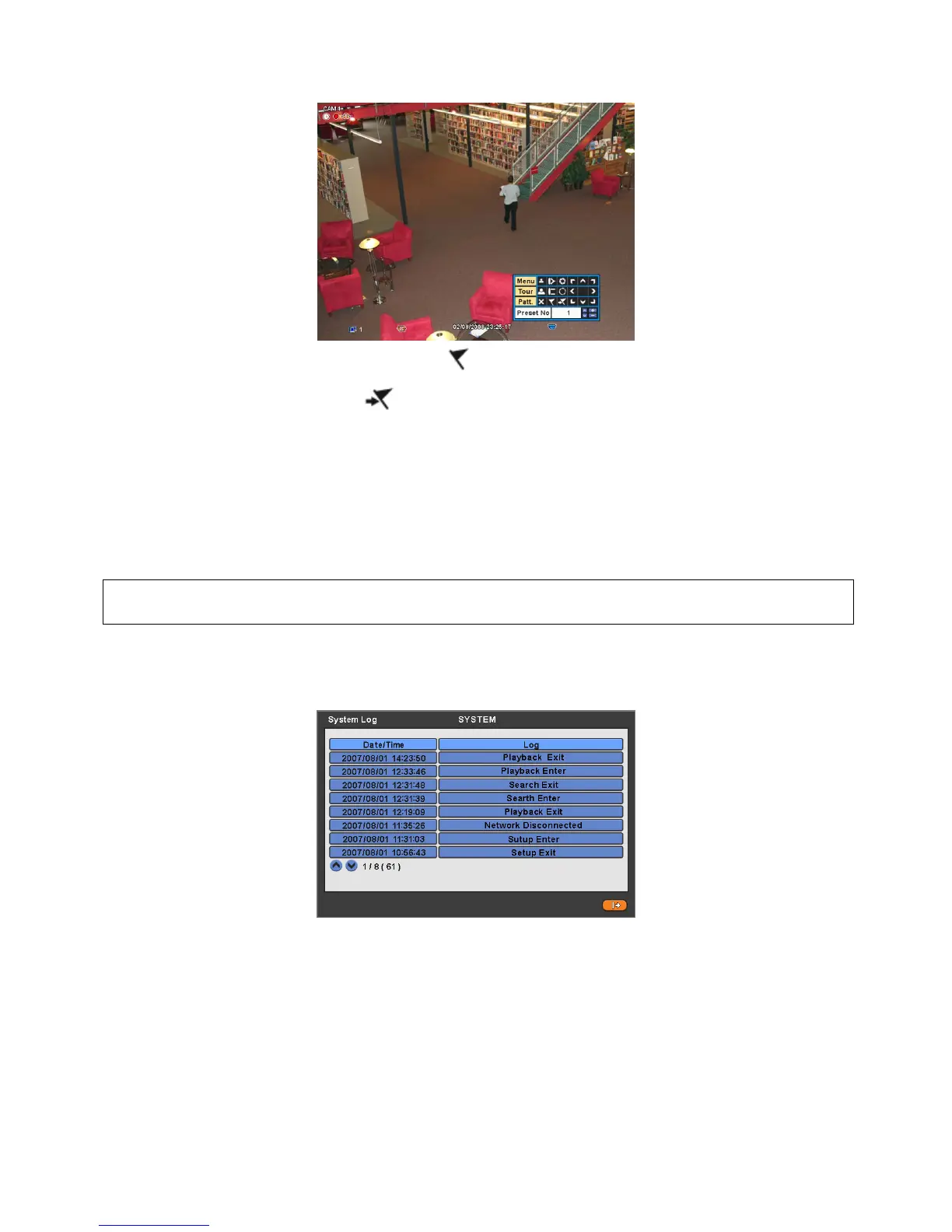
To use a mouse in Pan/Tilt mode, please move the cursor to the lower portion near the center of the screen. To use front
button in Pan/Tilt mode, please push setup button. A key pad control will show as follows:
To save current camera number, select Preset No and
button click.
To move to preset, select preset No and
button click.
Available 1 ~ 255 Preset numbers can saved it depends on camera specification.
As explained earlier in 4.4.2. press Menu button to pop-up PTZ camera OSD setup screen and set up Tour and Pattern
items.
- Since these functions make use of a memory function of the camera itself, user should set them in Camera OSD.
- Once user completes the setup, close the Camera OSD menu.
- User can conveniently use Tour and Pattern functions simply by clicking Tour and Pattern buttons.
- Particulars on how to setup each function on OSD Menu are found in the manual of a corresponding camera.
(NOTE)
Suppose a command for using Tour function is 71 ~ 79 + PSET and if you had set Tour to 70, use Preset No: 1 ~ 9 + Tour
button to benefit the Tour function (70 + 1~9).
5.1.6 System Log
Press EVENT key and the System Log screen will appear.
Please refer ‘SETUP>SYSTEM>System Log’ to learn different events listed on the System Log and see how to delete the
System Log.
5.1.7 Emergency Recording
When user presses EMERGENCY key, recording starts right away regardless of preset recording mode.
Emergency recording is not operated while SETUP.
Press Emergency key one more time to stop the emergency recording.


 To Next Page
 Loading...