61
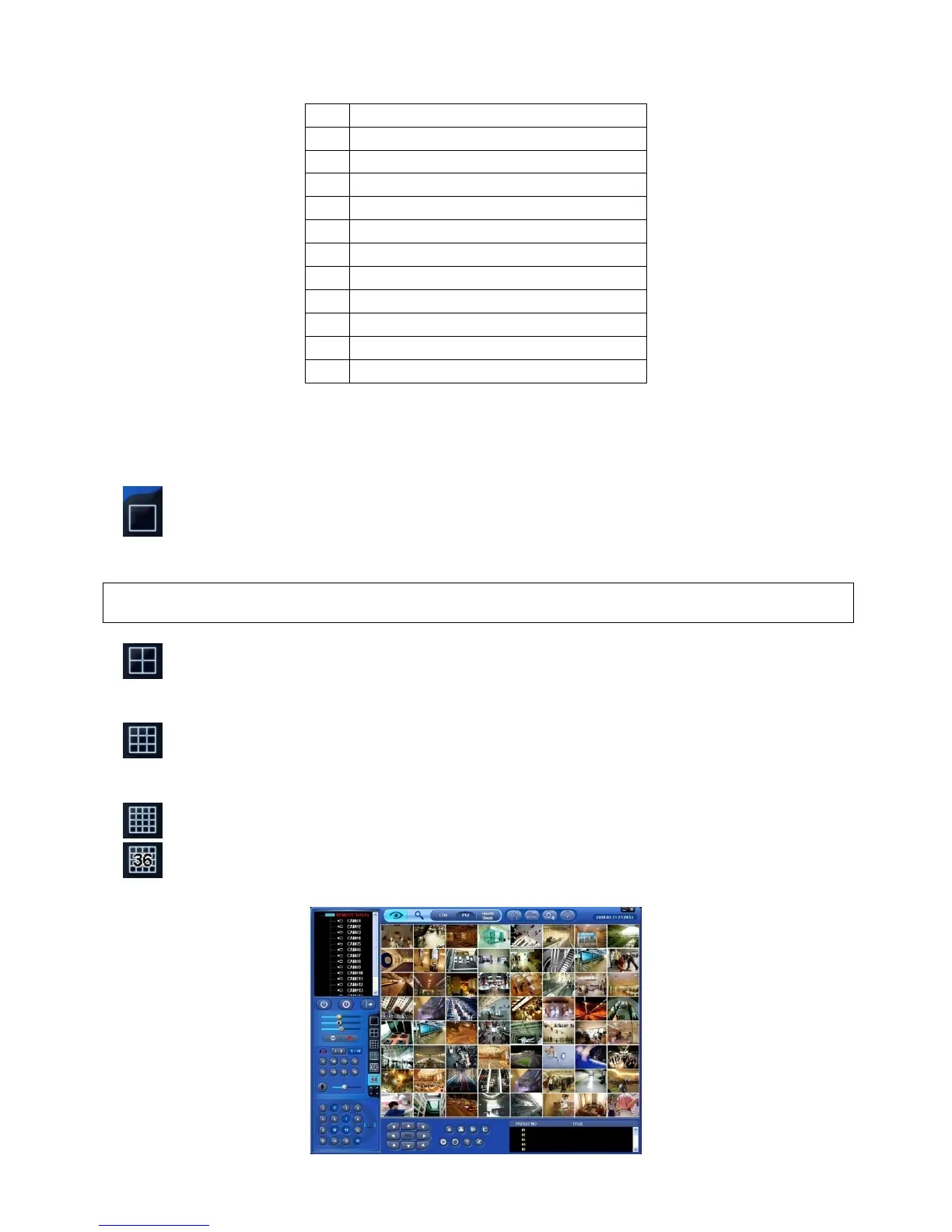
The list below describes functions of each part of the screen.
1 Tool Bar
2 Watch Mode
3 Date/Time LED
4 Site Tree (DVR and Channels)
5 Color Control Bar
6 Instant Record Button
7 System Log
8 Alarm Out Channels
9 Audio Channels
10 Two way Audio
11 Video Display Screen
12 Network Connect/Disconnect Button/Exit CMS
8.3.2 Watch Mode
The first image (or the initial image) shows the available maximum split screen format, but user is able to select a watch
mode among below modes.
Full Screen Mode: Select a channel and click on FULL SCREEN button. Then, the corresponding channel will
display in Full Screen.
(NOTE)
A selected channel is outlined in red.
Quad Screen Mode: Click on QUAD SPLIT button and a quad screen will display. The quad screen is in
combination of 1~4, 5~8, 9~12 and 13~16. If user selects Channel No. 7 and click the button, 5~8 quad screen will display.
Similarly, if user selects Channel No. 16, 13~16 quad screen will display.
9-Split Screen Mode: Click on 9-SPLIT button and 9-split screen will display. The 9-split screen is in combination of
1~9 and 8~16. If user selects Channel No. 9 and click the button, 1~9 split screens will display. Similarly, if user selects
Channel No. 10, 8~16 split screens will display.
16-Split Screen Mode: Click on 16-SPLIT button and 16-split screens will display.
36-Split Screen Mode: Click on 36-SPLIT button and 36-split screens will display.


 To Next Page
 Loading...