29
Network Type
Please click ( ) Network Type. Every time click ( ), it changes to Static (fixed IP) and DHCP (floating IP).
In Static, user must manually set the static IP address for use.
- Set IP Address, Subnet Mask and Gateway. Please ask your network administrator for more details.
- To input address, please click ( ) and execute the keyboard icon on the right-hand side of each frame.
In DHCP, IP Address, Subnet Mask, Gateway and DNS Server will have input automatically.
DNS Server
When user set Network Type to DHCP, DNS server will be inputted automatically.
When user set Network Type to Static, please click ( ) the keyboard icon on the right-hand side of DNS Server frame and
manually input the address.
CAUTION
NOTE THAT DNS SERVER ADDRESS IS IP ADDRESS OF YOUR COMMUNICATIONS COMPANY NAME SERVER PROVIDING
INTERNET SERVICE. IT IS NOT THE IP ADDRESS OF DDNS SERVICE SITE.
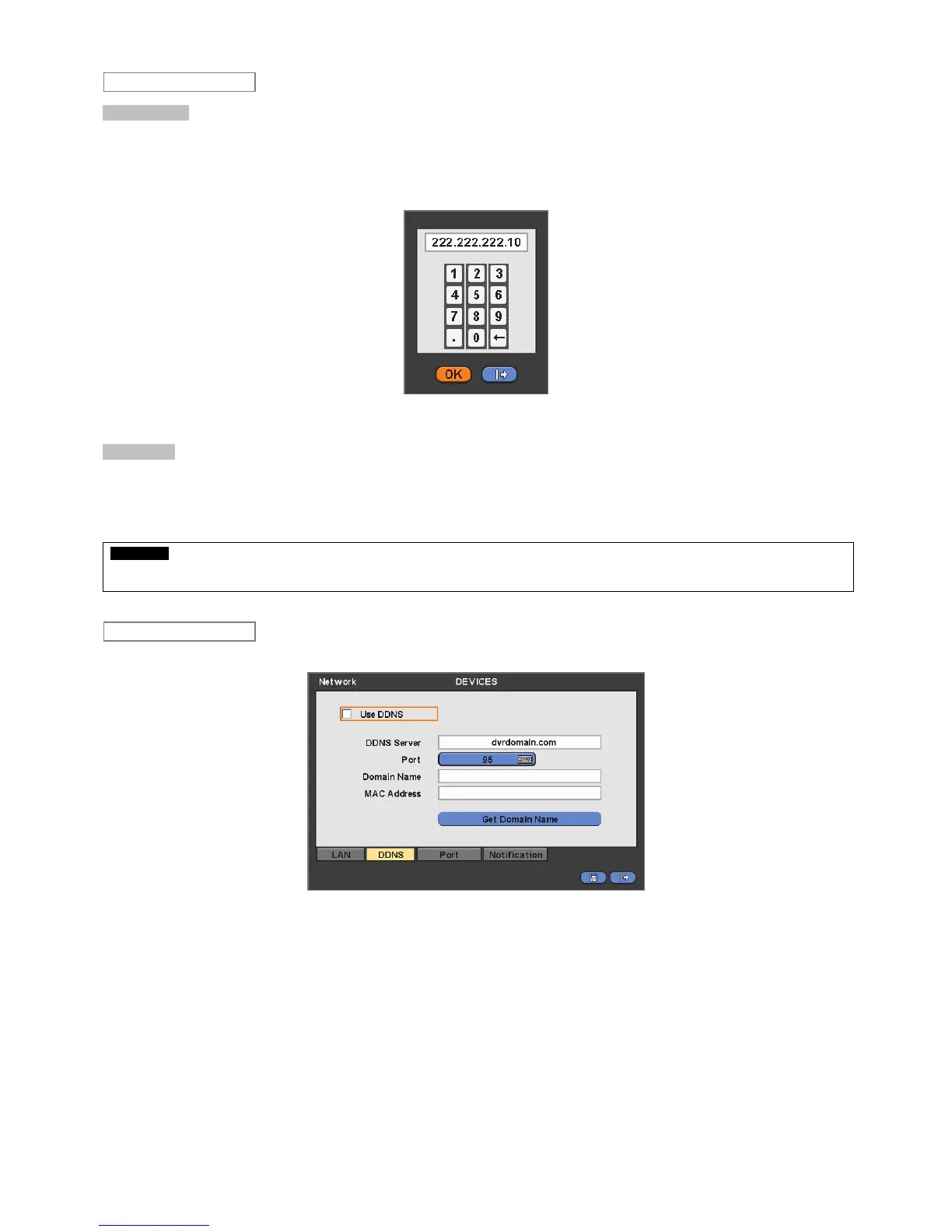
Please click ( ) DDNS and the following screen will appear.
‘Floating IP system’, although being predominantly used over Internet, is very inconvenient for users because its address
varies every time when user access. The best alternative is DDNS (Dynamic Domain Naming System) which uses name
(domain name) instead of IP address (numbers). DDNS automatically recognizes ever changing, floating IP addresses, so it
will allow easy Internet access.
Check a checkbox of Use DDNS to use DDNS function.
As for DDNS Server, dvrdomain.com name will be showing as default.
As for Port, 95 is shown by default. If ‘95’ is disenable, please consult with a product distributor.
DDNS
LAN


 To Next Page
 Loading...