39
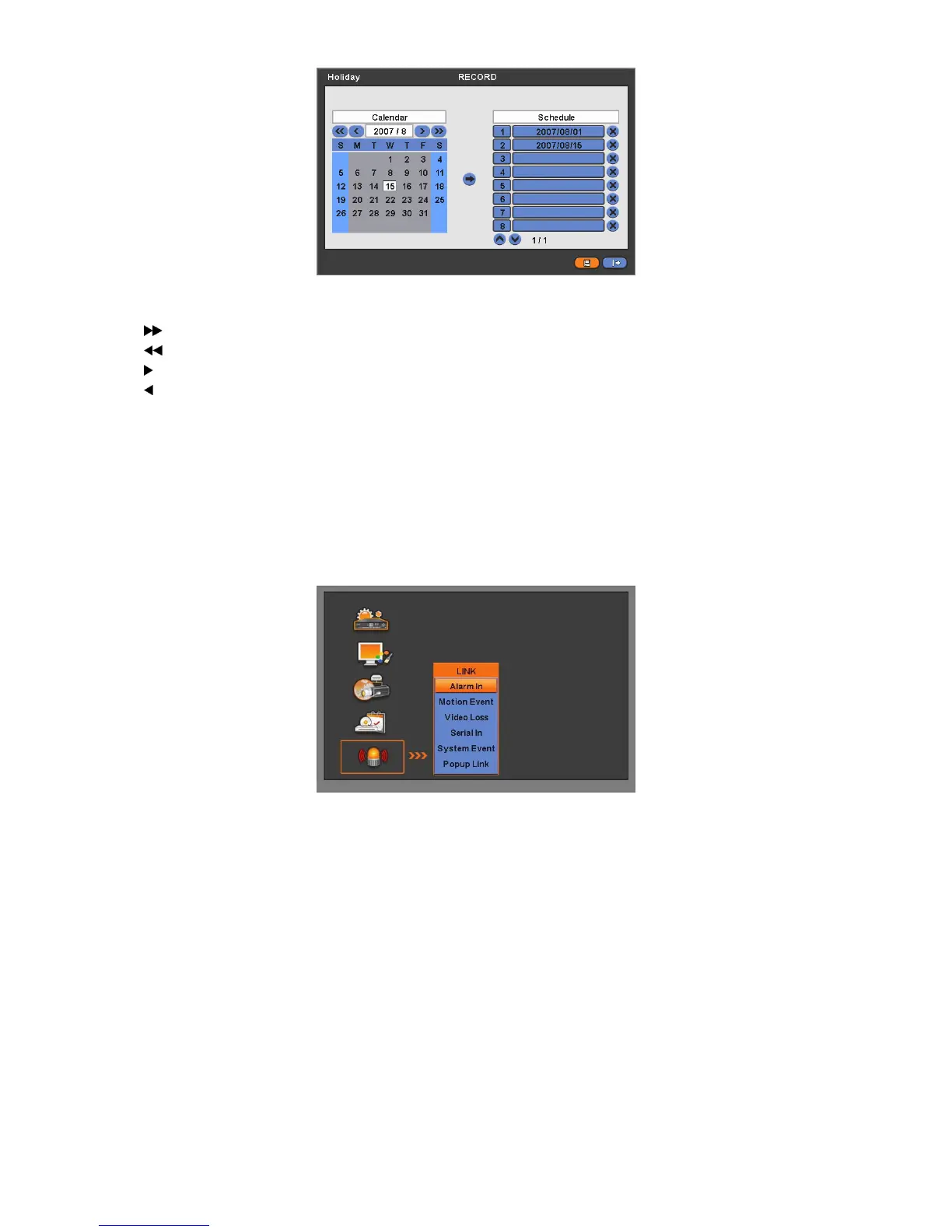
The Holiday menu will allow user to register holidays. Please follow the registration procedure below.
① Use arrow buttons in the Month Calendar to select Year and Month of holiday to be registered.
-
: search subsequent ‘Year’
-
: search previous ‘Year’
-
: search subsequent ‘Month’
-
: search previous ‘Month’
② Click ( ) on date user need to register as holiday.
③ Click ( ) ADD button and the date just clicked on will be copied to the Schedule frame for registration.
④ If wish to cancel the registration of a certain holiday, please click button next to the Schedule frame.
Since holidays may vary every year, we recommend user to update on a regular basis.
Choose ‘OK’ to confirm the setting.
4.6 LINK
Please click ( ) LINK and the following screen will appear.
The LINK menu will allow user to set recording modes of all kinds of alarms (Sensor, Motion Event, Video loss, System
Event, etc.), alarm output, e-mail notification and the like.
4.6.1 Alarm In
Please click ( ) LINK>Alarm In and the following screen will appear.
Select cameras for recording while the motion sensor is in operation and alarm outputs and set up E-mail addresses for
notification.
Link Notification displays E-mail addresses registered in DEVICES>Network>Notification.
Please follow the setup procedures below.
① Click ( ) Alarm In frame and select Alarm In 1.
② Select cameras for recording when Alarm In 1 is on. Please check a check box under Link Camera. More than two
cameras can be set.
③ Select alarm outputs to be worked when Alarm In 1 is on. Please check a check box under Link Alarm Out. More than
two alarm outputs can be set.
④ Select E-mail addresses for notification when Alarm In 1 is on. Please check a check box under Link Notification. More
than two E-mail addresses can be set.
⑤ Repeat the above procedure for Alarm In 2


 To Next Page
 Loading...