47
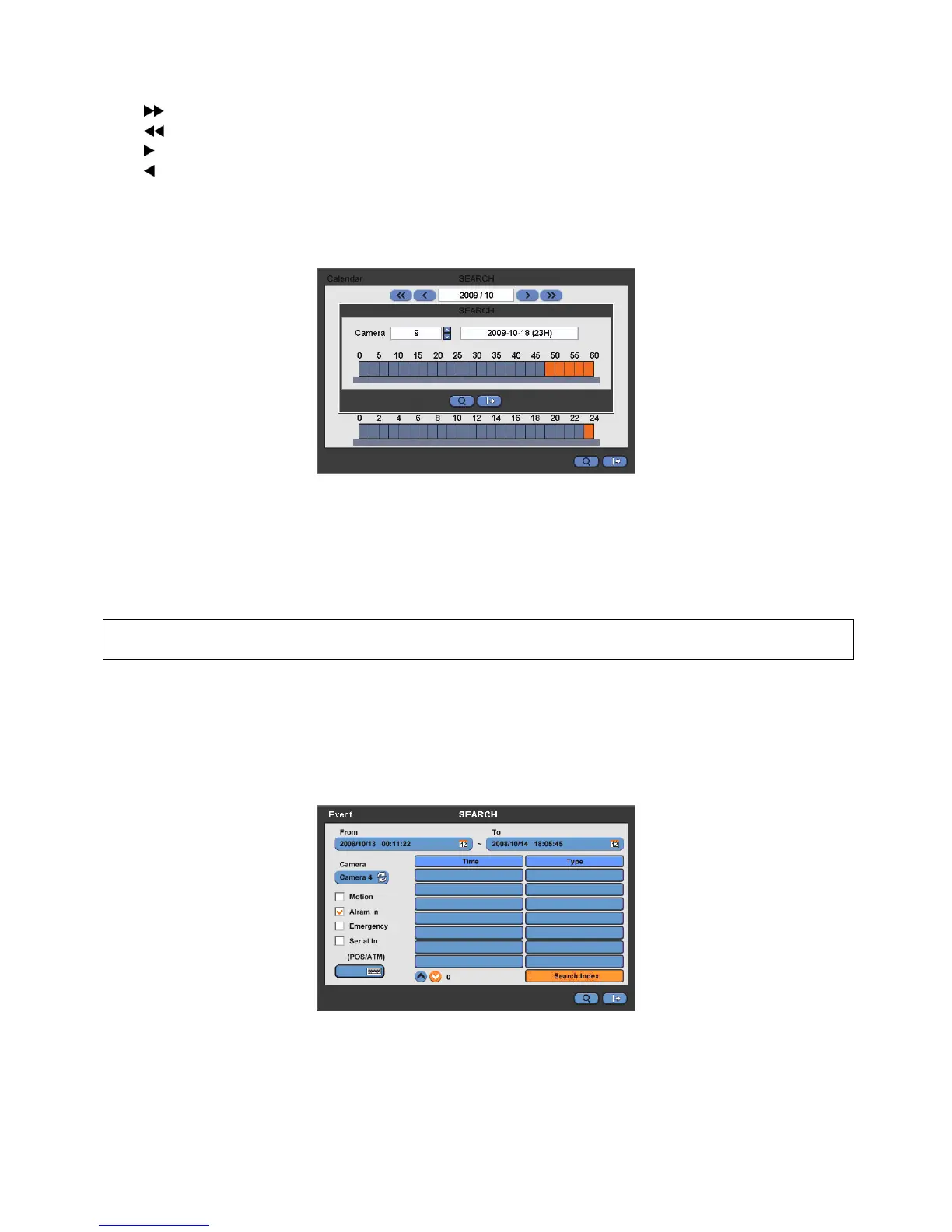
Follow the procedure below to search video by calendar.
① Select Year and Month by using the arrow buttons in the calendar.
-
: search subsequent ‘Year’
-
: search previous ‘Year’
-
: search subsequent ‘Month’
-
: search previous ‘Month’
② Click ( ) a date. The date will be displayed in black color.
③ Click ( ) the box on the time indication bar to select the search time. The selected time zone will be focused in different
color.
④ Click ( ) the selected time box to show pop-up window on the screen, If there is a recorded data.
⑤ The screen will show selected date/time.
⑥ Click ▲▼ button for selecting cameras.
⑦ Selected camera will show the time bar 0-60 and It will be marked on 2.5minutes basis during selected time zone.
⑧ Click ( ) the box on the time indication bar to select the start time of the video playback.
Click ( ) Search to start playing back the selected video.
Playback continues from the designated time until the last recording time.
(NOTE)
④
Click ( ) search button for showing entire channel search based on different time frames.
5.2.3 Event Search
Please click ( ) Event Search in SEARCH menu and the following input box will appear.
This involves searching recorded video to playback the selected video of a specific date and time.
Press SEARCH key on the viewing screen, or use the mouse wheel (central button) and the following Search menu will
appear.
① Designate Event Search start time.
② Designate Event Search end time.
③ Select camera (video) to search data.
④ Check a check box (Motion / Alarm In / Emergency / Serial In) Check box.
⑤ Click on Search Index button to recorded search event data.


 To Next Page
 Loading...