DVR QUICK GUIDEDVR QUICK GUIDE
Controlling Live TV
• Press PAUSE to alternate between pausing and resuming the
show you’re watching.
• Press REWIND up to three times (for three speeds) to rewind
the show.
• Press FORWARD up to three times (for three speeds) to fast-
forward the show up to the point of broadcast.
• Press PLAY to stop fast-forwarding or rewinding or resume
from a pause.
• Press LIVE TV to view the point of broadcast for the l
ast
channel you watched.
• Press REPLAY to view the
previous 7 seconds of the
show.
• Press SKIP to skip forward in
the show up to the moment of
broadcast. You can decide
how many seconds to skip
with this button in the Settings
menu.
• Press PAUSE and then
FORWARD once to activate
slow motion.
• Pressing RECORD to record the entire contents of the
temporary memory or buffer for the show you are watching.
• Press PAUSE and then SKIP to advance forward one frame.
THE BUFFER
When you start watching a show, your PFusion layer will start
storing it in temporary memory, called a buffer. The amount of
temporary memory varies, but it is never less than 30 minutes
for standard definition or 10 minutes for HDTV.
Player Bar
Whenever you press one of the player control buttons, you’ll see
the Player Bar, which gives you status informa
tion about the
program you’re currently watching. You’ll see a version of the
player bar no matter what type of media you’re enjoying,
whether it’s recorded or live TV, photos, or music.
1. CURRENT TIME – The current time or point in the current
program.
2. PROGRAM – The current live or recorded program being
played back.
3. SHOW START TIME – The start time of the recorded or Live
TV program.
4. STORED IN MEMORY –
while watching live TV, this area (the
buffer) displays the part of the show recorded in temporary
memory. While watching recorded TV, it shows the entire
contents of the show available for viewing.
5. PLAYER BAR STATE – The current state of the program
controls, such as play, pause, rewind, and fast-forward.
6. SHOW END TIME – Displays the end time of the Live TV
program or the duration of a recorded TV pro
gram.
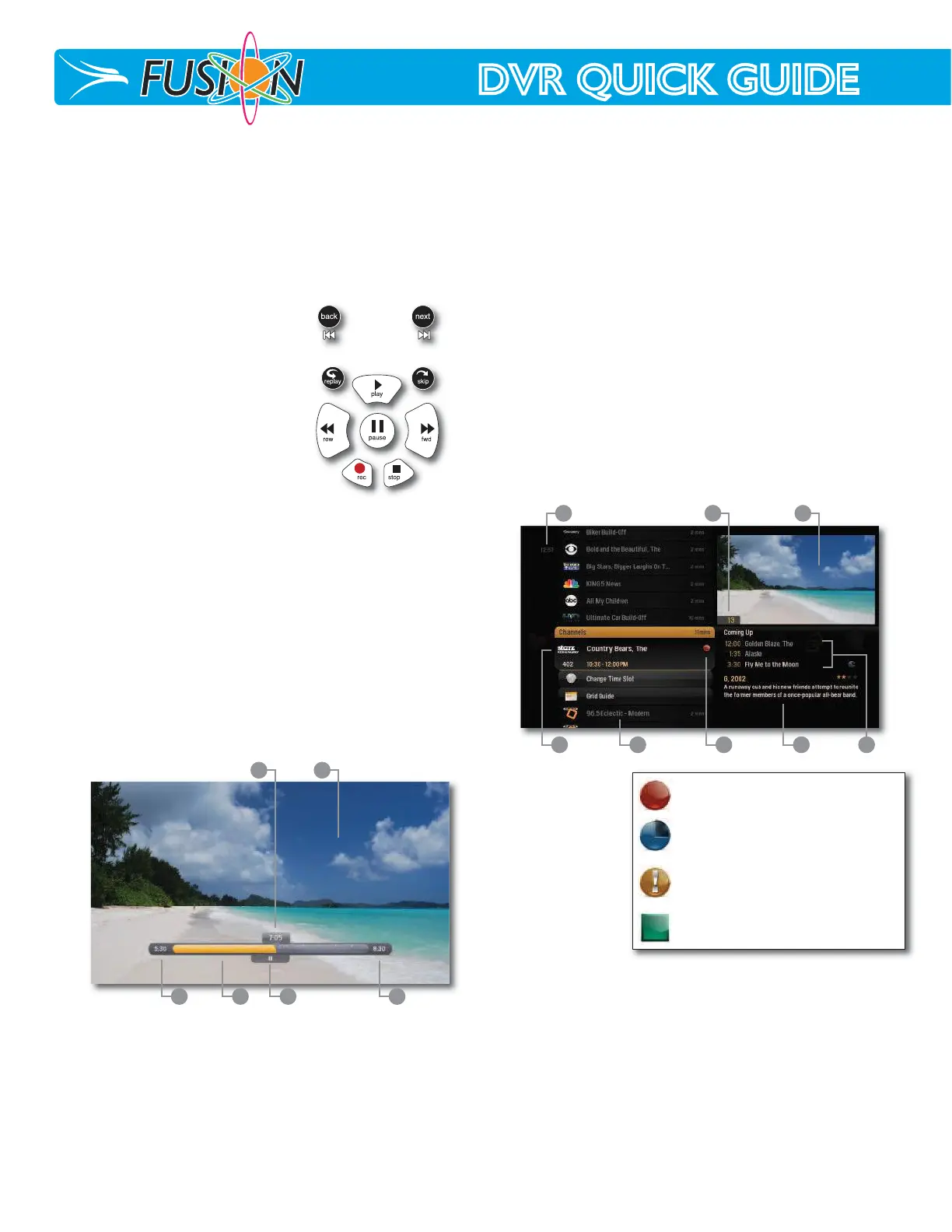
TV Channels - Layout
1. TIME – With the current time, you’ll know when your show
begins.
2. CURRENT CHANNEL – Displays the channel that is playing in
Mini TV. If the program is recorded, an icon will display the
current status - i.e., play or pause.
3. MINI TV – Even when channel surfing, Mini TV always keeps
you in the action.
4. FOCUS PROGRAM – Pressing INFO on this item brings up an
action menu.
5. AVAILABLE
TV PROGRAMS – Displays all of the programs
available in your TV lineup that are currently airing.
6. RECORDING ICON – Displays an icon if the show is recording
or scheduled to record.
7. INFORMATION PANEL – Displays program information about
the show in focus.
8. PROGRAM INFORMATION – Displays the next three
upcoming shows that will air on the channel in focus.
Recording Icons
Your Fusion Player
includes the
following recordin
g
icons for DVR status
at a glance. The
following icons
appear on focus
cards and vertical
cards throughout
the main menu.
Recording Options
If you have record once or record series selected, you’ll see an
arrow to the right that allows you to access recording options.
You can also access recording options
from the action menu of a show that’s currently recording or
scheduled to record.
Scheduled to Record
Recor
ding options for a single episode scheduled to record:
• Keep - lets you decide when the show will be deleted.
• Get series - sets the entire series to record.
• Stop - allows you to set the recording to stop early or late.
• Start - allows you to set the recording to start early or late.
The show is recording right now.
The show is scheduled to be
recorded.
The show will not delete and can
only be deleted manually.
The show is recorded and may be
deleted when space is needed for
newer shows.
1 2
63 4 5
1 2 3
4 5 6 7 8



 To Next Page
 Loading...