6
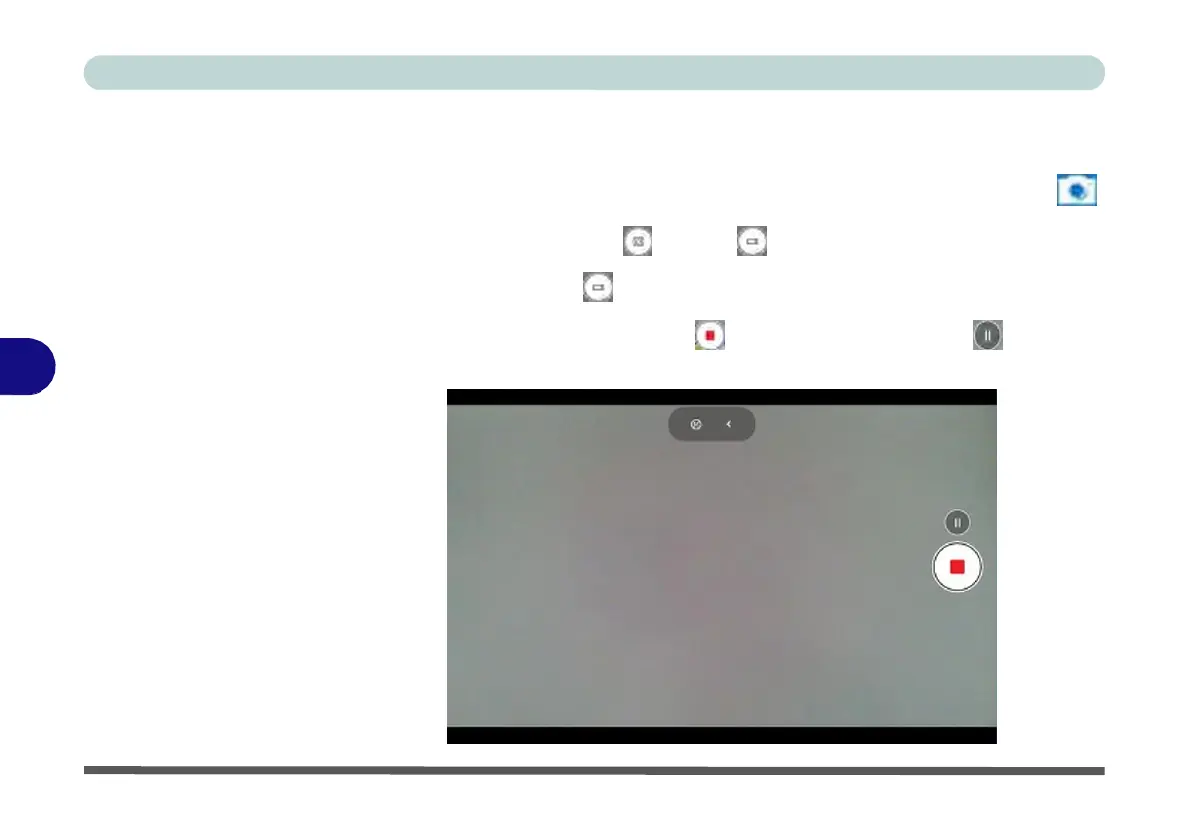
Figure 6 - 13
Video
Camera
Recording
in
Process
Taking Pictures/Capturing Video
1.
Make sure the PC Camera is turned on by using the Fn + F10 key combination (or
Control Center button).
2. Run
the
Camera
app
from
the
Start
menu
by
clicking
on
the
Camera
app
icon
(you can type “camera” into the search box to find the Camera app).
3.
Click to select either photo or video modes.
4.
Click the photo icon to take a picture.
5.
Click on the video icon to start video capture (when video capture begins a
timer will appear at the bottom of the screen).
6.
To stop video capture click the stop button (you can also pause the video
capture).


 To Next Page
 Loading...