Appendix B: Control Center
Overview
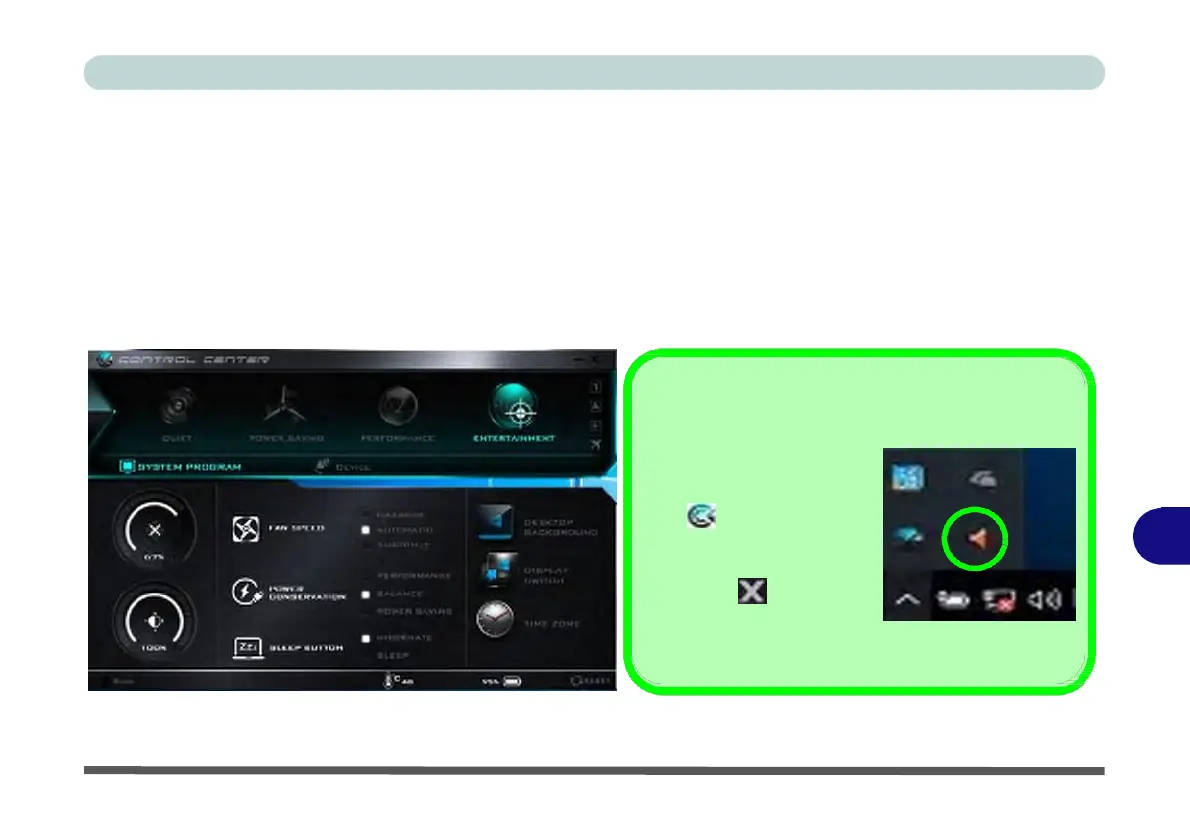
The following chapter will give a quick description of the functions of the Control Center. The Control Center
gives quick access to frequently used controls, power
management
features and enables you to quickly turn mod-
ules on/off. Click the Control Center icons to toggle the appropriate function, or hold the mouse button down
and move the dial control where applicable. Certain functions will
automatically
be adjusted when a power mode
is selected. The Control Center in Windows 10 works under the Desktop App and not under the Start screen.
Control Center Access
To run the Control Center
press the Fn + Esc key com-
bination, or double-click the
icon in the notification
area of the taskbar. B
Close the Control Center by
clicking the close icon in
the top right of the panel
(move the cursor onto the
top right corner of the panel to highlight it).
Figure B - 1 - Control
Center


 To Next Page
 Loading...