Attaching Other Displays C - 17
To Enable Extended Mode:
1. Attach
your
external display
to the
HDMI-Out port/external monitor
port, and turn it on.
2.
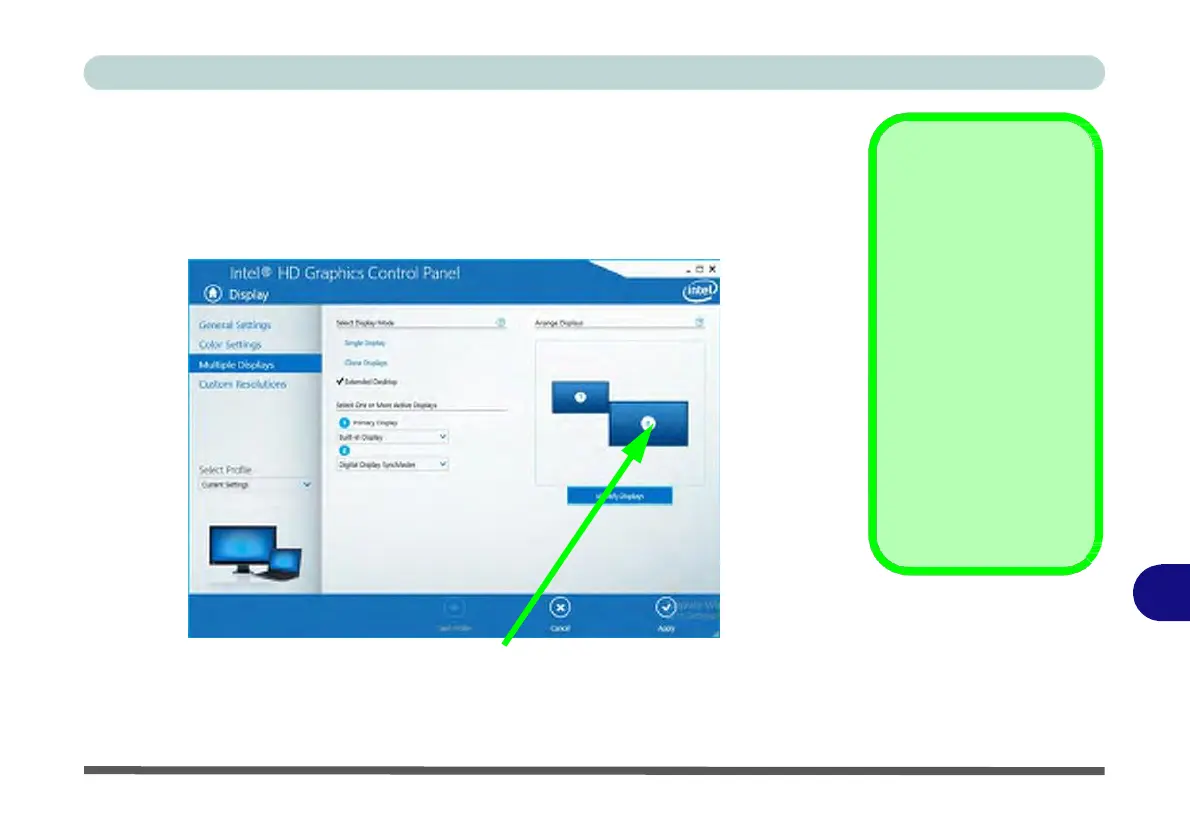
Go to the Intel(R) HD Graphics Control Panel control panel and click Display >
Multiple Displays (sub-menu).
3.
Click Extended from the Select Display Mode menu.
4.
Click Apply, and OK to confirm the settings change.
Click the appropriate monitor icon and drag it to match the physical arrange-
ment you wish to use (e.g. the secondary display may be extended left/right/
above/below the primary display).
Display
Settings
Extended
Desktop
You can have different
Colors, Screen Area
and Monitor Refresh
Rates for each display
device provided your
monitor can support
them.
You can drag the moni-
tor icons to match the
physical layout of your
displays. Icons and pro-
grams may also be
dragged between the
displays.
Figure C - 16
C
Display >
Multiple
Displays
(Extended)


 To Next Page
 Loading...