C - 24 Wireless Display Configuration
Wireless Display Configuration
1.
Note that no driver or application is required for wireless display in Windows 10.
2.
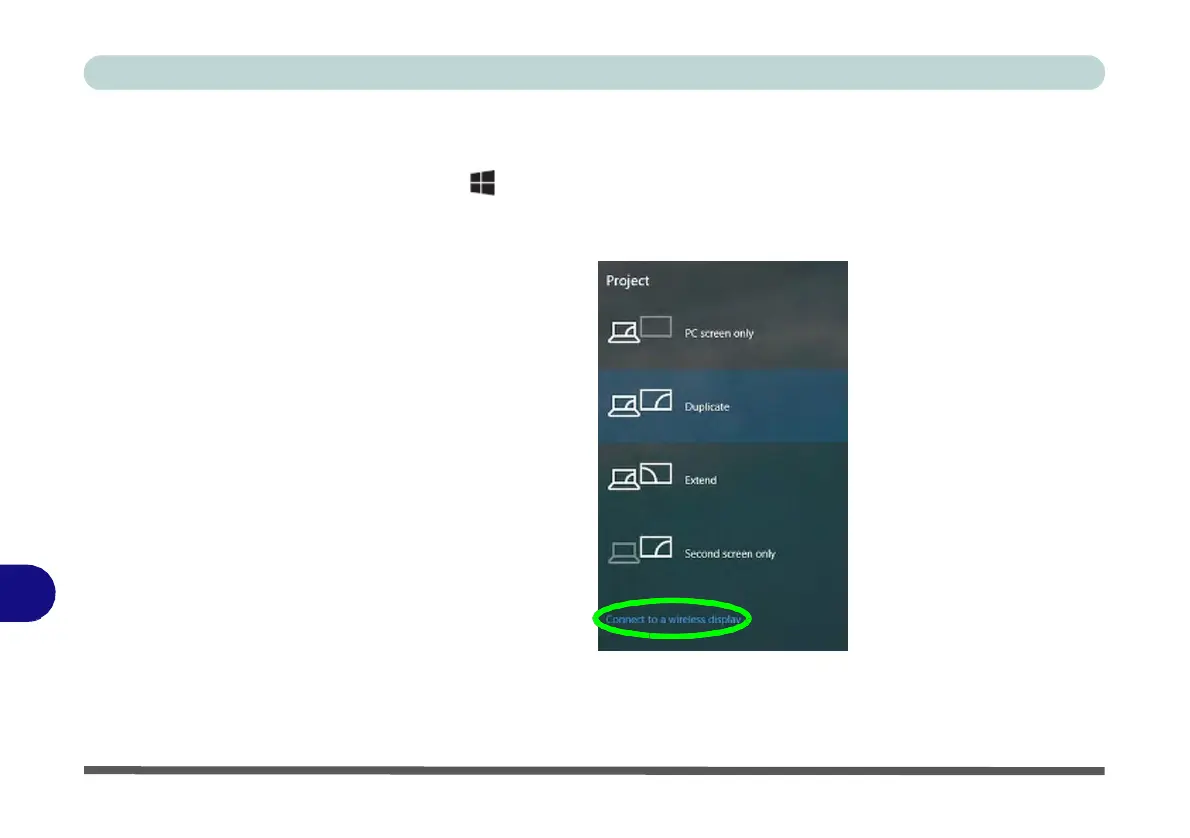
Press the + P key combination.
3.
Click Connect to a wireless display at the bottom of the Project screen and
follow the steps to connect to any wireless enabled display.
Figure C - 21
Add a
Wireless
Display
C
4.
The system will then search for compatible display devices (this may take up to
60 seconds so allow time for this to complete).
5.
Double-click any detected display device in the list.


 To Next Page
 Loading...