Keyboard Application Settings
(Illuminated Keyboard Option)
If your computer includes an illuminated keyboard (factory option), you will need to install the keyboard Con-
trol Center application driver (see “Control Center” on page 4 - 8) and you can then select the type of keyboard
as appropriate for your model’s configuration (you can only select keyboards supported by your system). After
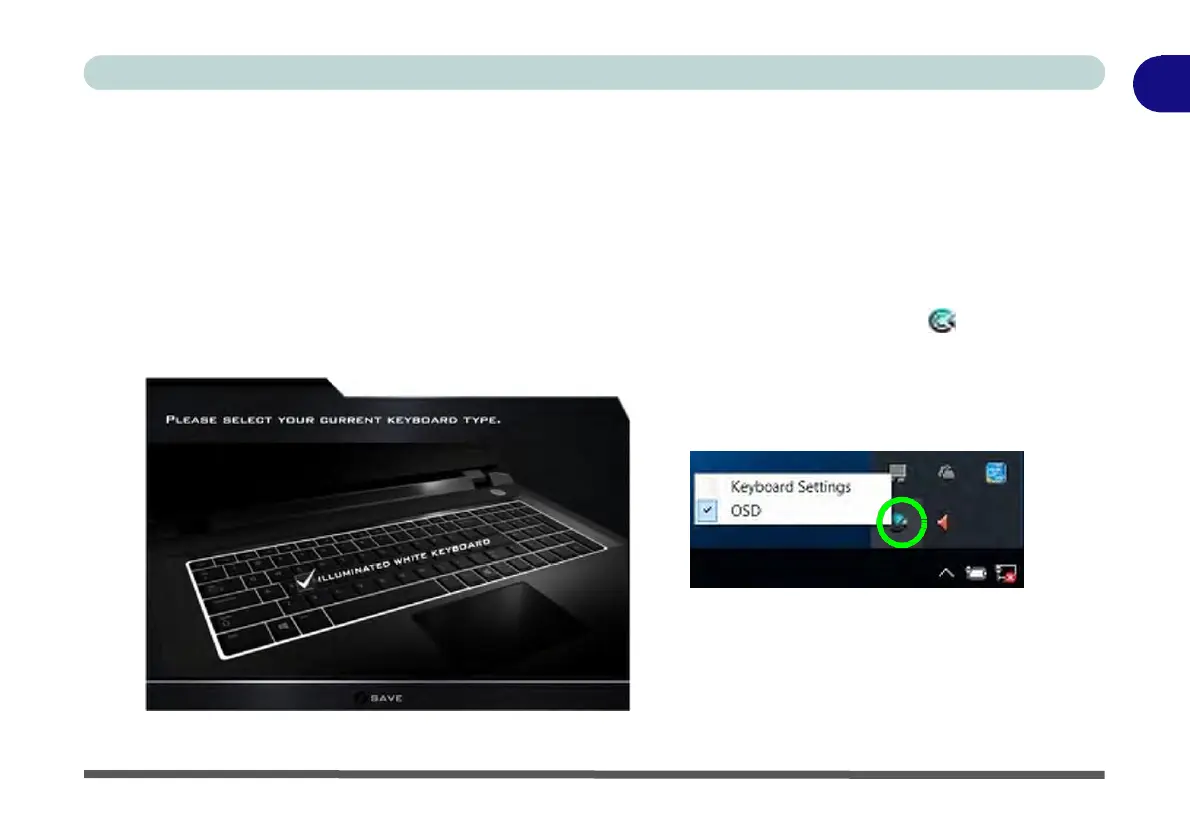
the driver has been installed, and the system restarts, the control panel below will pop-up to allow you to select
the illuminated white keyboard for your system. Click Save to retain the setting chosen.
If you wish to change the setting at any time then right-click on the Control Center icon and select Key-
board Settings to return to the keyboard select control panel.
Right-click and select Keyboard
Settings
.
Figure 1 - 4 - Keyboard Settings for Illuminated Keyboard
Option
Keyboard Application Settings 1 - 9


 To Next Page
 Loading...