User ’ s Manual Wireless USB Adapter
15
Notes
Notes
Notes
Notes :
:
:
: The steps of using the Ralink Utility to connect a wireless network is the same as those described
in
Windowns Xp .
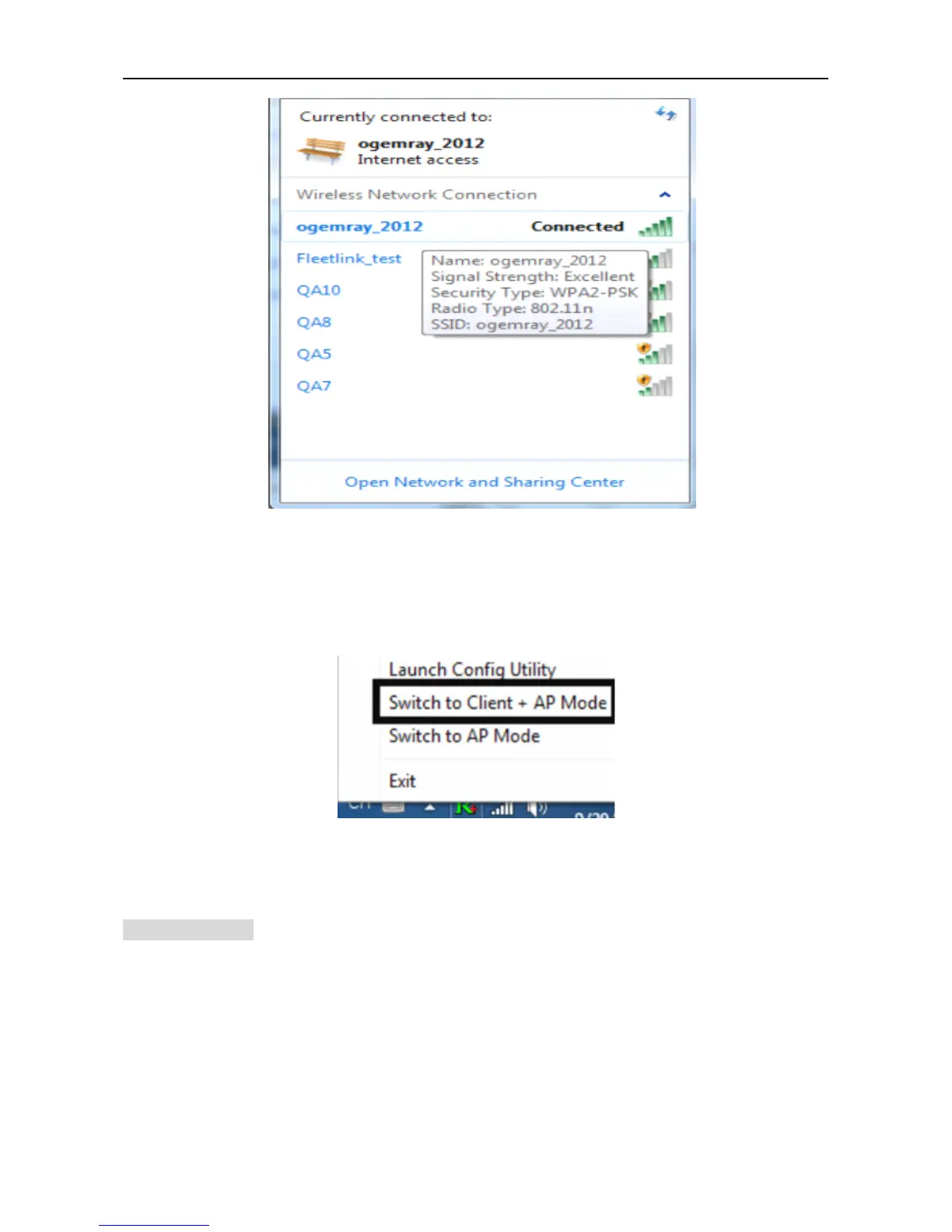
In addition to station and AP mode,there is the Client + AP Mode to be selected
in
windows 7 as well.
Which
Which
Which
Which means:
means:
means:
means: other wireless devices connect to -> Soft-AP of the adapter -> the adapter (Client mode with
Internal ICS sharing )-> connect to other AP or Router -> Internet.
This mode lets you use the adapter both as a Soft-AP and client at the same time. Switch to this mode,you can let
a wireless adapter be connect to a wireless (Soft-AP) with Internet connected, and let other adapter be indirectly
connect to Internet via the Soft-AP wireless network.
For
For
For
For Windows
Windows
Windows
Windows 8
8
8
8 :
:
:
:
1) Click on the networks icon in the task bar in the bottom right hard corner of your screen to diaplay
the avaliable wireless networks.



 To Next Page