EasyManua.ls Logo

Eglo Connect-Z - User Manual

Eglo Connect-Z
8 pages
Print Icon
To Next Page IconTo Next Page
Loading...
EN
Instruction Sheet
๎˜„๎žฝ FUNCTIONS
๎ขธ๎ž”๎˜ƒ๎˜’๎˜‘๎˜ƒ๎žฎ๎˜ƒ๎ขน๎ž”๎˜ƒ๎˜’๎˜‰๎˜‰๎˜ƒ๎žฎ๎˜ƒ๎ขบ๎ž”๎˜ƒ๎˜–๎šป๎›‚๎šป๎šน๎›Š๎˜ƒ๎šท๎˜ƒ๎šน๎›…๎›‚๎›…๎›ˆ๎˜ƒ๎žฎ๎˜ƒ๎ขป๎ž”๎˜ƒ๎˜…๎›ˆ๎šฟ๎šฝ๎šพ๎›Š๎›„๎šป๎›‰๎›‰๎˜ƒ๎žฎ๎˜ƒ๎ขผ๎ž”๎˜ƒ๎˜๎šฟ๎šฝ๎šพ๎›Š๎˜ƒ๎šป๎ฎ๎šป๎šน๎›Š๎˜ƒ๎žฎ๎˜ƒ๎ขฝ๎ž”๎˜ƒ
Set as a Favourite | 7. tuneable white (No function for dimmable) I 8.
Zone selection / Pairing
๎˜…๎žฝ GET STARTED
๎ขธ๎ž”๎˜ƒ๎˜Œ๎›„๎›‰๎šป๎›ˆ๎›Š๎˜ƒ๎šธ๎šท๎›Š๎›Š๎šป๎›ˆ๎šฟ๎šป๎›‰๎˜ƒ๎ฐ๎›ˆ๎›‰๎›Š๎˜ƒ
2. Light on
๎˜†๎žฝ ZONE
Associate your device to the zone you want to control.
๎˜‡๎žฝ DOWNLOAD HOMECONTROL APP
๎˜ˆ๎žฝ ADD REMOTE CONTROL TO APP
1. Select
to add this product
2. Set remote control in ยซsmartphoneยป mode
๎˜‰๎˜ƒ๎žฝ COMPATIBILITY
For more information, read the online user guide:
www.eglo.com/fr/support-eglo-connect-z
DECLARATION OF CONFORMITY
๎˜—๎šพ๎šฟ๎›‰๎˜ƒ๎›†๎›ˆ๎›…๎šบ๎›‹๎šน๎›Š๎˜ƒ๎šผ๎›‹๎›‚๎ฐ๎›‚๎›‰๎˜ƒ๎›Š๎šพ๎šป๎˜ƒ๎›ˆ๎šป๎›‡๎›‹๎šฟ๎›ˆ๎šป๎›ƒ๎šป๎›„๎›Š๎›‰๎˜ƒ๎›…๎šผ๎˜ƒ๎›Š๎šพ๎šป๎˜ƒ๎˜•๎˜ˆ๎˜‡๎˜ƒ๎šบ๎šฟ๎›ˆ๎šป๎šน๎›Š๎šฟ๎›Œ๎šป๎˜ƒ๎ขน๎ขท๎ขธ๎ขป๎žญ๎ขผ๎ขบ๎žญ
๎˜ˆ๎˜˜๎ž”๎˜ƒ๎˜†๎›…๎›„๎šผ๎›…๎›ˆ๎›ƒ๎šฟ๎›Š๎›๎˜ƒ๎šพ๎šท๎›‰๎˜ƒ๎šธ๎šป๎šป๎›„๎˜ƒ๎›Œ๎šป๎›ˆ๎šฟ๎ฐ๎šป๎šบ๎ž”๎˜ƒ๎˜—๎šพ๎šป๎˜ƒ๎›ˆ๎šป๎›‚๎šป๎›Œ๎šท๎›„๎›Š๎˜ƒ๎šบ๎šป๎šน๎›‚๎šท๎›ˆ๎šท๎›Š๎šฟ๎›…๎›„๎˜ƒ๎šท๎›„๎šบ๎˜ƒ
documents are held by the manufacturer and can be viewed at:
www.eglo.com/international/compliance
๎˜…๎›‚๎›‹๎šป๎›Š๎›…๎›…๎›Š๎šพ๎žญ๎˜๎šฟ๎šฝ๎šธ๎šป๎šป๎˜ƒ๎ขน๎ž”๎ขป๎˜Š๎˜‹๎›๎˜ƒ๎žบ๎ขน๎ขป๎ขท๎ขท๎˜ƒ๎›Š๎›…๎˜ƒ๎ขน๎ž‘๎ขป๎ขฟ๎ขบ๎ž”๎ขผ๎˜ƒ๎˜๎˜‹๎›๎žป๎ž”๎˜ƒ๎˜๎šท๎›Ž๎šฟ๎›ƒ๎›‹๎›ƒ๎˜ƒ๎›‰๎šฟ๎šฝ๎›„๎šท๎›‚๎˜ƒ
strength between -9dBm and 9dBm
DE
Kurzanleitung
๎˜„๎žฝ FUNKTIONEN
๎ขธ๎ž”๎˜ƒ๎˜„๎˜‘๎˜ƒ๎žฎ๎˜ƒ๎ขน๎ž”๎˜ƒ๎˜„๎˜˜๎˜–๎˜ƒ๎žฎ๎˜ƒ๎ขบ๎ž”๎˜ƒ๎˜‰๎šท๎›ˆ๎šธ๎šท๎›‹๎›‰๎›๎šท๎šพ๎›‚๎˜ƒ๎žฎ๎˜ƒ๎ขป๎ž”๎˜ƒ๎˜‹๎šป๎›‚๎›‚๎šฟ๎šฝ๎›๎šป๎šฟ๎›Š๎˜ƒ๎žฎ๎˜ƒ๎ขผ๎ž”๎˜ƒ๎˜๎šฟ๎šน๎šพ๎›Š๎šป๎ฎ๎šป๎›๎›Š๎šป๎˜ƒ๎žฎ๎˜ƒ๎ขฝ๎ž”๎˜ƒ
Als Favorit speichern | 7. Abstimmbares WeiรŸ (Keine Funktion bei
โ€ždimmableโ€œ Version) I 8. Auswahl der Zone / Verbinden
๎˜…๎žฝ ERSTE SCHRITTE
1. Batterie einlegen
2. Licht an
๎˜†๎žฝ ZONE
Ordnen Sie Ihr Gerรคt der Zone zu, die Sie steuern mรถchten.
๎˜‡๎žฝ๎˜ƒ๎˜‹๎˜’๎˜๎˜ˆ๎˜†๎˜’๎˜‘๎˜—๎˜•๎˜’๎˜๎ž—๎˜„๎˜“๎˜“๎˜ƒ๎˜‹๎˜ˆ๎˜•๎˜˜๎˜‘๎˜—๎˜ˆ๎˜•๎˜๎˜„๎˜‡๎˜ˆ๎˜‘
๎˜ˆ๎žฝ FERNBEDIENUNG MIT DER APP VERBINDEN
1. Wรคhlen Sie
um dieses Produkt hinzuzufรผgen
2. Schalten Sie die Fernbedienung in den ยซSmartphoneยป-Modus
๎˜‰๎žฝ KOMPATIBILITร„T
Lesen Sie die Bedienungsanleitung fรผr weitere Informationen
www.eglo.com/fr/support-eglo-connect-z
KONFORMITร„TSERKLร„RUNG
Dieses Produkt erfรผllt die Anforderungen der RED-Richtlinien
๎ขน๎ขท๎ขธ๎ขป๎žญ๎ขผ๎ขบ๎žญ๎˜ˆ๎˜˜๎ž”
Die Konformitรคt wurde nachgewiesen. Entsprechende Erklรคrung
und Unterlagen sind beim Hersteller einsehbar:
www.eglo.com/international/compliance
๎˜…๎›‚๎›‹๎šป๎›Š๎›…๎›…๎›Š๎šพ๎žญ๎˜๎šฟ๎šฝ๎šธ๎šป๎šป๎˜ƒ๎ขน๎ž”๎ขป๎˜ƒ๎˜Š๎˜‹๎›๎˜ƒ๎žบ๎ขน๎˜ƒ๎ขป๎ขท๎ขท๎ž–๎ขน๎ขป๎ขฟ๎ขบ๎ž‘๎ขผ๎˜ƒ๎˜๎˜‹๎›๎žป๎ž”๎˜ƒ๎˜๎šท๎›Ž๎šฟ๎›ƒ๎šท๎›‚๎šป๎˜ƒ๎˜–๎šฟ๎šฝ๎›„๎šท๎›‚-
stรคrke: -9 dBm bis 9 dBm.
FR
Fiche dโ€™instructions
๎˜„๎žฝ FONCTIONS
1. MARCHE | 2. ARRรŠT | 3. Sรฉlectionner une couleur | 4. Lumi-
๎›„๎›…๎›‰๎šฟ๎›Š๎›ณ๎˜ƒ๎žฎ๎˜ƒ๎ขผ๎ž”๎˜ƒ๎˜ˆ๎ฎ๎šป๎›Š๎˜ƒ๎›‚๎›‹๎›ƒ๎šฟ๎›„๎šป๎›‹๎›Ž๎˜ƒ๎žฎ๎˜ƒ๎ขฝ๎ž”๎˜ƒ๎˜‡๎›ณ๎ฐ๎›„๎šฟ๎›ˆ๎˜ƒ๎šป๎›„๎˜ƒ๎›Š๎šท๎›„๎›Š๎˜ƒ๎›‡๎›‹๎šป๎˜ƒ๎šผ๎šท๎›Œ๎›…๎›ˆ๎šฟ๎˜ƒ๎žฎ๎˜ƒ๎ขพ๎ž”๎˜ƒ๎˜๎›‹๎›ƒ๎šฟ๎›ฒ๎›ˆ๎šป๎˜ƒ
blanche ajustable (aucune fonction pour luminositรฉ graduable) I 8.
Sรฉlection de zone / Appariement
๎˜…๎žฝ Dร‰MARRAGE
1. Insรฉrer dโ€˜abord les piles
2. Sโ€™allume
๎˜†๎žฝ ZONE
๎˜„๎›‰๎›‰๎›…๎šน๎šฟ๎šป๎›๎˜ƒ๎›Œ๎›…๎›Š๎›ˆ๎šป๎˜ƒ๎šท๎›†๎›†๎šท๎›ˆ๎šป๎šฟ๎›‚๎˜ƒ๎›‘๎˜ƒ๎›‚๎šท๎˜ƒ๎›๎›…๎›„๎šป๎˜ƒ๎›‡๎›‹๎šป๎˜ƒ๎›Œ๎›…๎›‹๎›‰๎˜ƒ๎›‰๎›…๎›‹๎šพ๎šท๎šฟ๎›Š๎šป๎›๎˜ƒ๎šฝ๎›ณ๎›ˆ๎šป๎›ˆ๎ž”
๎˜‡๎žฝ Tร‰Lร‰CHARGER Lโ€˜APPLICATION HOMECONTROL
๎˜ˆ๎žฝ AJOUT Dโ€˜UNE Tร‰Lร‰COMMANDE ร€
Lโ€˜APPLICATION
1. Sรฉlectionnez
pour ajouter ce produit
2. Mettre la tรฉlรฉcommande en mode ยซ smartphone ยป
๎˜‰๎žฝ COMPATIBILITร‰
Pour plus dโ€™informations, consultez le guide dโ€™utilisation en ligne:
www.eglo.com/fr/support-eglo-connect-z
Dร‰CLARATION DE CONFORMITร‰
๎˜†๎šป๎˜ƒ๎›†๎›ˆ๎›…๎šบ๎›‹๎šฟ๎›Š๎˜ƒ๎›‰๎šท๎›Š๎šฟ๎›‰๎šผ๎šท๎šฟ๎›Š๎˜ƒ๎šท๎›‹๎›Ž๎˜ƒ๎šน๎›ˆ๎šฟ๎›Š๎›ฒ๎›ˆ๎šป๎›‰๎˜ƒ๎šบ๎šป๎›‰๎˜ƒ๎šบ๎šฟ๎›ˆ๎šป๎šน๎›Š๎šฟ๎›Œ๎šป๎˜ƒ๎˜•๎˜ˆ๎˜‡๎˜ƒ๎ขน๎ขท๎ขธ๎ขป๎žญ๎ขผ๎ขบ๎žญ๎˜˜๎˜ˆ๎ž”๎˜ƒ๎˜๎šท๎˜ƒ
conformitรฉ a รฉtรฉ prouvรฉe. La dรฉclaration et les documents corre-
spondants sont chez le fabricant et peuvent รชtre consultรฉs sur:
www.eglo.com/international/compliance
๎˜…๎›‚๎›‹๎šป๎›Š๎›…๎›…๎›Š๎šพ๎žญ๎˜๎šฟ๎šฝ๎šธ๎šป๎šป๎˜ƒ๎ขน๎ž”๎ขป๎˜Š๎˜‹๎›๎˜ƒ๎žบ๎ขน๎˜ƒ๎ขป๎ขท๎ขท๎˜ƒ๎›‘๎˜ƒ๎ขน๎ž‘๎ขป๎ขฟ๎ขบ๎ž”๎ขผ๎˜ƒ๎˜๎˜‹๎›๎žป๎ž”๎˜ƒ๎˜‰๎›…๎›ˆ๎šน๎šป๎˜ƒ๎šบ๎›‹๎˜ƒ๎›‰๎šฟ๎šฝ๎›„๎šท๎›‚๎˜ƒ
๎›ƒ๎šท๎›Ž๎šฟ๎›ƒ๎šท๎›‚๎šป๎ž“๎˜ƒ๎ž–๎ฃ€๎˜ƒ๎šบ๎˜…๎›ƒ๎˜ƒ๎›‘๎˜ƒ๎ฃ€๎˜ƒ๎šบ๎˜…๎›ƒ๎ž”
ES
Ficha de instrucciones
๎˜„๎žฝ FUNCIONES
1. ON | 2. OFF | 3. Seleccionar un color | 4. Brillo |
๎ขผ๎ž”๎˜ƒ๎˜ˆ๎šผ๎šป๎šน๎›Š๎›…๎˜ƒ๎šบ๎šป๎˜ƒ๎›‚๎›‹๎›๎˜ƒ๎žฎ๎˜ƒ๎ขฝ๎ž”๎˜ƒ๎˜ˆ๎›‰๎›Š๎šท๎šธ๎›‚๎šป๎šน๎šป๎›ˆ๎˜ƒ๎šน๎›…๎›ƒ๎›…๎˜ƒ๎˜‰๎šท๎›Œ๎›…๎›ˆ๎šฟ๎›Š๎›…๎˜ƒ๎žฎ๎˜ƒ๎ขพ๎ž”๎˜ƒ๎šธ๎›‚๎šท๎›„๎šน๎›…๎˜ƒ๎šท๎›€๎›‹๎›‰๎›Š๎šท๎šธ๎›‚๎šป๎˜ƒ
(sin funciรณn para atenuador) I 8. Selecciรณn de zona / empareja-
miento
๎˜…๎žฝ Cร“MO EMPEZAR
1. En primer lugar, introducir las pilas
2. Luz encendida
๎˜†๎žฝ ZONA
๎˜™๎šฟ๎›„๎šน๎›‹๎›‚๎šป๎˜ƒ๎›‰๎›‹๎˜ƒ๎šบ๎šฟ๎›‰๎›†๎›…๎›‰๎šฟ๎›Š๎šฟ๎›Œ๎›…๎˜ƒ๎šน๎›…๎›„๎˜ƒ๎›‚๎šท๎˜ƒ๎›๎›…๎›„๎šท๎˜ƒ๎›‡๎›‹๎šป๎˜ƒ๎šบ๎šป๎›‰๎šป๎šป๎˜ƒ๎šน๎›…๎›„๎›Š๎›ˆ๎›…๎›‚๎šท๎›ˆ๎ž”
๎˜‡๎žฝ DESCARGA LA APLICACIร“N HOMECONTROL
๎˜ˆ๎žฝ Aร‘ADIR CONTROL REMOTO A LA APP
1. Seleccione
para aรฑadir este producto
2. Poner el control remoto en modo ยซtelรฉfono inteligenteยป
๎˜‰๎žฝ COMPATIBILIDAD
Para mรกs informaciรณn, lea la guรญa del usuario en lรญnea:
www.eglo.com/fr/support-eglo-connect-z
DECLARACIร“N DE CONFORMIDAD
๎˜ˆ๎›‰๎›Š๎šป๎˜ƒ๎›†๎›ˆ๎›…๎šบ๎›‹๎šน๎›Š๎›…๎˜ƒ๎šน๎›‹๎›ƒ๎›†๎›‚๎šป๎˜ƒ๎›‚๎›…๎›‰๎˜ƒ๎›ˆ๎šป๎›‡๎›‹๎šฟ๎›‰๎šฟ๎›Š๎›…๎›‰๎˜ƒ๎šบ๎šป๎˜ƒ๎›‚๎šท๎˜ƒ๎šบ๎šฟ๎›ˆ๎šป๎šน๎›Š๎šฟ๎›Œ๎šท๎˜ƒ๎˜•๎˜ˆ๎˜‡๎˜ƒ๎ขน๎ขท๎ขธ๎ขป๎žญ๎ขผ๎ขบ๎žญ
๎˜˜๎˜ˆ๎ž”๎˜ƒ๎˜–๎šป๎˜ƒ๎šพ๎šท๎˜ƒ๎›Œ๎šป๎›ˆ๎šฟ๎ฐ๎šน๎šท๎šบ๎›…๎˜ƒ๎›‚๎šท๎˜ƒ๎šน๎›…๎›„๎šผ๎›…๎›ˆ๎›ƒ๎šฟ๎šบ๎šท๎šบ๎ž”๎˜ƒ๎˜๎šท๎˜ƒ๎šบ๎šป๎šน๎›‚๎šท๎›ˆ๎šท๎šน๎šฟ๎œค๎›„๎˜ƒ๎›๎˜ƒ๎›‚๎›…๎›‰๎˜ƒ๎šบ๎›…๎šน๎›‹๎›ƒ๎šป๎›„-
tos relevantes del fabricante y pueden consultarse en:
www.eglo.com/international/compliance
๎ขน๎ž‘๎ขป๎˜ƒ๎˜Š๎˜‹๎›๎˜ƒ๎˜…๎›‚๎›‹๎šป๎›Š๎›…๎›…๎›Š๎šพ๎žญ๎˜๎šฟ๎šฝ๎šธ๎šป๎šป๎˜ƒ๎žบ๎ขน๎˜ƒ๎ขป๎ขท๎ขท๎ž–๎ขน๎ขป๎ขฟ๎ขบ๎ž‘๎ขผ๎˜ƒ๎˜๎˜‹๎›๎žป๎ž”๎˜ƒ๎˜Œ๎›„๎›Š๎šป๎›„๎›‰๎šฟ๎šบ๎šท๎šบ๎˜ƒ๎šบ๎šป๎˜ƒ
๎›‰๎šป๎œ ๎šท๎›‚๎˜ƒ๎›ƒ๎›’๎›Ž๎šฟ๎›ƒ๎šท๎ž“๎˜ƒ๎ž–๎ฃ€๎˜ƒ๎šบ๎˜…๎›ƒ๎˜ƒ๎šท๎˜ƒ๎ฃ€๎˜ƒ๎šบ๎˜…๎›ƒ๎ž”
NL
Instructieblad
๎˜„๎žฝ FUNCTIES
๎ขธ๎ž”๎˜ƒ๎˜’๎˜‘๎˜ƒ๎žฎ๎˜ƒ๎ขน๎ž”๎˜ƒ๎˜’๎˜‰๎˜‰๎˜ƒ๎žฎ๎˜ƒ๎ขบ๎ž”๎˜ƒ๎˜–๎šป๎›‚๎šป๎šน๎›Š๎šป๎šป๎›ˆ๎˜ƒ๎šป๎šป๎›„๎˜ƒ๎›๎›‚๎šป๎›‹๎›ˆ๎˜ƒ๎žฎ๎˜ƒ๎ขป๎ž”๎˜ƒ๎˜‹๎šป๎›‚๎šบ๎šป๎›ˆ๎šพ๎šป๎šฟ๎šบ๎˜ƒ๎žฎ๎˜ƒ๎ขผ๎ž”๎˜ƒ๎˜๎šฟ๎šน๎šพ๎›Š๎šป๎ฎ๎šป๎šน๎›Š๎˜ƒ
๎žฎ๎˜ƒ๎ขฝ๎ž”๎˜ƒ๎˜Œ๎›„๎›‰๎›Š๎šป๎›‚๎›‚๎šป๎›„๎˜ƒ๎šท๎›‚๎›‰๎˜ƒ๎šผ๎šท๎›Œ๎›…๎›ˆ๎šฟ๎šป๎›Š๎˜ƒ๎žฎ๎˜ƒ๎ขพ๎ž”๎˜ƒ๎šท๎šท๎›„๎›†๎šท๎›‰๎šธ๎šท๎šท๎›ˆ๎˜ƒ๎›๎šฟ๎›Š๎˜ƒ๎žบ๎šฝ๎šป๎šป๎›„๎˜ƒ๎šบ๎šฟ๎›ƒ๎šผ๎›‹๎›„๎šน๎›Š๎šฟ๎šป๎žป๎˜ƒ๎˜Œ๎˜ƒ๎ขฟ๎ž”๎˜ƒ
Zoneselectie / koppelen
๎˜…๎žฝ AAN DE SLAG
1. Eerst batterijen plaatsen
2. Licht aan
๎˜†๎žฝ ZONE
Koppel uw apparaat met de zone die u wilt bedienen.
๎˜‡๎žฝ๎˜ƒ๎˜‡๎˜’๎˜š๎˜‘๎˜๎˜’๎˜„๎˜‡๎˜ƒ๎˜‡๎˜ˆ๎˜ƒ๎˜‹๎˜’๎˜๎˜ˆ๎˜†๎˜’๎˜‘๎˜—๎˜•๎˜’๎˜๎ž—๎˜„๎˜“๎˜“
๎˜ˆ๎žฝ VOEG AFSTANDSBEDIENING TOE AAN DE APP
1. Selecteer
om dit product toe te voegen
2. Zet de afstandsbediening in de smart-
phonemodus
๎˜‰๎žฝ VERENIGBAARHEID
Raadpleeg de online gebruikershandleiding voor meer informatie:
www.eglo.com/fr/support-eglo-connect-z
CONFORMITEITSVERKLARING
๎˜‡๎šฟ๎›Š๎˜ƒ๎›†๎›ˆ๎›…๎šบ๎›‹๎šน๎›Š๎˜ƒ๎›Œ๎›…๎›‚๎šบ๎›…๎šป๎›Š๎˜ƒ๎šท๎šท๎›„๎˜ƒ๎šบ๎šป๎˜ƒ๎›Œ๎šป๎›ˆ๎šป๎šฟ๎›‰๎›Š๎šป๎›„๎˜ƒ๎›Œ๎šท๎›„๎˜ƒ๎šบ๎šป๎˜ƒ๎˜•๎˜ˆ๎˜‡๎˜ƒ๎˜•๎šฟ๎šน๎šพ๎›Š๎›‚๎šฟ๎›€๎›„๎˜ƒ๎ขน๎ขท๎ขธ๎ขป๎žญ๎ขผ๎ขบ๎žญ
๎˜ˆ๎˜˜๎ž”๎˜ƒ๎˜†๎›…๎›„๎šผ๎›…๎›ˆ๎›ƒ๎šฟ๎›Š๎šป๎šฟ๎›Š๎˜ƒ๎šฟ๎›‰๎˜ƒ๎šฝ๎šป๎›Œ๎šป๎›ˆ๎šฟ๎ฐ๎šป๎šป๎›ˆ๎šบ๎ž”๎˜ƒ๎˜‡๎šป๎˜ƒ๎›ˆ๎šป๎›‚๎šป๎›Œ๎šท๎›„๎›Š๎šป๎˜ƒ๎›Œ๎šป๎›ˆ๎›๎›‚๎šท๎›ˆ๎šฟ๎›„๎šฝ๎˜ƒ๎šป๎›„๎˜ƒ
documenten zijn in het bezit van de fabrikant en kunnen worden
bekeken op:
www.eglo.com/international/compliance
๎˜…๎›‚๎›‹๎šป๎›Š๎›…๎›…๎›Š๎šพ๎žญ๎˜๎šฟ๎šฝ๎šธ๎šป๎šป๎˜ƒ๎ขน๎ž‘๎ขป๎˜Š๎˜‹๎›๎˜ƒ๎žบ๎ขน๎ขป๎ขท๎ขท๎˜ƒ๎›Š๎›…๎›Š๎˜ƒ๎ขน๎ž”๎ขป๎ขฟ๎ขบ๎ž‘๎ขผ๎˜ƒ๎˜๎˜‹๎›๎žป๎ž”๎˜ƒ
๎˜๎šท๎›Ž๎šฟ๎›ƒ๎›‹๎›ƒ๎˜ƒ๎˜–๎šฟ๎šฝ๎›„๎šท๎šท๎›‚๎›‰๎›Š๎šป๎›ˆ๎›๎›Š๎šป๎˜ƒ๎›Š๎›‹๎›‰๎›‰๎šป๎›„๎˜ƒ๎ž–๎ฃ€๎˜ƒ๎šบ๎˜…๎›ƒ๎˜ƒ๎šป๎›„๎˜ƒ๎คŠ๎ฃ€๎˜ƒ๎šบ๎˜…๎›ƒ
IT
Foglio di istruzioni
๎˜„๎žฝ FUNZIONI
1. ON | 2. OFF | 3. Selezionare un colore |
๎ขป๎ž”๎˜ƒ๎˜๎›‹๎›ƒ๎šฟ๎›„๎›…๎›‰๎šฟ๎›Š๎›‘๎˜ƒ๎žฎ๎˜ƒ๎ขผ๎ž”๎˜ƒ๎˜ˆ๎ฎ๎šป๎›Š๎›Š๎›…๎˜ƒ๎›‚๎›‹๎šน๎šป๎˜ƒ๎žฎ๎˜ƒ๎ขฝ๎ž”๎˜ƒ๎˜Œ๎›ƒ๎›†๎›…๎›‰๎›Š๎šท๎˜ƒ๎šน๎›…๎›ƒ๎šป๎˜ƒ๎›†๎›ˆ๎šป๎šผ๎šป๎›ˆ๎šฟ๎›Š๎›…๎˜ƒ๎žฎ๎˜ƒ๎ขพ๎ž”๎˜ƒ๎˜๎›‹๎šน๎šป๎˜ƒ
bianca dinamica (nessuna funzione per dimmerabile) I 8. Selezione
zona / pairing
๎˜…๎žฝ PER COMINCIARE
1. Per prima cosa inserire le batterie
2. Luce accesa
๎˜†๎žฝ ZONA
Associa il tuo dispositivo alla zona che vuoi controllare.
๎˜‡๎žฝ SCARICA Lโ€˜APP HOMECONTROL
๎˜ˆ๎žฝ AGGIUNGI IL TELECOMANDO ALLโ€™APP
1. Seleziona
๎˜ƒ๎›†๎šป๎›ˆ๎˜ƒ๎šท๎šฝ๎šฝ๎šฟ๎›‹๎›„๎šฝ๎šป๎›ˆ๎šป๎˜ƒ๎›‡๎›‹๎šป๎›‰๎›Š๎›…๎˜ƒ๎›†๎›ˆ๎›…๎šบ๎›…๎›Š๎›Š๎›…
2. Imposta il telecomando in modalitร  ยซsmartphoneยป
๎˜‰๎žฝ COMPATIBILITร€
Per maggiori dettagli, consulta il manuale utente online:
www.eglo.com/fr/support-eglo-connect-z
DICHIARAZIONE DI CONFORMITร€
๎˜Œ๎›‚๎˜ƒ๎›†๎›ˆ๎šป๎›‰๎šป๎›„๎›Š๎šป๎˜ƒ๎›†๎›ˆ๎›…๎šบ๎›…๎›Š๎›Š๎›…๎˜ƒ๎›‰๎›…๎šบ๎šบ๎šฟ๎›‰๎šผ๎šท๎˜ƒ๎šฟ๎˜ƒ๎›ˆ๎šป๎›‡๎›‹๎šฟ๎›‰๎šฟ๎›Š๎šฟ๎˜ƒ๎šบ๎šป๎›‚๎›‚๎šท๎˜ƒ๎šบ๎šฟ๎›ˆ๎šป๎›Š๎›Š๎šฟ๎›Œ๎šท๎˜ƒ๎šฟ๎›„๎˜ƒ๎›ƒ๎šท๎›Š๎šป๎›ˆ๎šฟ๎šท๎˜ƒ๎šบ๎šฟ๎˜ƒ
๎šท๎›†๎›†๎šท๎›ˆ๎šป๎šน๎šน๎šพ๎šฟ๎šท๎›Š๎›‹๎›ˆ๎šป๎˜ƒ๎›ˆ๎šท๎šบ๎šฟ๎›…๎˜ƒ๎ขน๎ขท๎ขธ๎ขป๎žญ๎ขผ๎ขบ๎žญ๎˜˜๎˜ˆ๎ž”๎˜ƒ๎˜๎šท๎˜ƒ๎šน๎›…๎›„๎šผ๎›…๎›ˆ๎›ƒ๎šฟ๎›Š๎›‘๎˜ƒ๎›ฒ๎˜ƒ๎›‰๎›Š๎šท๎›Š๎šท๎˜ƒ๎›‰๎›…๎›Š๎›Š๎›…๎›†๎›…๎›‰-
๎›Š๎šท๎˜ƒ๎šท๎›‚๎˜ƒ๎›†๎›ˆ๎›…๎šน๎šป๎›‰๎›‰๎›…๎˜ƒ๎šบ๎šฟ๎˜ƒ๎›Œ๎šป๎›ˆ๎šฟ๎ฐ๎šน๎šท๎ž”๎˜ƒ๎˜๎šท๎˜ƒ๎šบ๎šฟ๎šน๎šพ๎šฟ๎šท๎›ˆ๎šท๎›๎šฟ๎›…๎›„๎šป๎˜ƒ๎šป๎˜ƒ๎›‚๎šท๎˜ƒ๎šบ๎›…๎šน๎›‹๎›ƒ๎šป๎›„๎›Š๎šท๎›๎šฟ๎›…๎›„๎šป๎˜ƒ
๎›‰๎›†๎šป๎šน๎šฟ๎ฐ๎šน๎šพ๎šป๎˜ƒ๎›‰๎›…๎›„๎›…๎˜ƒ๎šบ๎šป๎›Š๎šป๎›„๎›‹๎›Š๎šป๎˜ƒ๎šบ๎šท๎›‚๎˜ƒ๎›†๎›ˆ๎›…๎šบ๎›‹๎›Š๎›Š๎›…๎›ˆ๎šป๎˜ƒ๎šป๎šบ๎˜ƒ๎›ฒ๎˜ƒ๎›†๎›…๎›‰๎›‰๎šฟ๎šธ๎šฟ๎›‚๎šป๎˜ƒ๎›†๎›ˆ๎šป๎›„๎šบ๎šป๎›ˆ๎›„๎šป๎˜ƒ
visione allโ€˜indirizzo:
www.eglo.com/international/compliance
๎˜…๎›‚๎›‹๎šป๎›Š๎›…๎›…๎›Š๎šพ๎žญ๎˜๎šฟ๎šฝ๎šธ๎šป๎šป๎˜ƒ๎šท๎˜ƒ๎ขน๎ž‘๎ขป๎˜ƒ๎˜Š๎˜‹๎›๎˜ƒ๎žบ๎ขน๎˜ƒ๎ขป๎ขท๎ขท๎ž–๎ขน๎ขป๎ขฟ๎ขบ๎ž‘๎ขผ๎˜ƒ๎˜๎˜‹๎›๎žป๎ž”๎˜ƒ๎˜“๎›…๎›Š๎šป๎›„๎›๎šท๎˜ƒ๎šบ๎šป๎›‚๎˜ƒ
segnale massima: -9 dBm a 9 dBm.
PT
BR
Instruรงรตes
๎˜„๎žฝ FUNร‡ร•ES
1. LIGAR | 2. DESLIGAR | 3. Seleccionar uma cor
| 4. Luminosidade
๎žฎ๎˜ƒ๎ขผ๎ž”๎˜ƒ๎˜ˆ๎šผ๎šป๎šฟ๎›Š๎›…๎˜ƒ๎šบ๎šป๎˜ƒ๎›‚๎›‹๎›๎˜ƒ๎žฎ๎˜ƒ๎ขฝ๎ž”๎˜ƒ๎˜‡๎šป๎ฐ๎›„๎šฟ๎›ˆ๎˜ƒ๎šน๎›…๎›ƒ๎›…๎˜ƒ๎˜‰๎šท๎›Œ๎›…๎›ˆ๎šฟ๎›Š๎›…๎˜ƒ๎žฎ๎˜ƒ๎ขพ๎ž”๎˜ƒ๎šธ๎›ˆ๎šท๎›„๎šน๎›…๎˜ƒ๎›‰๎šฟ๎›„๎›Š๎›…๎›„๎šฟ๎›๎›’๎›Œ๎šป๎›‚๎˜ƒ
(sem funรงรฃo para regulรกvel) I 8. Seleรงรฃo da zona / emparelha-
mento
๎˜…๎žฝ COMEร‡AR
1. Inserir primeiro as pilhas
2. Luz acesa
๎˜†๎žฝ ZONA
Associe o seu disposi๎žŸvo ร  zona que deseja controlar.
๎˜‡๎žฝ BAIXE O APP HOMECONTROL
๎˜ˆ๎žฝ ADICIONAR CONTROLO REMOTO ร€ APLICAร‡รƒO
1. Selecione
para adicionar este produto
๎ขน๎ž”๎˜ƒ๎˜†๎›…๎›‚๎›…๎›‡๎›‹๎šป๎˜ƒ๎›…๎˜ƒ๎šน๎›…๎›„๎›Š๎›ˆ๎›…๎›‚๎›…๎˜ƒ๎›ˆ๎šป๎›ƒ๎›…๎›Š๎›…๎˜ƒ๎›„๎›…๎˜ƒ๎›ƒ๎›…๎šบ๎›…๎˜ƒ๎žก๎›‰๎›ƒ๎šท๎›ˆ๎›Š๎›†๎šพ๎›…๎›„๎šป๎žข
๎˜‰๎žฝ COMPATIBILIDADE
Para obter mais informaรงรตes, leia o manual de utilizador online:
www.eglo.com/fr/support-eglo-connect-z
DECLARAร‡รƒO DE CONFORMIDADE
๎˜ˆ๎›‰๎›Š๎šป๎˜ƒ๎›†๎›ˆ๎›…๎šบ๎›‹๎›Š๎›…๎˜ƒ๎šน๎›‹๎›ƒ๎›†๎›ˆ๎šป๎˜ƒ๎›…๎›‰๎˜ƒ๎›ˆ๎šป๎›‡๎›‹๎šฟ๎›‰๎šฟ๎›Š๎›…๎›‰๎˜ƒ๎šบ๎šท๎˜ƒ๎šบ๎šฟ๎›ˆ๎šป๎›Š๎šฟ๎›Œ๎šท๎˜ƒ๎ขน๎ขท๎ขธ๎ขป๎žญ๎ขผ๎ขบ๎žญ๎˜˜๎˜ˆ๎˜ƒ๎›ˆ๎šป๎›‰๎›†๎šป๎šฟ-
๎›Š๎šท๎›„๎›Š๎šป๎˜ƒ๎›‘๎˜ƒ๎šบ๎šฟ๎›‰๎›†๎›…๎›„๎šฟ๎šธ๎šฟ๎›‚๎šฟ๎›๎šท๎›ฎ๎›™๎›…๎˜ƒ๎šบ๎šป๎˜ƒ๎šป๎›‡๎›‹๎šฟ๎›†๎šท๎›ƒ๎šป๎›„๎›Š๎›…๎›‰๎˜ƒ๎šบ๎šป๎˜ƒ๎›ˆ๎›’๎šบ๎šฟ๎›…๎ž”๎˜ƒ๎˜„๎˜ƒ๎šน๎›…๎›„๎šผ๎›…๎›ˆ๎›ƒ๎šฟ๎šบ๎šท๎šบ๎šป๎˜ƒ
๎šผ๎›…๎šฟ๎˜ƒ๎›Œ๎šป๎›ˆ๎šฟ๎ฐ๎šน๎šท๎šบ๎šท๎ž”๎˜ƒ๎˜„๎˜ƒ๎šบ๎šป๎šน๎›‚๎šท๎›ˆ๎šท๎›ฎ๎›™๎›…๎˜ƒ๎šป๎˜ƒ๎šบ๎›…๎šน๎›‹๎›ƒ๎šป๎›„๎›Š๎›…๎›‰๎˜ƒ๎›ˆ๎šป๎›‚๎šป๎›Œ๎šท๎›„๎›Š๎šป๎›‰๎˜ƒ๎›‰๎›™๎›…๎˜ƒ๎šน๎›…๎›„๎›‰๎šป๎›ˆ๎›Œ๎šท-
dos pelo fabricante e podem ser consultados em:
www.eglo.com/international/compliance
๎˜…๎›‚๎›‹๎šป๎›Š๎›…๎›…๎›Š๎šพ๎žญ๎˜๎šฟ๎šฝ๎šธ๎šป๎šป๎˜ƒ๎ขน๎ž‘๎ขป๎˜ƒ๎˜Š๎˜‹๎›๎˜ƒ๎žบ๎ขน๎ขป๎ขท๎ขท๎˜ƒ๎šท๎˜ƒ๎ขน๎ž”๎ขป๎ขฟ๎ขบ๎ž‘๎ขผ๎˜ƒ๎˜๎˜‹๎›๎žป๎ž”๎˜ƒ๎˜–๎šฟ๎›„๎šท๎›‚๎˜ƒ๎šบ๎šป๎˜ƒ๎šผ๎›…๎›ˆ๎›ฎ๎šท๎˜ƒ
๎›ƒ๎›’๎›Ž๎šฟ๎›ƒ๎šท๎˜ƒ๎šป๎›„๎›Š๎›ˆ๎šป๎˜ƒ๎ž–๎ฃ€๎šบ๎˜…๎›ƒ๎˜ƒ๎šป๎˜ƒ๎ฃ€๎šบ๎˜…๎›ƒ
FI
Ohjeet
๎˜„๎žฝ TOIMINNOT
1. Pร„ร„LLE | 2. POIS Pร„ร„LTร„ | 3. Valitse vรคri | 4. Kirkkaus | 5.
๎˜™๎šท๎›‚๎›…๎›Š๎šป๎šพ๎›…๎›‰๎›Š๎šป๎˜ƒ๎žฎ๎˜ƒ๎ขฝ๎ž”๎˜ƒ๎˜–๎›‹๎›…๎›‰๎šฟ๎›๎šฟ๎›„๎˜ƒ๎›ƒ๎›š๎›š๎›ˆ๎šฟ๎›Š๎›๎›‰๎˜ƒ๎žฎ๎˜ƒ๎ขพ๎ž”๎˜ƒ๎˜–๎›š๎›š๎šบ๎šป๎›Š๎›Š๎›š๎›Œ๎›š๎˜ƒ๎›Œ๎šท๎›‚๎›๎›…๎šฟ๎›„๎šป๎›„๎˜ƒ๎žบ๎šป๎šฟ๎˜ƒ
toimintoa himmennettรคvissรค) I 8. Alueen valinta / parinmuodostus
๎˜…๎žฝ ALOITTAMINEN
1. Asenna paristot ensin
2. Valo palaa
๎˜†๎žฝ ALUE
Yhdistรค laite alueeseen, jota haluat hallita.
๎˜‡๎žฝ๎˜ƒ๎˜๎˜„๎˜—๎˜„๎˜„๎˜ƒ๎˜‹๎˜’๎˜๎˜ˆ๎˜†๎˜’๎˜‘๎˜—๎˜•๎˜’๎˜๎ž—๎˜–๎˜’๎˜™๎˜ˆ๎˜๎˜๎˜˜๎˜–
๎˜‰๎žฝ KAUKOSร„ร„TIMEN LISร„ร„MINEN SOVELLUKSEEN
1. Lisรครค tรคmรค tuote valitsemalla
2. Aseta kaukosรครคdin ยซsmartphoneยป-tilaan
๎˜‰๎žฝ YHTEENSOPIVUUS
Lisรคtietoja on verkossa olevassa kรคyttรถohjeessa:
www.eglo.com/fr/support-eglo-connect-z
VAATIMUSTENMUKAISUUSILMOITUS
๎˜—๎›š๎›ƒ๎›š๎˜ƒ๎›Š๎›‹๎›…๎›Š๎šป๎˜ƒ๎›Š๎›š๎›๎›Š๎›Š๎›š๎›š๎˜ƒ๎˜•๎˜ˆ๎˜‡๎ž–๎šบ๎šฟ๎›ˆ๎šป๎›๎›Š๎šฟ๎šฟ๎›Œ๎šฟ๎›„๎˜ƒ๎ขน๎ขท๎ขธ๎ขป๎žญ๎ขผ๎ขบ๎žญ๎˜ˆ๎˜˜๎˜ƒ๎›Œ๎šท๎šท๎›Š๎šฟ๎›ƒ๎›‹๎›๎›‰๎šป๎›Š๎ž”๎˜ƒ
Vaatimustenmukaisuus on varmistettu. Valmistaja pitรครค itsellรครคn
asiaankuuluvat ilmoitukset ja asiakirjat, ja niitรค voi tarkastella
osoitteessa:
www.eglo.com/international/compliance
๎˜…๎›‚๎›‹๎šป๎›Š๎›…๎›…๎›Š๎šพ๎žญ๎˜๎šฟ๎šฝ๎šธ๎šป๎šป๎˜ƒ๎ขน๎ž‘๎ขป๎˜ƒ๎˜Š๎˜‹๎›๎˜ƒ๎žบ๎ขน๎ขป๎ขท๎ขท๎˜ƒ๎›Š๎›…๎˜ƒ๎ขน๎ขป๎ขฟ๎ขบ๎ž‘๎ขผ๎˜ƒ๎˜๎˜‹๎›๎žป๎ž”๎˜ƒ๎˜–๎›‹๎›‹๎›ˆ๎šฟ๎›„๎˜ƒ๎›‰๎šฟ๎šฝ๎›„๎šท๎šท๎›‚๎šฟ๎›„๎˜ƒ
voimakkuus vรคlillรค -9 dBm - 9 dBm
DK
Instruktionsblad
๎˜„๎žฝ FUNKTIONER
๎ขธ๎ž”๎˜ƒ๎˜—๎˜ด๎˜‘๎˜‡๎˜ƒ๎žฎ๎˜ƒ๎ขน๎ž”๎˜ƒ๎˜–๎˜๎˜˜๎˜Ž๎˜ƒ๎žฎ๎˜ƒ๎ขบ๎ž”๎˜ƒ๎˜™๎›ง๎›‚๎šฝ๎˜ƒ๎šป๎›„๎˜ƒ๎šผ๎šท๎›ˆ๎›Œ๎šป๎˜ƒ๎žฎ๎˜ƒ๎ขป๎ž”๎˜ƒ๎˜๎›๎›‰๎›‰๎›Š๎›๎›ˆ๎›๎šป๎˜ƒ๎žฎ๎˜ƒ๎ขผ๎ž”๎˜ƒ๎˜๎›๎›‰๎šป๎ฎ๎šป๎›๎›Š๎˜ƒ๎žฎ๎˜ƒ
๎ขฝ๎ž”๎˜ƒ๎˜Œ๎›„๎šบ๎›‰๎›Š๎šฟ๎›‚๎˜ƒ๎›‰๎›…๎›ƒ๎˜ƒ๎šผ๎šท๎›Œ๎›…๎›ˆ๎šฟ๎›Š๎˜ƒ๎žฎ๎˜ƒ๎ขพ๎ž”๎˜ƒ๎˜๎›‹๎›‰๎›Š๎šป๎›ˆ๎šธ๎šท๎›ˆ๎›Š๎˜ƒ๎šพ๎›Œ๎šฟ๎šบ๎›Š๎˜ƒ๎žบ๎šฟ๎›„๎šฝ๎šป๎›„๎˜ƒ๎šผ๎›‹๎›„๎›๎›Š๎šฟ๎›…๎›„๎˜ƒ๎›Š๎šฟ๎›‚๎˜ƒ๎›‚๎›๎›‰๎šบ๎›ง๎›ƒ-
pning) I 8. Zonevalg/parring
๎˜…๎žฝ Sร…DAN KOMMER DU I GANG
1. Sรฆt batterierne i fรธrst
2. Lys tรฆndt
๎˜†๎žฝ ZONE
Tilknyt din enhed til den zone, du vil kontrollere.
๎˜‡๎žฝ DOWNLOAD HJEMMEKONTROLAPPEN
๎˜ˆ๎žฝ TILFร˜J FJERNBETJENINGEN TIL APPEN
1. Vรฆlg
for at tilfรธje dette produkt
2. Sรฆt fjernbetjeningen i ยซsmartphoneยป-tilstand
๎˜‰๎žฝ KOMPATIBILITET
๎˜‰๎›ข๎˜ƒ๎ฒ๎šป๎›ˆ๎šป๎˜ƒ๎›…๎›†๎›‚๎›๎›‰๎›„๎šฟ๎›„๎šฝ๎šป๎›ˆ๎˜ƒ๎šฟ๎˜ƒ๎šธ๎›ˆ๎›‹๎šฝ๎šป๎›ˆ๎›Œ๎šป๎›€๎›‚๎šป๎šบ๎›„๎šฟ๎›„๎šฝ๎šป๎›„๎˜ƒ๎›†๎›ข๎˜ƒ๎›Œ๎›…๎›ˆ๎šป๎›‰๎˜ƒ๎šพ๎›€๎šป๎›ƒ๎›ƒ๎šป๎›‰๎šฟ๎šบ๎šป๎ž“
www.eglo.com/fr/support-eglo-connect-z
OVERENSSTEMMELSESERKLร†RING
๎˜‡๎šป๎›Š๎›Š๎šป๎˜ƒ๎›†๎›ˆ๎›…๎šบ๎›‹๎›๎›Š๎˜ƒ๎›…๎›†๎šผ๎›๎›‚๎šบ๎šป๎›ˆ๎˜ƒ๎šบ๎šป๎˜ƒ๎šฟ๎˜ƒ๎šบ๎šฟ๎›ˆ๎šป๎›๎›Š๎šฟ๎›Œ๎šป๎›Š๎˜ƒ๎ขน๎ขท๎ขธ๎ขป๎žญ๎ขผ๎ขบ๎žญ๎˜ˆ๎˜˜๎˜ƒ๎žบ๎˜•๎˜ˆ๎˜‡๎žป๎˜ƒ๎šฝ๎›ง๎›‚๎šบ๎šป๎›„๎šบ๎šป๎˜ƒ
๎šธ๎šป๎›‰๎›Š๎šป๎›ƒ๎›ƒ๎šป๎›‚๎›‰๎šป๎›ˆ๎ž”๎˜ƒ๎˜’๎›Œ๎šป๎›ˆ๎šป๎›„๎›‰๎›‰๎›Š๎šป๎›ƒ๎›ƒ๎šป๎›‚๎›‰๎šป๎›„๎˜ƒ๎šป๎›ˆ๎˜ƒ๎šธ๎›‚๎šป๎›Œ๎šป๎›Š๎˜ƒ๎›Œ๎šป๎›ˆ๎šฟ๎ฐ๎šน๎šป๎›ˆ๎šป๎›Š๎ž”๎˜ƒ๎˜‡๎šป๎›„๎˜ƒ
relevante overensstemmelseserklรฆring og dokumenter fra produ-
๎šน๎šป๎›„๎›Š๎šป๎›„๎˜ƒ๎ฐ๎›„๎šบ๎šป๎›‰๎˜ƒ๎›†๎›ข๎ž“
www.eglo.com/international/compliance
๎˜…๎›‚๎›‹๎šป๎›Š๎›…๎›…๎›Š๎šพ๎žญ๎˜๎šฟ๎šฝ๎šธ๎šป๎šป๎˜ƒ๎ขน๎ž‘๎ขป๎˜ƒ๎˜Š๎˜‹๎›๎˜ƒ๎žบ๎ขน๎ขป๎ขท๎ขท๎˜ƒ๎›Š๎šฟ๎›‚๎˜ƒ๎ขน๎ขป๎ขฟ๎ขบ๎ž‘๎ขผ๎˜ƒ๎˜๎˜‹๎›๎žป๎ž”๎˜ƒ๎˜๎šท๎›๎›‰๎šฟ๎›ƒ๎›‹๎›ƒ๎›‰๎˜ƒ
Signalstyrke mellem -9 dBm og 9 dBm
SE
Instruktionsblad
๎˜„๎žฝ FUNKTIONER
๎ขธ๎ž”๎˜ƒ๎˜“๎˜ฏ๎˜ƒ๎žฎ๎˜ƒ๎ขน๎ž”๎˜ƒ๎˜„๎˜™๎˜ƒ๎žฎ๎˜ƒ๎ขบ๎ž”๎˜ƒ๎˜™๎›š๎›‚๎›€๎˜ƒ๎šผ๎›š๎›ˆ๎šฝ๎˜ƒ๎žฎ๎˜ƒ๎ขป๎ž”๎˜ƒ๎˜๎›€๎›‹๎›‰๎›‰๎›Š๎›๎›ˆ๎›๎šท๎˜ƒ๎žฎ๎˜ƒ๎ขผ๎ž”๎˜ƒ๎˜๎›€๎›‹๎›‰๎šป๎ฎ๎šป๎›๎›Š๎˜ƒ๎žฎ๎˜ƒ๎ขฝ๎ž”๎˜ƒ๎˜„๎›„๎šฝ๎šป๎˜ƒ๎›‰๎›…๎›ƒ๎˜ƒ
favorit | 7. justerbart vitt (ingen funktion fรถr dimbart) I 8. Zonval/
Parning
๎˜…๎žฝ KOM IGร…NG
1. Sรคtt fรถrst in batterierna
2. Ljus pรฅ
๎˜†๎žฝ ZON
Associera din enhet med den zon du vill kontrollera.
๎˜‡๎žฝ LADDA NER HEMKONTROLLAPPEN
๎˜ˆ๎žฝ Lร„GG TILL FJร„RRKONTROLLEN TILL APP
1. Vรคlj
fรถr att lรคgga till den hรคr produkten
2. Placera fjรคrrkontrollen i ยซsmarttelefonยป-lรคge
๎˜‰๎žฝ KOMPATIBILITET
๎˜๎šป๎›ˆ๎˜ƒ๎šฟ๎›„๎šผ๎›…๎›ˆ๎›ƒ๎šท๎›Š๎šฟ๎›…๎›„๎˜ƒ๎ฐ๎›„๎›„๎›‰๎˜ƒ๎šฟ๎˜ƒ๎›…๎›„๎›‚๎šฟ๎›„๎šป๎ž–๎šธ๎›ˆ๎›‹๎›๎›‰๎šท๎›„๎›Œ๎šฟ๎›‰๎›„๎šฟ๎›„๎šฝ๎šป๎›„๎ž“
www.eglo.com/fr/support-eglo-connect-z
Fร–RSร„KRAN OM ร–VERENSSTร„MMELSE
๎˜‡๎šป๎›„๎›„๎šท๎˜ƒ๎›†๎›ˆ๎›…๎šบ๎›‹๎›๎›Š๎˜ƒ๎›‹๎›†๎›†๎šผ๎›๎›‚๎›‚๎šป๎›ˆ๎˜ƒ๎›๎›ˆ๎šท๎›Œ๎šป๎›„๎˜ƒ๎šฟ๎˜ƒ๎˜•๎˜ˆ๎˜‡๎˜ƒ๎šบ๎šฟ๎›ˆ๎šป๎›๎›Š๎šฟ๎›Œ๎šป๎›Š๎˜ƒ๎ขน๎ขท๎ขธ๎ขป๎žญ๎ขผ๎ขบ๎žญ๎˜ˆ๎˜˜๎ž”๎˜ƒ
๎™ท๎›Œ๎šป๎›ˆ๎šป๎›„๎›‰๎›‰๎›Š๎›š๎›ƒ๎›ƒ๎šป๎›‚๎›‰๎šป๎˜ƒ๎šพ๎šท๎›ˆ๎˜ƒ๎›Œ๎šป๎›ˆ๎šฟ๎ฐ๎šป๎›ˆ๎šท๎›Š๎›‰๎ž”๎˜ƒ๎˜‡๎šป๎›„๎˜ƒ๎›ˆ๎šป๎›‚๎šป๎›Œ๎šท๎›„๎›Š๎šท๎˜ƒ๎šบ๎šป๎›๎›‚๎šท๎›ˆ๎šท๎›Š๎šฟ๎›…๎›„๎šป๎›„๎˜ƒ๎›…๎šน๎šพ๎˜ƒ
dokumentationen som innehas av tillverkaren och kan lรคsas pรฅ:
www.eglo.com/international/compliance
๎˜…๎›‚๎›‹๎šป๎›Š๎›…๎›…๎›Š๎šพ๎žญ๎˜๎šฟ๎šฝ๎šธ๎šป๎šป๎˜ƒ๎ขน๎ž‘๎ขป๎˜ƒ๎˜Š๎˜‹๎›๎˜ƒ๎žบ๎ขน๎˜ƒ๎ขป๎ขท๎ขท๎˜ƒ๎›Š๎šฟ๎›‚๎›‚๎˜ƒ๎ขน๎˜ƒ๎ขป๎ขฟ๎ขบ๎ž‘๎ขผ๎˜ƒ๎˜๎˜‹๎›๎žป๎ž”๎˜ƒ๎˜๎šท๎›Ž๎šฟ๎›ƒ๎šท๎›‚๎˜ƒ๎›‰๎šฟ๎šฝ๎›„๎šท๎›‚-
styrka mellan -9 dBm och 9 dBm
NO
Instruksjonsark
๎˜„๎žฝ FUNKSJONER
1. Pร… | 2. AV | 3. Velg en farge | 4. Lysstyrke |
๎ขผ๎ž”๎˜ƒ๎˜๎›๎›‰๎šป๎ฎ๎šป๎›๎›Š๎˜ƒ๎žฎ๎˜ƒ๎ขฝ๎ž”๎˜ƒ๎˜–๎šป๎›Š๎›Š๎˜ƒ๎›‰๎›…๎›ƒ๎˜ƒ๎šผ๎šท๎›Œ๎›…๎›ˆ๎šฟ๎›Š๎›Š๎˜ƒ๎žฎ๎˜ƒ
7. Justerbart hvitt (Ingen funksjon for dimbare) I 8. Sonevalg/sam-
menkobling
๎˜…๎žฝ KOM I GANG
1. Sett inn batterier fรธrst
2. Lys pรฅ
๎˜†๎žฝ SONE
Knytt enheten til sonen du vil kontrollere.
๎˜‡๎žฝ LAST NED HJEMKONTROLLAPPEN
๎˜ˆ๎žฝ LEGG FJERNKONTROLL TIL APP
1. Velg
for รฅ legge til dette produktet
2. Sett fjernkontroll i modus ยซsmarttelefonยป
๎˜‰๎žฝ KOMPATIBILITET
Les veiledningen pรฅ nettet for mer informasjon:
www.eglo.com/fr/support-eglo-connect-z
SAMSVARSERKLร†RING
๎˜‡๎šป๎›Š๎›Š๎šป๎˜ƒ๎›†๎›ˆ๎›…๎šบ๎›‹๎›๎›Š๎šป๎›Š๎˜ƒ๎›…๎›†๎›†๎šผ๎›๎›‚๎›‚๎šป๎›ˆ๎˜ƒ๎›๎›ˆ๎šท๎›Œ๎šป๎›„๎šป๎˜ƒ๎›Š๎šฟ๎›‚๎˜ƒ๎˜•๎˜ˆ๎˜‡๎˜ƒ๎šบ๎šฟ๎›ˆ๎šป๎›๎›Š๎šฟ๎›Œ๎˜ƒ๎ขน๎ขท๎ขธ๎ขป๎žญ๎ขผ๎ขบ๎žญ๎˜ˆ๎˜˜๎ž”๎˜ƒ
Samsvar er bekreftet. Relevant samsvar og dokumenter har produ-
senten og disse kan sees pรฅ:
www.eglo.com/international/compliance
๎˜…๎›‚๎›‹๎šป๎›Š๎›…๎›…๎›Š๎šพ๎žญ๎˜๎šฟ๎šฝ๎šธ๎šป๎šป๎˜ƒ๎ขน๎ž‘๎ขป๎˜Š๎˜‹๎›๎˜ƒ๎žบ๎ขน๎ขป๎ขท๎ขท๎˜ƒ๎›Š๎šฟ๎›‚๎˜ƒ๎ขน๎ขป๎ขฟ๎ขบ๎ž‘๎ขผ๎˜ƒ๎˜๎˜‹๎›๎žป๎ž”๎˜ƒ๎˜๎šท๎›๎›‰๎šฟ๎›ƒ๎›‹๎›ƒ๎˜ƒ๎›‰๎šฟ๎šฝ๎›„๎šท๎›‚-
styrke mellom -9 dBm og 9 dBm
IS
Leiรฐbeiningablaรฐ
๎˜„๎žฝ STILLINGAR
1. KVEIKT | 2. SLร–KKT | 3. Veldu lit |
4. Birtustig | 5. Ljรณshrif |
๎ขฝ๎ž”๎˜ƒ๎˜–๎›Š๎šฟ๎›‚๎›‚๎›Š๎›‹๎˜ƒ๎›‰๎šป๎›ƒ๎˜ƒ๎›‹๎›†๎›†๎›’๎šพ๎šท๎›‚๎šบ๎›‰๎˜ƒ๎žฎ๎˜ƒ๎ขพ๎ž”๎˜ƒ๎›‰๎›Š๎šฟ๎›‚๎›‚๎šท๎›„๎›‚๎šป๎šฝ๎›Š๎˜ƒ๎šพ๎›Œ๎œ‹๎›Š๎›Š๎˜ƒ๎žบ๎˜ˆ๎›„๎šฝ๎šฟ๎›„๎˜ƒ๎›‰๎›Š๎šฟ๎›‚๎›‚๎šฟ๎›„๎šฝ๎˜ƒ๎šผ๎›๎›ˆ๎šฟ๎›ˆ๎˜ƒ
dimmun) I 8. Velja ljรณssvรฆรฐi / Pรถrun
๎˜…๎žฝ BYRJA
1. Stingdu rafhlรถรฐunum fyrst inn
2. Ljรณs kveikt
๎˜†๎žฝ SVร†รI
Tengdu tรฆkiรฐ รพitt viรฐ svรฆรฐiรฐ sem รพรบ vilt stรฝra.
๎˜‡๎žฝ Sร†KJA HOMECONTROL APP
๎˜ˆ๎žฝ Bร†TTU FJARSTรRINGU VIร APP
1. Veldu
til aรฐ bรฆta รพessari vรถru viรฐ
2. Settu fjarstรฝringu รญ ยซsnjallsรญmaยป ham
๎˜‰๎žฝ SAMHร†FI
Til frekari upplรฝsinga, lestu notendaleiรฐbeiningar รก vefnum:
www.eglo.com/fr/support-eglo-connect-z
SAMRร†MISYFIRLรSING
๎šต๎šป๎›‰๎›‰๎šฟ๎˜ƒ๎›Œ๎šท๎›ˆ๎šท๎˜ƒ๎›‹๎›†๎›†๎šผ๎›๎›‚๎›‚๎šฟ๎›ˆ๎˜ƒ๎›๎›ˆ๎œฌ๎šผ๎›‹๎˜ƒ๎˜•๎˜ˆ๎˜‡๎˜ƒ๎›Š๎šฟ๎›‚๎›‰๎›๎šฟ๎›†๎›‹๎›„๎šท๎›ˆ๎šฟ๎›„๎›„๎šท๎›ˆ๎˜ƒ๎›„๎›ˆ๎ž”๎˜ƒ๎ขน๎ขท๎ขธ๎ขป๎žญ๎ขผ๎ขบ๎žญ๎˜ˆ๎˜˜๎ž”๎˜ƒ
๎˜–๎šท๎›ƒ๎›ˆ๎›ง๎›ƒ๎šฟ๎˜ƒ๎šพ๎šป๎šผ๎›‹๎›ˆ๎˜ƒ๎›Œ๎šป๎›ˆ๎šฟ๎ซ๎˜ƒ๎›‰๎›Š๎šท๎ซ๎šผ๎šป๎šผ๎›‰๎›Š๎ž”๎˜ƒ๎˜™๎šฟ๎ซ๎šป๎šฟ๎šฝ๎šท๎›„๎šบ๎šฟ๎˜ƒ๎›๎ฐ๎›ˆ๎›‚๎ก๎›‰๎šฟ๎›„๎šฝ๎˜ƒ๎›…๎šฝ๎˜ƒ๎›‰๎›๎›€๎œฌ๎›‚๎˜ƒ๎šป๎›ˆ๎›‹๎˜ƒ๎šพ๎›€๎›’๎˜ƒ
framleiรฐanda og mรก sjรก รก:
www.eglo.com/international/compliance
๎˜…๎›‚๎›‹๎šป๎›Š๎›…๎›…๎›Š๎šพ๎žญ๎˜๎šฟ๎šฝ๎šธ๎šป๎šป๎˜ƒ๎ขน๎ž‘๎ขป๎˜ƒ๎˜Š๎˜‹๎›๎˜ƒ๎žบ๎ขน๎ขป๎ขท๎ขท๎˜ƒ๎›Š๎šฟ๎›‚๎˜ƒ๎ขน๎ž‘๎ขป๎ขฟ๎ขบ๎ž‘๎ขผ๎˜ƒ๎˜๎˜‹๎›๎žป๎ž”๎˜ƒ๎˜‹๎›’๎›ƒ๎šท๎›ˆ๎›๎›‰๎˜ƒ๎›ƒ๎šป๎›ˆ-
kisstyrkur milli -9dBm og 9dBm
LT
Instrukcijos lapas
๎˜„๎žฝ FUNKCIJOS
๎ขธ๎ž”๎˜ƒ๎™ ๎˜๎˜˜๎˜‘๎˜Š๎˜—๎˜Œ๎˜ƒ๎žฎ๎˜ƒ๎ขน๎ž”๎˜ƒ๎˜Œ๎š‹๎˜๎˜˜๎˜‘๎˜Š๎˜—๎˜Œ๎˜ƒ๎žฎ๎˜ƒ๎ขบ๎ž”๎˜ƒ๎˜“๎šท๎›‰๎šฟ๎›ˆ๎šฟ๎›„๎›๎šฟ๎›Š๎šป๎˜ƒ๎›‰๎›†๎šท๎›‚๎›Œ๎›ฅ
| 4. Ryลกkumas |
๎ขผ๎ž”๎˜ƒ๎š‹๎›Œ๎šฟ๎šป๎›‰๎›…๎›‰๎˜ƒ๎šป๎šผ๎šป๎›๎›Š๎šท๎›‰๎˜ƒ๎žฎ๎˜ƒ๎ขฝ๎ž”๎˜ƒ๎˜‘๎›‹๎›‰๎›Š๎šท๎›Š๎›๎›Š๎šฟ๎˜ƒ๎›๎šท๎šฟ๎›†๎˜ƒ๎›†๎šท๎›ˆ๎šท๎›„๎›๎šฟ๎›„๎œ’๎˜ƒ๎žฎ๎˜ƒ๎ขพ๎ž”๎˜ƒ๎šบ๎šป๎›ˆ๎šฟ๎›„๎šท๎›ƒ๎šท๎˜ƒ๎šธ๎šท๎›‚๎›Š๎šท๎˜ƒ
๎žบ๎˜‘๎›ฟ๎›ˆ๎šท๎˜ƒ๎›†๎›ˆ๎šฟ๎›Š๎šป๎›ƒ๎šบ๎›๎›ƒ๎›…๎˜ƒ๎šผ๎›‹๎›„๎›๎šน๎šฟ๎›€๎›…๎›‰๎žป๎˜ƒ๎˜Œ๎˜ƒ๎ขฟ๎ž”๎˜ƒ๎˜๎›…๎›„๎›…๎›‰๎˜ƒ๎›†๎šท๎›‰๎šฟ๎›ˆ๎šฟ๎›„๎›๎šฟ๎›ƒ๎šท๎›‰๎˜ƒ๎žญ๎˜ƒ๎›‰๎›‹๎›‰๎šฟ๎šป๎›€๎šฟ๎›ƒ๎šท๎›‰
๎˜…๎žฝ๎˜ƒ๎˜“๎˜•๎˜„๎˜‡๎šฑ๎˜Œ๎˜„
๎ขธ๎ž”๎˜ƒ๎˜ƒ๎˜“๎šฟ๎›ˆ๎›ƒ๎šฟ๎šท๎›‹๎›‰๎šฟ๎šท๎˜ƒ๎œ’๎šบ๎›ฟ๎›๎šฟ๎›Š๎šป๎˜ƒ๎šธ๎šท๎›Š๎šป๎›ˆ๎šฟ๎›€๎šท๎›‰
๎ขน๎ž”๎˜ƒ๎š‹๎›Œ๎šฟ๎šป๎›‰๎›…๎›‰๎˜ƒ๎œ’๎›€๎›‹๎›„๎šฝ๎šฟ๎›ƒ๎šท๎›‰๎˜ƒ
๎˜†๎žฝ ZONA
BLA496V04
EEDD
F
A B C
COMPATIBILITY
Eglo LED Connect-Z
www.eglo.com/support-eglo-connect-z
Available on the
App Store
ON
OFF
1
2
3
1 2
7
8
๎ขฝ
5
3
4
1-10x
TUNABLE WHITE
DIMMABLE
EGLO-Connect-Z
ON
reset
๎›†๎›ˆ๎šฟ๎›„๎›Š๎šป๎šบ๎˜ƒ๎›‰๎šพ๎šป๎šป๎›Š๎˜ƒ๎ž–๎ž–๎˜ƒ๎˜„๎ขบ๎˜ƒ๎ž–๎ž–๎˜ƒ๎ขป๎ขน๎ขท๎˜ƒ๎›Ž๎˜ƒ๎ขน๎ฃ€๎ขพ๎›ƒ๎›ƒ๎˜ƒ๎žญ๎žญ๎˜ƒ๎›†๎›ˆ๎šฟ๎›„๎›Š๎˜ƒ๎˜…๎˜๎˜„๎˜ƒ๎›…๎›„๎˜ƒ๎˜„๎ขบ
30cm
Zone-1
3x
Zone-3
10 sec.
3 sec.
+
1
2
3 sec.
1-10x
3 sec.
AwoX HomeControl

Question and Answer IconNeed help?

Do you have a question about the Eglo Connect-Z and is the answer not in the manual?

Summary

Remote Control Functions

On, Off, and Color Selection

Controls power states, color selection, and basic functions of the remote control.

Brightness and Lighting Effects

Adjusts light brightness and selects various lighting effects via the remote.

Scene Saving and White Tuning

Allows saving favorite settings and tuning white light temperatures.

Zone Management and Pairing

Enables zone selection and device pairing with the remote control.

Getting Started

Battery Installation

Instructions for correctly inserting batteries into the remote control.

Initial Device Activation

Steps to power on the light and prepare it for use after battery installation.

Zone Control

Associating Devices to Zones

Learn how to associate your device with specific control zones for group management.

Smart Control App

Downloading AwoX HomeControl

Guide to downloading and installing the AwoX HomeControl app from app stores.

Remote Control App Pairing

Connecting Remote to App

Instructions for adding and configuring the remote control within the smartphone application.

Compatibility and Support

Product Information and Resources

Accessing compatibility details, online guides, and support resources for Eglo LED Connect-Z.

Declaration of Conformity

Information regarding the product's compliance with RED directive 2014/53/EU.

Overview

This document outlines the features, setup, and compatibility of EGLO-Connect-Z lighting products, which include RGB, tunable white, and dimmable functionalities, all controlled via Zigbee technology. The system allows users to manage their lighting through a dedicated remote control or a smartphone application.

Function Description

The EGLO-Connect-Z system provides versatile lighting control, offering a range of functionalities to enhance the user's lighting experience. The core features include:

  • RGB Color Control: Users can select from a wide spectrum of colors to create various ambiances. This allows for dynamic lighting adjustments to suit different moods or occasions.
  • Tunable White: The system supports tunable white light, enabling users to adjust the color temperature from warm white to cool white. This feature is particularly useful for adapting lighting to different times of day or specific tasks, promoting comfort and productivity.
  • Dimmable Functionality: All lights within the EGLO-Connect-Z system are dimmable, allowing for precise control over brightness levels. This not only helps in setting the desired atmosphere but also contributes to energy efficiency.
  • Light Effects: The system offers various pre-programmed light effects, adding a dynamic element to the lighting setup. These effects can be selected to create engaging visual experiences.
  • Favorite Settings: Users can save their preferred light settings (color, brightness, and effects) as favorites for quick recall. This streamlines the process of switching between frequently used lighting configurations.
  • Zone Selection/Pairing: The system supports the creation of multiple lighting zones, allowing users to group and control several lights simultaneously or independently. This is ideal for managing lighting in different rooms or areas within a single space.
  • Remote Control and App Integration: The EGLO-Connect-Z lights can be controlled using a dedicated remote control or a smartphone application (AwoX HomeControl). This dual control option provides flexibility and convenience for users.

Usage Features

The EGLO-Connect-Z system is designed for ease of use, with straightforward setup and intuitive control options.

Getting Started

  1. Insert Batteries: For the remote control, begin by inserting AAA batteries. Ensure correct polarity (+ and -) as indicated in the battery compartment.
  2. Power On Lights: Ensure the EGLO-Connect-Z lights are powered on. This typically involves switching on the light fixture at the wall switch.
  3. Initial Pairing (Remote Control):
    • To pair a light with the remote control, ensure the light is switched on.
    • Within 10 seconds of turning on the light, press and hold the desired zone button (1, 2, or 3) on the remote control for 3 seconds.
    • The light will flash three times to confirm successful pairing with the selected zone.
    • This process can be repeated for up to 10 lights per zone, allowing for synchronized control.
    • To pair multiple lights to a single zone, turn on all desired lights simultaneously and then perform the pairing action.

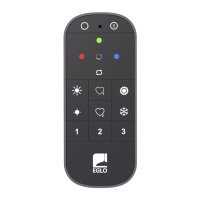
Remote Control Functions (Refer to Diagram A)

  1. ON Button: Turns the selected lights on.
  2. OFF Button: Turns the selected lights off.
  3. Color Selection: Allows users to choose specific colors (red, green, blue, etc.) for the lights.
  4. Brightness Control: Adjusts the intensity of the light. The sun icon with an upward arrow increases brightness, while the sun icon with a downward arrow decreases it.
  5. Light Effect Selection: Cycles through various pre-programmed light effects.
  6. Set as Favorite: Saves the current light settings (color, brightness, effect) as a favorite. Pressing the heart icon with a '1' saves to favorite 1, and the heart icon with a '2' saves to favorite 2.
  7. Tunable White Control: Adjusts the color temperature of the white light. This function is not available for dimmable-only lights.
  8. Zone Selection/Pairing: Selects the zone (1, 2, or 3) to control or initiates the pairing process for new lights.

Smartphone App Control (AwoX HomeControl)

  1. Download App: Download the "AwoX HomeControl" app from the App Store (for iOS devices) or Google Play (for Android devices).
  2. Add Product: Open the app and select the '+' icon to add a new product.
  3. Set Remote Control to Smartphone Mode: To allow the app to control the lights, the remote control needs to be set to "smartphone mode." This typically involves a specific button combination on the remote control (e.g., pressing the '1' button and the blue color button simultaneously for 3 seconds). This action links the remote control to the app, enabling synchronized control.
  4. Control via App: Once connected, the app provides a comprehensive interface for controlling all aspects of the EGLO-Connect-Z lights, including color, brightness, tunable white, and light effects. The app also allows for advanced features like scheduling and scene creation.

Resetting a Light

If a light needs to be reset (e.g., for re-pairing or troubleshooting), switch the light off and then on again. Within 3 seconds of turning it on, perform a specific action (e.g., rapidly toggle the power switch multiple times) until the light flashes, indicating a successful reset. A QR code is provided in the manual for further reset instructions or support.

Maintenance Features

The EGLO-Connect-Z system is designed for minimal maintenance, focusing on user convenience and product longevity.

  • Battery Replacement: The remote control requires periodic battery replacement. When the remote control's functionality diminishes, replace the AAA batteries, ensuring correct polarity.
  • Firmware Updates: The AwoX HomeControl app may offer firmware updates for the EGLO-Connect-Z devices. Regularly checking for and installing these updates ensures optimal performance, security, and access to new features.
  • Cleaning: The lights and remote control can be cleaned with a soft, dry cloth. Avoid using harsh chemicals or abrasive materials that could damage the surfaces.
  • Troubleshooting: In case of issues, refer to the online user guide available at www.eglo.com/fr/support-eglo-connect-z. This resource provides detailed troubleshooting steps and additional support information.
  • Environmental Compliance: The product complies with relevant environmental directives, including the RED directive 2014/53/EU. Users are encouraged to dispose of electronic waste responsibly, following local regulations. The product is marked with symbols indicating proper disposal procedures for electronic and battery waste.

The EGLO-Connect-Z system leverages Bluetooth/Zigbee 2.4GHz technology for reliable wireless communication, operating within a frequency range of 2400 to 2483.5 MHz. The maximum signal strength is between -9dBm and 9dBm, ensuring stable connectivity within typical home environments.

Eglo Connect-Z Specifications

General IconGeneral
BrandEglo
ModelConnect-Z
CategoryRemote Control
Power SourceBattery
CompatibilityEglo Connect-Z
Wireless TechnologyZigbee