3 Job setup
You need an alignment job to store alignment data.
1.
Create an alignment job.
2. Activate an alignment job.
3. Set the job parameters.
These steps are covered in detail in the topics that follow.
3.1 Create an alignment job
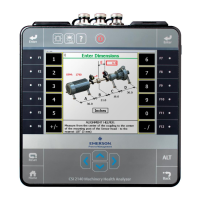
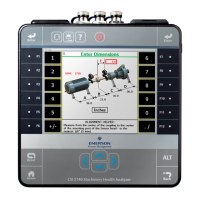
1. From the Laser Align Application main menu, press ALT > F9 Job Manager.
The Job Manager screen is displayed.
2. Press F1 Create New Job.
Optionally, you can enter more information about the job.
Option Description
F2 Edit Job ID Enter a unique ID to identify the job and press Enter.
F3 Edit Equip ID Enter the equipment ID to identify the machines being aligned and press
Enter.
F4 Edit Equip
Desc
Enter an equipment description to add additional information on the
machines being aligned and press Enter.
F5 Edit Area Enter an area description to identify the location of the machines being
aligned and press Enter.
F6 Edit Coupling
Number
Enter the coupling number and press Enter.
This option is useful when there is more than one coupling on the
machines being aligned.
F7 Set Mode Choose Horizontal as the alignment mode and press Enter.
F8 Edit User ID Enter the initials of the user performing the alignment job and press
Enter.
3. Press Enter.
You can save the alignment job for later or activate it to be able to store
alignment data.
4.
Press F9 Activate Job to activate the job you created.
3.2 Activate an alignment job
You need to activate an alignment job to store data to the job.
Quick Start Guide December 2018
16 AMS 2140 Advanced Laser Alignment Application


 To Next Page
 Loading...