5 Transfer alignment job data and tolerances
5.1 Transfer an alignment job to AMS Machinery Manager
Prerequisites
1.
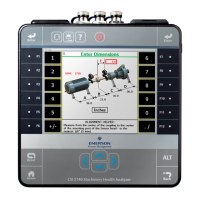
Connect the AMS 2140 to a PC with AMS Machinery Manager installed
and running.
2. Set the connection type on the AMS 2140.
3. Enable the AMS 2140 in Data Transfer.
4. Set the connection type in Data Transfer. The connection type on the
AMS 2140 and on Data Transfer must match.
Refer to the AMS 2140 Machinery Health Analyzer User Guide for more
information on setting the connection type on the AMS 2140 and on AMS
Machinery Manager Data Transfer.
Procedure
1. From the Laser Align Application main menu, press ALT > F9 Job Manager >
F7 Connect for Transfer.
2. Optionally, press F1 Set Storage Location to select the internal memory or
an SD memory card.
This option is available only if a memory card is inserted into the AMS
2140.
3. Press F8 Dump Data.
4. Press F8 or F9 to select the job you want to transfer and press F1 Select.
5. Press F7 Begin Data Dump.
6. Press F8 or F9 to select a database.
7. Press F10 or F11 to select an area within the database and press F4 Select
Area.
8. Press F8 or F9 to select an equipment within the area and press F7 Select.
This transfers the alignment job to the selected equipment within the
database. The status of the data transfer is then displayed on the AMS
2140.
5.2 Load an alignment job from AMS Machinery Manager
Prerequisites
1. Connect the AMS 2140 to a PC with AMS Machinery Manager installed
and running.
December 2018 Quick Start Guide
Quick Start Guide 33


 To Next Page
 Loading...