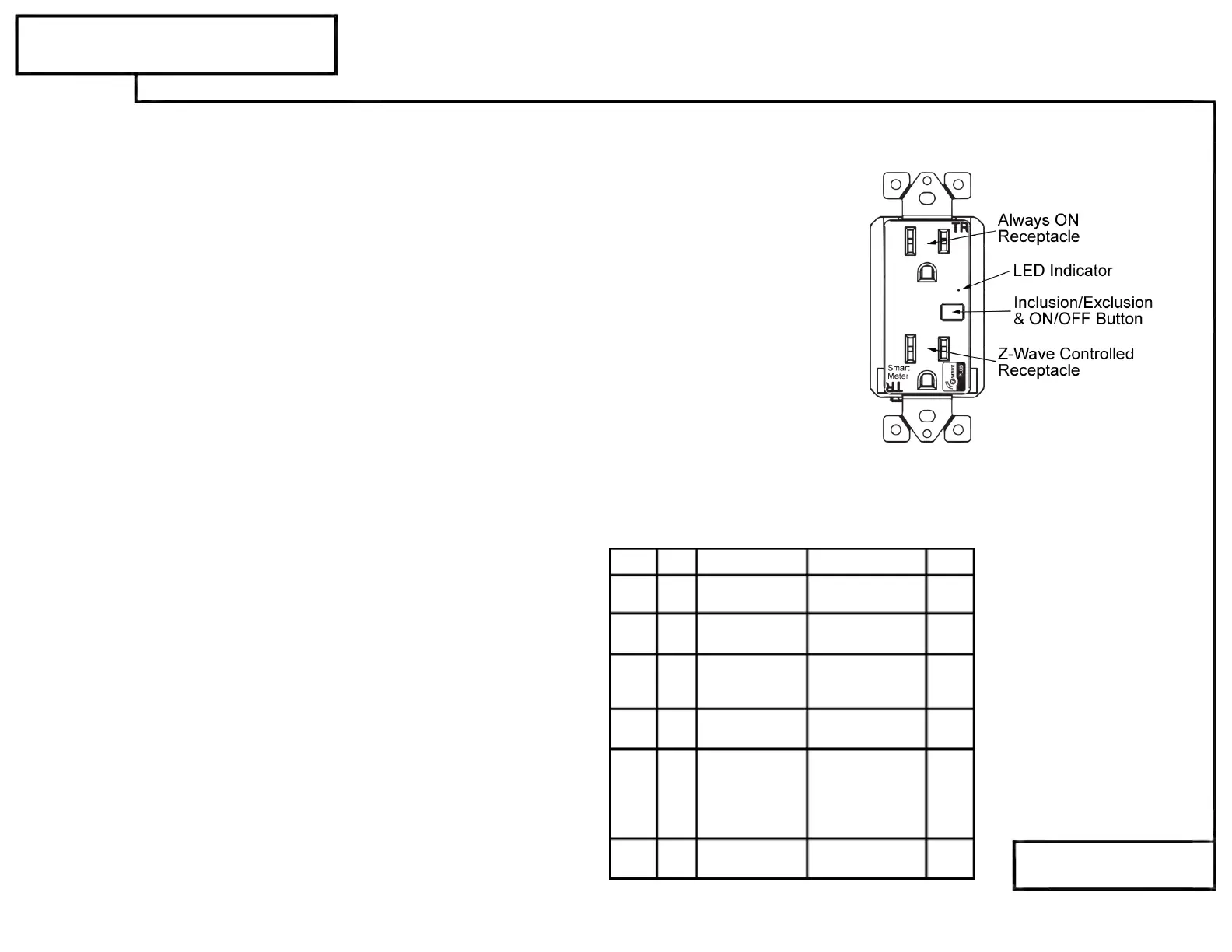
• During the Inclusion/ Exclusion process, the manual ON/OFF button is used for including/ excluding the device.
• It is best to perform an Exclusion of the device prior to performing an Inclusion.
Step 1. From the Control Panel, go the the device Exclusion page.
Step 3. Follow the On-Screen instructions in the Control Panel on adding or
removing rooms, scenes, other devices, and other functions and features.
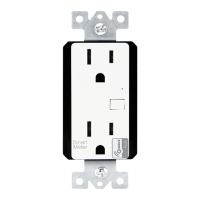
OPERATING THE ZW15RM-Plus
You're now ready for basic operation of the ZW15RM-Plus. The manual button turns the controlled receptacle (bottom) ON/OFF
when the button is pressed once. It can also be operated from your desktop on the control panel provided on the Hub manufacturer's
website.or a smart device such as the iPhone, iPad or any Android device once the appropriate App is installed on the device.
-
Push button will respond to ALL-ON and the ALL-OFF command (default).
-
Push button will not respond to ALL-ON or ALL-OFF commands.
-
Push button will respond to the ALL-OFF command but will not respond to the ALL-ON command.
-
Push button will respond to the ALL-ON command but will not respond to the ALL-OFF command.
Configuration details
•
•
Parameter 1 (configure LED light state ), default value is 0. Valid
values are 0 and 1 with 1 byte.
Parameter 2 (configure button toggle), default value is 0. Valid
values are 0 and 1 with 1 byte.
PROGRAMMING
ZW15RM-Plus
DEVICE INCLUSION/ EXCLUSION
The process of "Inclusion/ Exclusion" is to Add or Remove the device from the Hub. All Z-Wave devices must be "Included" on the Controller (Hub) before it can
be controlled from a smart device. The Hub should be brought physically closer to the device just for the "Inclusion" process (recommended within 10ft). When
finished, the Hub and device can be moved back to final installation location. Download the App or log onto the website associated with the Hub you are using
and follow their Inclusion/ Exclusion instructions as each Hub's programming and features are different.
ADVANCED PROGRAMMING
WARNING: Advanced programming is recommended ONLY for experienced programmers. The ZW15RM-Plus has customizable features/functions
that require writing codes. Changes to code may cause device to function improperly or to not function at all.
The following parameters require that you have an advanced controller. Basic remotes do not have this capability.
LED Light and Buttons Configuration
By default, one press of the manual button will turn the Load on and the LED indicator will turn off. Use
"Command_Class_Configuration" to configure the LED indicator to operate in reverse when the button is pressed.
o Select "Exclude Device".
o When prompted, press the manual ON/OFF Button on the receptacle.
Step 2. Go to the "Add Device" page.
o Select "Include Device".
o When prompted, press the manual ON/OFF Button on the receptacle.
The primary controller should indicate that the action was successful. If the controller indicates the action was unsuccessful, please
repeat from Step 1. Once the receptacle is part of the network, the same basic procedure is used to add the switch to groups &
scenes or change advanced functions. Refer to the primary controller’s instructions for details.
Parameter
Size
Description
Valid Value
8
1 Byte
Default=0
9
1 Byte
Default=0
10
1 Byte
Default=0
11
1 Byte
1: Send
12
1 Byte
Default=10
0: Not report
(METER_REPORT) only
Default
1-
1-
255: 1-255 Min
255: 1-255 Min
0: not send
0: not send
Default=1
2: Send
(SENSOR_MULTI
LEVEL_REPORT) only
3: Send both
(METER_
(SENSOR_
REPORT)
NO.
Instant Energy Autosend
Interval
(send METER_REPORT)
Instant Energy Autosend
Interval
(send
SENSOR_
MULTILEVEL_REPORT)
Accumulated Energy
Autosend Interval report
(send METER_REPORT)
REPORT) and
MULTILEVEL_
Value
0-255: 0.0-25.5W
1-255: 1-255 Min
0: not send
1-255: 1-255 Min
0: not send
Minimum change in
wattage report
Enable automatic
notifications to
associated device
whenever there
is a wattage change
1
1 Byte
Default=0
synchronization of load
power and LED indicator
0: Power on, LED off
1: Power on, LED on
All-ON and All-OFF
Depending upon your primary controller, the ZW15RM-Plus can be set to respond to ALL-ON and ALL-OFF commands in four
different ways. Some controllers may not be able to change the response from its default setting. Please refer to your
controller’s instructions or technical support for information on whether or not it supports the configuration function and if so, how
to change this setting. The four possible responses for the manual ON/OFF button are:


 To Previous Page
 Loading...