33 34
Level Of Difficulty Level Of Difficulty
Procedure:
1. Find the instructions in pages 53-55 and
build the jeep car robot model.
2. Make sure you connect all
cables correctly. The touch
sensor must be connected
in port 3 of the ERP controller.
3. Open the ERP software and follow the
instructions in exercise 1. You can
use a function block to save the
subprogram of moving forward.
Once finished, send the program
to the ERP and test it. Save it as
“jeep forward”.
4. Add the necessary blocks on the program
you just made in order to create the program
of exercise 2. Save it as “jeep forward-turn”.
5. What happens if the model finds another
obstacle in its path? Follow the instructions of
exercises 3 and 4 to learn about the touch
sensor and the IF statement. Use this to
program your model, so that it reacts in every
obstacle it finds accordingly. Save the
program as “jeep touch-IF”
6. Create a more challenging program
with the if/else statement in
exercise 5.
Materials Needed:
®
- Engino Robotics PRO (STEM70).
- Computer with ERP software installed.
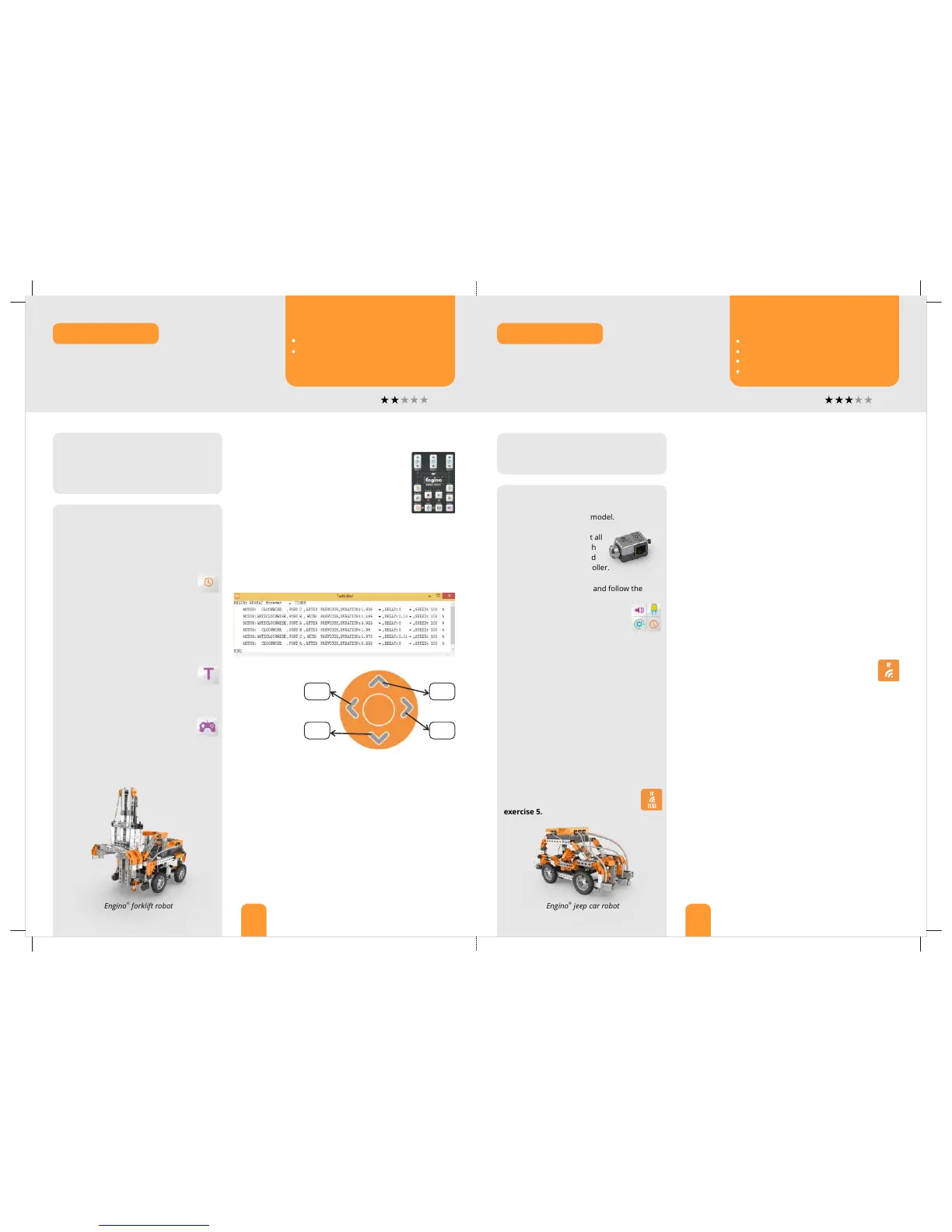
Procedure:
1. Find the instructions in pages 48-52 and
build the forklift robot model with its load.
Put motors’ switches in position II.
2. The ERP can connect wirelessly with
a smart device. To enable this feature,
push idle time button, find the ERP’s
Bluetooth network through the
EnginoRobot BT app and connect.
3. You can use the app the same way as the
actual device. Test the digital buttons and
program your model according to exercise 1.
4. Upload the program on the
software of the computer (through
USB). Follow instructions in exercise 2
about the “TextEditor” window.
5. Click on the “GamePad” button
and choose ports A-B on the pop-up
window. Click to test the arrows and
answer exercises 3 and 4.
6. Use the GamePad and the Simulator to
record the sequence described in exercise 5.
Materials Needed:
®
- Engino Robotics PRO (STEM70).
- Computer with ERP software installed.
- Smart device with Android or iOs operating
system and the EnginoRobot BT app installed.
Exercise 4. How the model turns (refer to the wheels’ direction)?
Exercise 2. Use your mouse and keyboard in order to make
necessary changes on different variables inside the TextEditor
(speed, duration, direction of motion and delay), so that the
forklift model executes its work more accurately. Circle the
changes you have made on the picture below.
Exercise 5. With the help of the GamePad and the Simulator
record the following sequence:
Ÿ the forklift robot moves forward and then turns to the right;
Ÿ the forklift robot moves forward until it finds the load;
Ÿ the teeth lift the load;
Ÿ the forklift robot turns to the left;
Ÿ the teeth lower the load.
..........................................................................................................
..........................................................................................................
..........................................................................................................
Exercise 3. Do the
wheels rotate in
the same direction
when each of the
4 arrows are
pressed? Write
YES or NO in the
boxes.
Exercise 1. On your smart device record the following
sequence:
Ÿ the forklift robot moves forward;
Ÿ the teeth lift the load;
Ÿ the forklift moves backwards;
Ÿ the teeth lower the load.
Tips: to move forward and backwards you should
tap on two motor buttons at the same time. Test
which is the correct direction for each one.
®
Engino forklift robot
®
Engino jeep car robot
®
There are many ways to control your Engino robots. One of
them is through the EnginoRobot application for smart devices
®
with a wireless Bluetooth connection. Try also the Engino
GamePad within the software and notice the difference between
manual button control and digital programming.
Decision making is what distinguishes a real robot from an
automated machine. This task is made possible by sensors which
receive feedback from the environment helping the robot to
decide what action to follow according to its program. Learn
about the touch sensor and the IF conditional statement below.
EnginoRobot app and GamePad
Learning about:
ROBOTICS
Functions, touch sensor, IF and IF/ELSE statements
ROBOTICS
Learning about:
How to control your robot wirelessly.
Why controlling your robot using digital
programming is usually better than manual
programming.
How to use functions.
How to use a touch sensor.
What an IF conditional statement is.
What an IF/ELSE conditional statement is.
Exercise 1. On the computer, place the correct icons on the
ERP simulator according to the jeep car robot model. Drag and
drop the necessary blocks inside the flow diagram in order to
create the following program:
Ÿ the jeep moves forward for 3 seconds and the front LED lights
are both on at the same time.
Tip: use a “function” block to save the subprogram “move
forward”. Use the after/with previous command accordingly
and set the program to activate only once.
Exercise 2. Place an obstacle in front of the jeep car robot.
Make the necessary changes on the program of exercise
1 above so that:
Ÿ the jeep moves forward for 3 seconds and the front LED lights
are both on at the same time until it gets close to the obstacle;
Ÿ the jeep moves backwards for 1 second with all lights on;
Ÿ the jeep turns 90 degrees to the right with front LED lights on.
Tip: in order for the jeep to turn, you can either set the wheels
to turn in reverse or stop one wheel from moving altogether.
Also, conduct several tests to adjust the appropriate time
needed to turn.
Exercise 3. Drag and drop the IF statement block in the
flow diagram. Right-click on it and write below which
variables can be modified (ignore “advanced” tab).
.......................................................................................................
.......................................................................................................
Exercise 4. Use blocks inside the IF statement so that:
Ÿ the jeep moves forward continuously and the front LED lights
are both on at the same time;
Ÿ if the touch sensor is pushed, then the jeep should go
backwards for 1 second with all lights on and turn 90 degrees
to the right with front LED lights on.
Tip: place the blocks that you used in exercise 2 inside the If
statement and change the program so that it repeats forever.
Exercise 5. Drop the blocks inside the IF/ELSE statement so:
Ÿ the jeep moves forward continuously and the front LED lights
are both on at the same time;
Ÿ if the touch sensor is pushed, then it should go backwards for 1
second with all lights on and turn 90 degrees to the right with
front lights on. Else an interrupted beep should sound.
Discover:Discover: Discover:


 To Next Page
 Loading...