6 7
Operating instructions
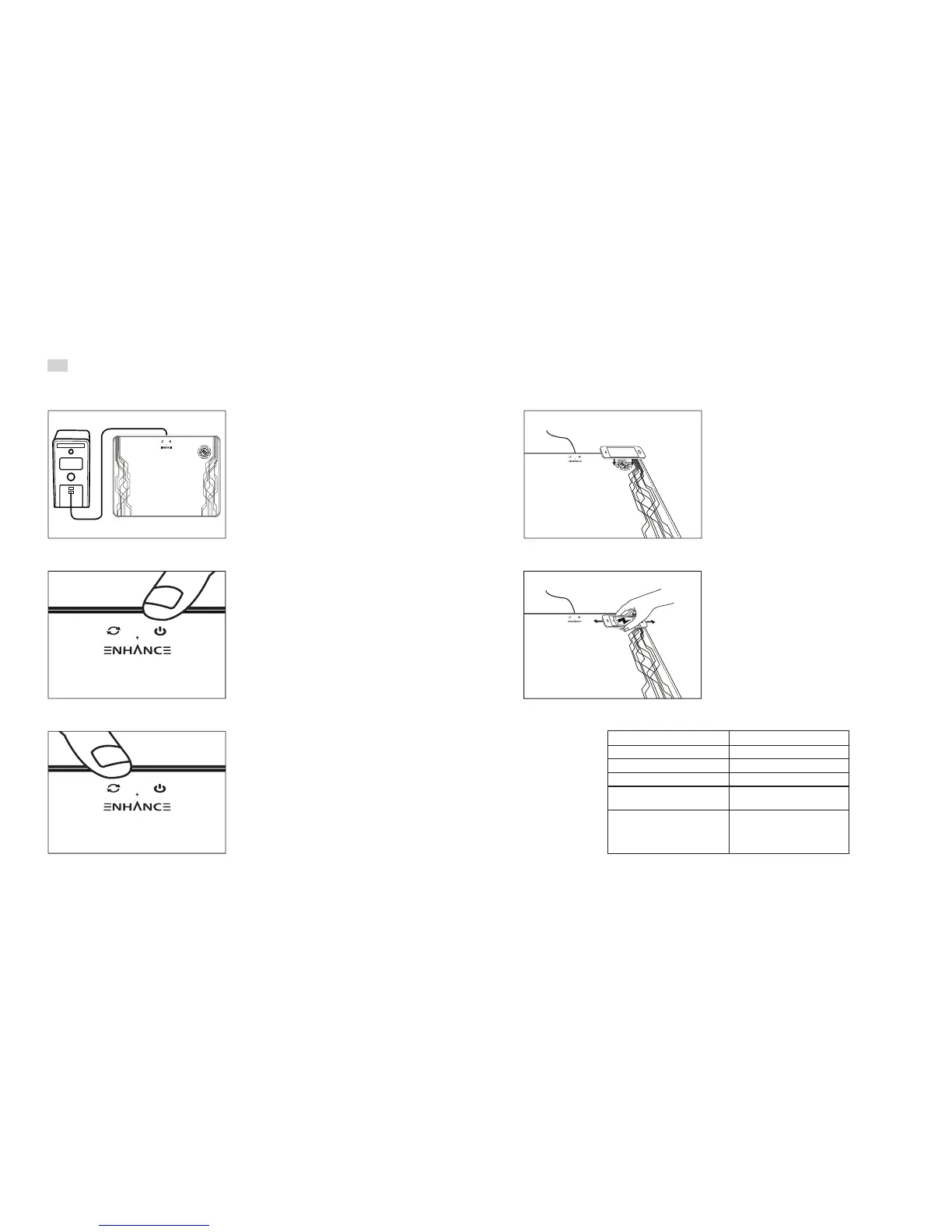
For optimum charging, use the included USB cable.
Insert Micro USB connector into mouse pad. Insert
USB connector into computer’s USB port or your
smart phone’s AC adapter. The status indicator will
turn Blue.
Supports fast charging of compatible devices when
used with a fast charging AC adapter (not included).
To charge, place the device on the wireless
charging zone.
Magnetic mounts, cases, or other objects between
your device and the charger may interfere
with charging.
EN
Charging status indicator color Status
Blue Standby
Red Charging
Green Charging complete
Red blinking Non-compatible object on charger.
Remove object or reposition device.
Green and red blinking 1.Device is transitioning from Red to Green
(full) state. Remove device if continues
to blink
2. Power source is less than 5V
Press the power button to turn On the LED. Hold
power button down for 3 seconds to turn Off
the LED.
Press the power button to select a brightness level.
Press the arrow button to select a color mode.
Adjust the device’s position on the charging zone
until the charging status indicator turns Red.
Wireless charging uses magnetic induction to
charge. Keep magnetic products such as bank cards
and key fobs away from the wireless charger.


 To Next Page
 Loading...