EN
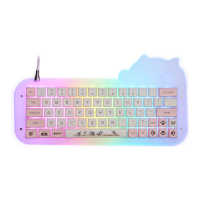
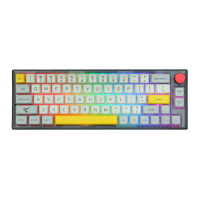
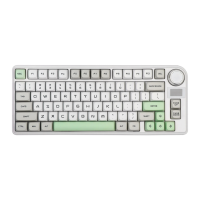
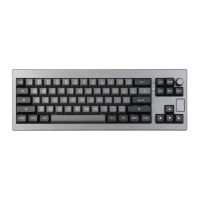
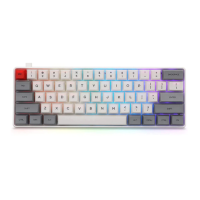
CASE MATERIAL STACKED ACRYLIC
HOT-SWAP SUPPORTS 3/5 PIN SWITCHES
BACKLIGHT RGB
NUMBER OF KEYS 64 KEYS
COMPATIBILITY WINDOWS/MAC
PRODUCT WEIGHT 550G±50G
CONNECTION USB-C
PRODUCT DIMENSIONS 325 * 175 (Max.) - 125(Min.) * 30mm (±20mm)
P R ODU C T SPE CIFIC A TIONS
To be able to customize your key layouts, RGB, macros,
and other functions in your Mini Cat 64 you can use the
VIA Software with the use of a JSON File.
1. Unzip the file to find the .exe and .json files.
2. Install the .exe file in your computer.
3. Run the VIA software once installed.
4. Import the JSON file to be able to edit the Mini Cat 64 settings inside VIA.
Instructions to install on Windows:
1. Unzip the file to find the .exe and .json files.
2. Unpack the .dmg file
3. Drag the VIA software to your applications folder to install it.
4. Authorize the VIA software in: System Preferences > Security & Privacy.
5. Import the JSON file to be able to edit the Mini Cat 64 settings inside VIA.
Instructions to install on macOS:
Download the Software at: https://epomaker.com/products/epomaker-mini-cat-64
1. Unplug the cable of the keyboard.
2. Press the ESC and hold it.
3. Plug in the cable to connect the computer and keyboard, do NOT release the ESC key until the
cable is plugged into both computer and the keyboard.
4. Release the ESC key
5. Wait until the computer completes the setup for USB, now the keyboard won’t respond to the
key pressing, and a window of USB folder might pop up on the screen.
6. Eject the USB from the computer.
7. Re-plug the cable to connect the keyboard with the computer.
8. Wait a few seconds until the backlights are on.
F A C T O R Y RESET
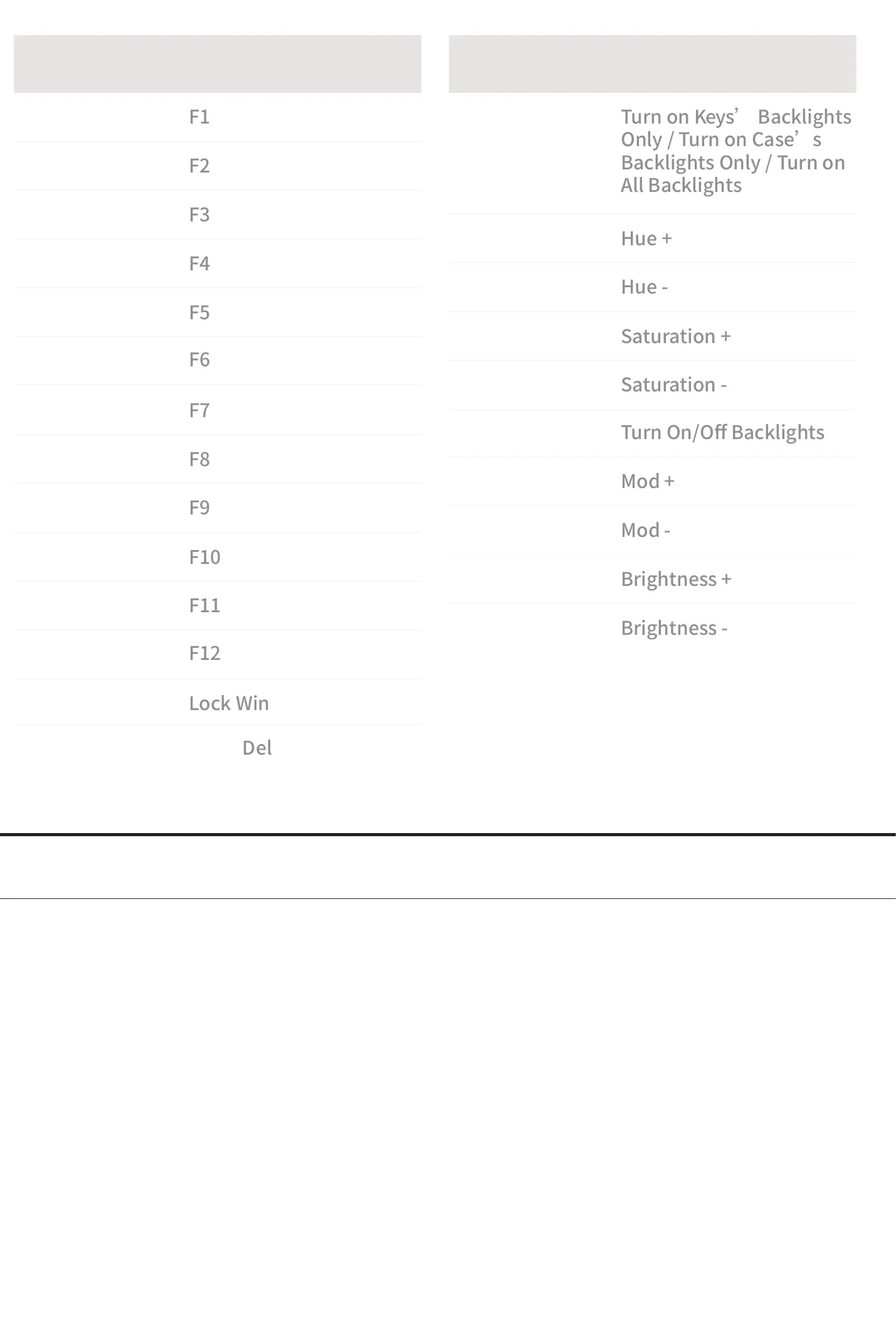
S H O RTCUT S
FN + 1
1. Unzip the file to find the .exe and .json files.
2. Install the .exe file in your computer.
3. Run the VIA software once installed.
4. Import the JSON file to be able to edit the Mini Cat 64 settings inside VIA.
1. Unzip the file to find the .exe and .json files.
2. Unpack the .dmg file
3. Drag the VIA software to your applications folder to install it.
4. Authorize the VIA software in: System Preferences > Security & Privacy.
5. Import the JSON file to be able to edit the Mini Cat 64 settings inside VIA.


 To Next Page
 Loading...