Key
Combination
FN + ESC
FN + F1
FN + F2
FN + F3
FN + F4
FN + F5
FN + F6
FN + F7
FN + F8
FN + F9
FN + Q
FN + W
Win+tab
Ctrl+
Exhale siri
win+E
Mail
Homepage
Previous song
FN + E
FN + R
FN + WIN
FN + BackSpace
FN +
FN +
FN +
FN +
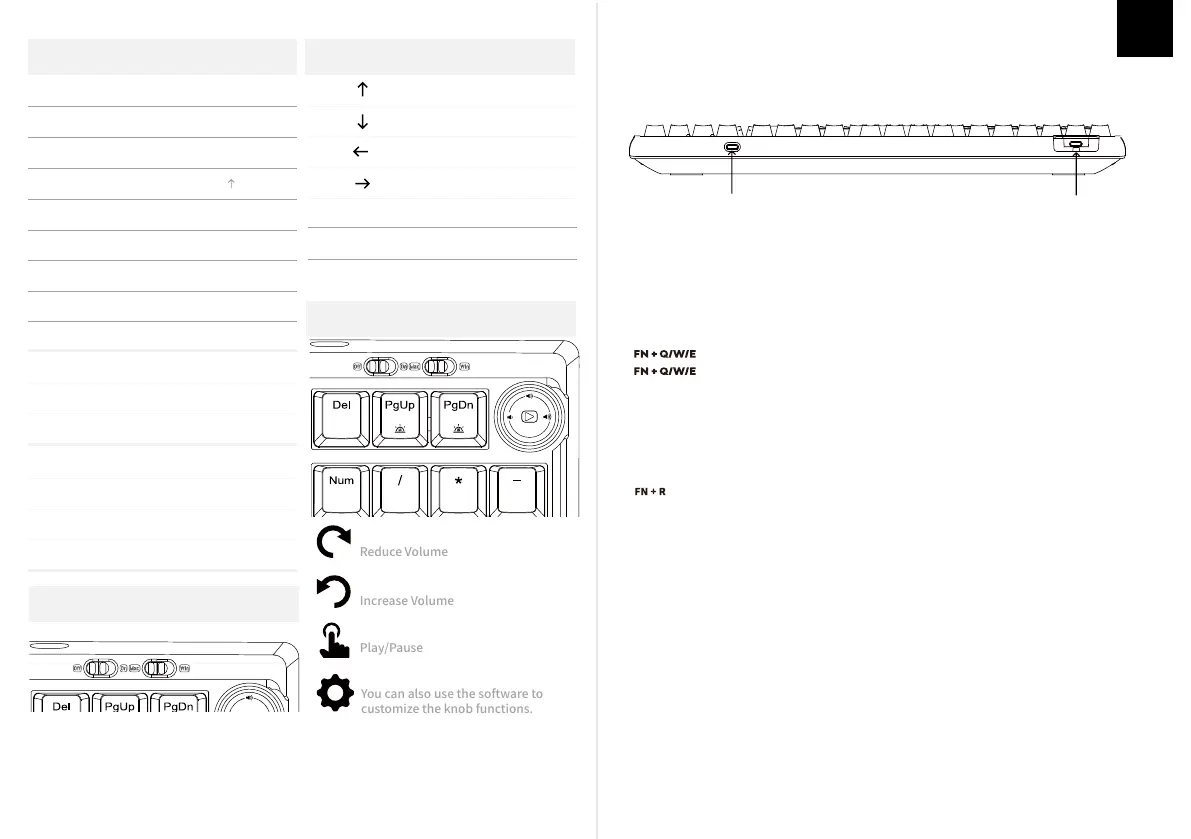
Power switch
Mode switch
OFF power off (wired con
nection)/ON power on
(wireless mode)
FN + DEL
FN + PGUP
FN + PGDN
Use the connection mode switch on the top of the keyboard.
OFF means to turn off the power supply. At this time, inserting the cable can realize
Wired connection mode and timely charging.
ON means to turn on the power and enter the wireless working mode.
.
Switch to 2.4G wireless connection mode
Urn the keyboard power switch to ON, turn on the wireless connection mode, and long
Press FN+R to turn on the 2.4G pairing mode. The indicator light will flash quickly, and
Insert the receiver to start pairing. After the pairing is successful, the prompt light will
Stay on and follow the light effect of the primary key area. If pairing fails within 30 seconds,
The indicator light goes out and the keyboard enters the sleep mode.
urn the keyboard power switch to OFF to enter the wired connection mode, and use a
USB-C wire to connect the keyboard to your device.
If you need to switch the system or change the connection device of the keyboard, please
Adjust the top mode switch of the keyboard to the operating system corresponding to the
Computer. The left side is Mac mode, and the right side is Win mode. Otherwise, some shortcut
Keys may not work properly.
Brightness+
Brightness+
Brightness-
Press and hold for 3s to
Restore factory settings
Brightness-
Previous song
Play/Pause
Play/Pause
Next song Next song
Backlight
Settings
Main backlight effect
switching
Backlight Brightness + Backlight Brightness +
Backlight Brightness - Backlight Brightness -
Backlight Effect Speed - Backlight Effect Speed -
Backlight Effect Speed + Backlight Effect Speed +
KNOB MODE
SWITCH PROMPT
Left mac mode/right win
mode
Toggle monochrome
lights
Toggle monochrome
lights
Battery Save Mode
(all lights and TV display off)
Battery Save Mode
(all lights and TV display off)
Short press to switch
Bluetooth 1, long press
Bluetooth Q to pair
Short press to switch
Bluetooth 1Long press
Bluetooth Q to pair
Short press to switch
Bluetooth 2Long press
Bluetooth W to pair
Short press to switch
Bluetooth 2Long press
Bluetooth W to pair
Short press to switch
Bluetooth 3Long press
Bluetooth EW to pair
Short press to switch
Bluetooth 3Long press
Bluetooth EW to pair
Lock win key
Short press to switch
2.4G, long press R
To pair
Query power
(battery power
is available in
wireless mode)
Lock win key
WIRED OR WIRELESS
Short Press to switch to last paired device
Long Press for 3 seconds to pair Bluetooth device
Turn the keyboard power switch to ON to enable wireless connection mode.
Long press FN+Q/W/E to start pairing. When pairing, the indicator light flashes quickly.
After pairing is successful, the indicator light stays on for a long time, followed by the
Main backlight. If pairing fails within 30 seconds, the indicator light goes out and the
Keyboard enters the sleep mode.
PAIRING BLUETOOTH
2.4G PAIRING MODE
TURN CLOCKWISE
TURN COUNTER CLOCKWISE
PRESS KNOB
CUSTOM FUNCTIONS
You can also use the software to
customize the knob functions.
PAIRING WIRED MODE
KEYYBOARD WAKE UP/SLEEP
MODE SWITCHING
After the keyboard enters the sleep mode, press any key to wake the keyboard. If you are in
Bluetooth/2.4G mode, the keyboard will automatically connect to a Bluetooth/2.4g device.
Win Function Mac Function
Win Function Mac Function
Press and hold for 3s to
Restore factory settings
Short press to switch
2.4G, long press R
To pair
Query power
(battery power
is available in
wireless mode)
Main backlight effect
switching
OFF power off (wired con
nection)/ON power on
(wireless mode)
Left mac mode/right win
mode
USB-Type-C Type-c HUB
Pressing Fn + Del at the same time allows you to switch the RGB effect of
EN


 To Next Page
 Loading...