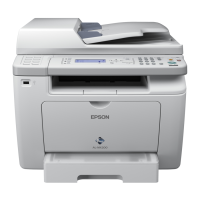
EPSON AcuLaser CX11/CX11F Revision B
ADJUSTMENT Printer Section 535
5.2.2.1 Controller Firmware Update
The procedure to update the controller firmware is given in the following table.
Table 5-3. Controller Firmware Update
Procedure
Method 1 Method 2
(RCC) (CRB) LCD Panel
1
Check the current
version.
Print a status sheet, and check the current firmware version. Print a status sheet, and check the current firmware version.
---
2
Connect the printer with
the computer.
Connect the printer to the computer with a USB cable.
Confirm that the “Ready” is displayed on the LCD.
After turning the power off for both the printer and computer,
connect them with a USB cable.
Before connecting the USB cable, make sure to
disconnect other interface cables from the
product.
---
3 Prepare the update data.
Turn the computer on and copy the program update file (the
extension is RCC) onto the computer.
Turn the computer on and copy the program update file (the
extension is CRB) onto the computer.
---
4 Start up the Printer. ---
Turn the product ON while holding down the [Color Start],
[Reset], and [Down] buttons.The product will start up in
“Program ROM update” mode.
5 Prepare to send the data.
Start up the Firmware Update Tool.Specify the port and the
program update file on the selection window of the tool.
Start up the Firmware Update Tool.Specify the port and the
program update file on the selection window of the tool.
---
6 Transmit the data.
Click [Send] on the Firmware Update Tool screen.
Click [Send] on the Firmware Update Tool screen.
C A U T I O N
Program Device
Version XX.XX
Please Send Data
Program Device
Version XX.XX
OLD: XXXX NEW: XXXX



 To Next Page
 Loading...