Display
The display shows the current settings and characters
you have entered.
You can change the language shown on the setting
screen and menu.
"Language" of "Changing the LW-PX900 Settings"
2. Installing a tape cartridge
CAUTION
•Make sure that the power is turned o.
•You cannot use tape other than PX-tape.
•Make sure the top cover is closed rmly.
•If you opened the top cover while a tape cartridge is
installed, check that the tape end is put into the tape
eject slot before beginning operation.
•Take care to keep the label for detecting the tape
cartridge and the sensor of LW-PX900 clean.
Otherwise, tape may no longer be detected correctly.
•Do not touch the sensor directly with your ngers.
Label for detection
Sensor
6. Attaching label
7. Turning the Power O
1. Press .
The characters you have entered in
the current session are stored even
after LW-PX900 is turned o. They are
displayed when it is turned on again.
2. Open the battery cover and then
remove the Li-ion battery.
If the AC adapter is connected,
disconnect the AC adapter from
LW-PX900.
1. Peel o the backing paper.
2. Attach the label and
rub it rmly.
CAUTION
Turn o the LW-PX900 and remove the batteries before cleaning.
If the AC adapter is connected, disconnect the AC adapter cable from
LW-PX900.
Exterior
Wipe the dirt o with a soft cloth.
If it is very dirty, use a cloth wrung out of water.
CAUTION
Never use chemicals or solvents such as benzine, thinner, or alcohol, or
use a chemical duster.
Printhead
Clean the printhead with a cotton swab.
Initialize the settings if LW-PX900 does not operate normally such
as the display is interrupted.
Attention
This function initializes the settings. Take extreme care before initializing
it. All the created text will be lost and the settings you made will be reset.
1. If the power is on, press to turn it o.
2. Press and hold
+ , and press .
3. When a message appears, press
.
The settings will be initialized.
MEMO
To cancel initialization, press a key other than .
1. Installing the Li-ion battery
Before using the printer for the rst time, charge
the Li-ion battery (C52CE97010). Read also the
safety precautions for the rechargeable battery
described previously in this manual.
For details on the handling of Li-ion battery, see
"Li-ion Battery Instruction Manual".
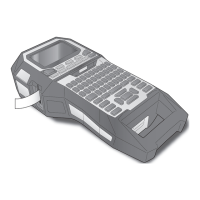
1. Feeds and then cuts the tape.
2. Tape eject slot
3. Prints a label.
+ : Prints with a special print function.
4. Creates a general label.
5. Character keys
6. Shift
7. Enters a character with an accent.
8. Changes the input method of the character keys.
+ : Caps Lock
9. Creates a label with a sequence number.
10. Creates a barcode label.
11. Enters a symbol.
12. Cursor keys
13. Conrms the settings.
14. Adds a block.
15. Sets the margins.
16. Sets the tape length.
+ : Changes the text orientation.
17. Sets the format and style.
18. Changes the font size.
+ : Changes the font type.
19. Space
20. Creates a special label.
21. Delete
22. Turns LW-PX900 on and o.
23. Previews the created label.
+ : Sets LW-PX900.
24. Saves and recalls the label.
25. Display
1. Form name
2. Set tape width and length
The unit can be switched between inch and cm.
"inch:cm" of "Changing the LW-PX900
Settings"
3. Symbol input mode
4. Caps Lock ON
5. Block number
6. Row number
7. Cursor
8. Color of text to be printed
9. Set tape color
10. Remaining battery level
11. Font size
12. Label cut method
13. Set tape type
Start Here
Cleaning
Initializing the Settings
Part Names and Functions
3. Turning the power on
1. Press .
Auto power-o
If there is no key operation within ve minutes, LW-PX900
automatically turns o. (The characters you have entered in
the current session are stored.) Furthermore, if there is no key
operation within an hour while connected to a computer,
LW-PX900 automatically turns o.
Feeding the tape
CAUTION
Be sure to feed the tape every time after you install a
tape cartridge.
1. Press .
2. Select a function with
/ and then
press .
Tape feed
Feeds the tape.
Feed and cut
Feeds the tape and then cuts the tape.
5. Printing label
1. Press .
Setting the label auto cut to O
"Auto cut" of "Changing the LW-PX900 Settings"
Printing with special print functions
"Utilizing Print Functions"
Checking the print image
1. Press
.
The print image scrolls on the entire screen.
When the preview ends, the editing screen reappears.
CAUTION
•Do not insert your ngers into the tape eject slot.
•Do not pull the tape until the printing is completed.
Attention
•"Insert tape" will appear on the display if the tape
cartridge is not loaded or not correctly set.
•Length of the label shown on the display is a guide
and may not match the length of the printed label
exactly.
•Label over 16m in length cannot be printed.
MEMO
•To cancel the printing, press .
•Depending on your margin setting or the label type,
tape may be fed and cut before printing.
CAUTION
Depending on the environment where you use labels
and the nature of the adherend surface, the labels may
be peeled or discoloured, and the adhesive may
remain on or damage the adherend surface. Be sure to
check the environment and the nature of the adherend
surface before use. K-Sun takes no responsibility for
any damage or loss due to the above mentioned
causes.
CAUTION
•"Powering o." is displayed while turning o this
product. Do not remove the Li-ion battery or
disconnect the AC adapter until this message
disappears.
•When you don't use the product for a long period
of time, remove the batteries (Li-ion battery or
alkaline batteries), disconnect the AC adapter, and
remove the tape cartridge from LW-PX900.
Connecting the AC adapter
Connect the AC adapter as shown below.
Using Label Editor Professional
Label Editor Professional is an application software for
editing label.
When this software is installed on your computer, you
can transfer the created label data to LW-PX900.
For how to install and operate the software, see
"Label Editor Professional User's Guide".
1. Connect the USB cable to LW-PX900.
2. Connect the other connector of the USB cable to
the computer.
MEMO
For how to transfer label data, see LW-PX900 Instruction
Manual (PDF) which can be downloaded from
www.K-Sun.com.
Charging the Li-ion battery
You can charge the dedicated Li-ion battery (C52CE97010) with
LW-PX900.
To charge the battery, connect the AC adapter to LW-PX900
with the Li-ion battery installed.
Charging error
Charging completed
Charging
Charge LED
MEMO
• The Li-ion battery cannot be charged while printing.
• When the power of the charged Li-ion battery seems to run out
quickly, replace it with new ones.
• There is likely to be a charging error or battery error in the
following cases. Contact K-Sun customer support center.
- The charge LED ashes during charging.
- New Li-ion battery takes signicantly longer to charge than the
estimated charging time (less than 3 hours).
Using alkaline batteries
You can use alkaline batteries instead of Li-ion battery. When
using alkaline batteries, install them in the correct orientation.
WARNING
Be sure to use the dedicated Li-ion battery (C52CE97010) . Using a battery
other than the one specied may cause re, explosion, leakage, overheating
or ohter damage.
CAUTION
When disposing of used batteries, make sure to follow the regulations.
1. Open the battery cover.
2. Install the Li-ion battery in the
correct orientation.
3. Close the battery cover.
1. Rewind the ink ribbon.
Use a pen
or a pencil.
2. Open the top cover.
Top cover
3. Install a tape cartridge.
Put the tape end
into the tape eject
slot.
4. Close the top cover.
4. Entering text
1. Press + .
2. Press
.
3. Press
.
A list of characters appears.
4. Select a character with
/ and
press .
"â" is entered.
5. Press keys:
, ,
"Câble" appears on the screen.
6. Press
+ .
"#" is entered.
7. Press keys:
, ,
Save the created label: "Saving Frequently Used Labels"
Change the font:
"Changing the Font"
Change the font size:
"Changing the Font Size"
Deleting text
1. Press .
A character is deleted backward.
Deleting all text
1. Press
+ .
2. Select a function with
/ and
then press .
Text Only
Deletes all text.
Text &Setting
Deletes all text and restores the font size and
other settings to the initial settings.
All Format
Deletes all text and displays the General editing
screen. Depending on the label type you create,
"All Format" may not be displayed.


 To Previous Page
 Loading...