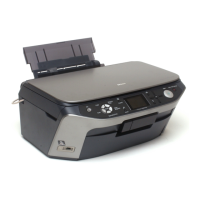
EPSON Stylus PHOTO RX640/650 Revision A
Troubleshooting Troubleshooting When There is Error Display 21
3.2 Troubleshooting When There is Error Display
3.2.1 Error List
Table 3-1. Error List
Error Name Occurrence Condition Displayed Message Recovery Procedure
Message related to Ink (1)
The ink exchange was executed with the ink cartridge
fixation cover open.
The ink cartridge cover is not closed.
Open the scanner unit and close the ink cartridge cover.
Press OK to continue.
Guide Display “ OK: Continue ”
Close the ink cartridge fixation cover
and press the OK Button.
Message related to Ink (2)
The ink cartridges have not been inserted or defective ink
cartridges have been inserted.
Ink cartridges cannot be recognized.
Make sure the ink cartridges are correctly installed.
Press OK to continue.
Guide Display “ OK: Continue ”
Install the normal ink cartridges
correctly and press the OK button.
Message related to Ink (3)
The ink cartridge had not been inserted at an initial filling
or the ink cartridge error occurred.
Ink cartridges cannot be recognized.
Make sure the ink cartridges are correctly installed.
Press OK to continue.
Guide Display “OK: Continue ”
Install the normal ink cartridges
correctly and press the OK button.
Message related to Ink (4) Ink end.
[Color icons]
Ink out.
Press the OK button to replace the cartridges.
Guide Display “ OK: Continue ”
Install the normal ink cartridges filled
with ink correctly and press the OK
button.
Scanner FATAL Error
An error that cannot be recovered on the scanner side
occurred.
A scanner error has occurred.
Please see your manual.
Guide Display “<Power Button>: Turn off ”
Turn off the power.
Paper Jam Error A paper jam has occurred.
Paper or CD/DVD jam or feed error.
Press the Start button.
If the error does not clear, reinsert the paper or CD/DVD and press
the Start Button.
Guide Display “<Start Button>: Start”
Remove the paper.
Paper Empty Error There is no paper in the sheet feeder.
Paper out.
Load paper and press the Start button.
Guide Display “<Start Button>: Start”
Press the “Start” button to load paper
correctly.
Paper detect error
A sheet was loaded in a wrong orientation and caused a
jam.
Paper jam.
Load paper and press the Start button.
If the error does not clear, repeat the procedure.
Guide Display “<Start Button>: Start”
Follow the displayed message until the
sheet loaded in a wrong orientation is
ejected.



 To Next Page
 Loading...