B
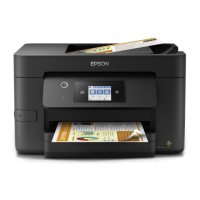
Turn on the MFD.
C
On a computer, open your web browser, and then open the MFD's Web Config by entering "http://
<epson-device-IP>".
D
Select Epson Open Platform Settings - Product key.
E
Open the CSV file that contains the license issued for Epson Open Platform, and then copy the product key that
is paired with the serial number.
F
Paste the key in Enter product key.
G
Click OK.
The completion menu is displayed.
If an error message is displayed, check that the product key you entered is correct.
Checking the Epson Open Platform version
You can check the firmware version for the updated Epson Open Platform.
A
On a computer, open your web browser, and then open the MFD's Web Config by entering "http://
<epson-device-IP>".
B
Select Epson Open Platform Settings - Product key.
C
Make sure the product key has been entered in Enter product key.
If it is entered, Epson Open Platform is enabled.
Hardware Setup Guide
2. Setting Up Epson Open Platform
12



 To Next Page
 Loading...